Mountain outdoor travel Template


Edit Template Offline
2. Create new page and search for id 70259
Edit Template Online
Create Awesome Websites


Free Nicepage Builder
Keywords
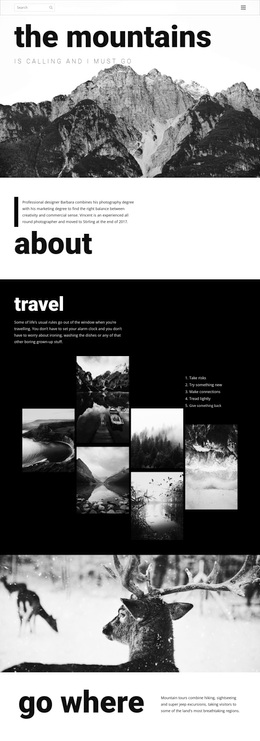
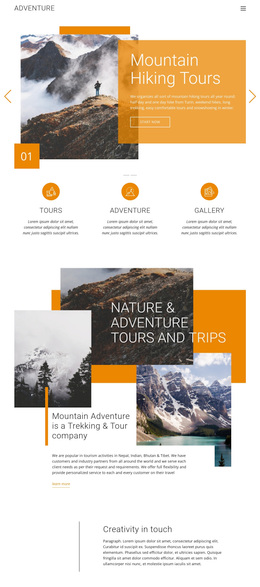
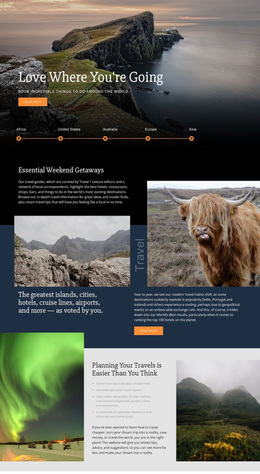
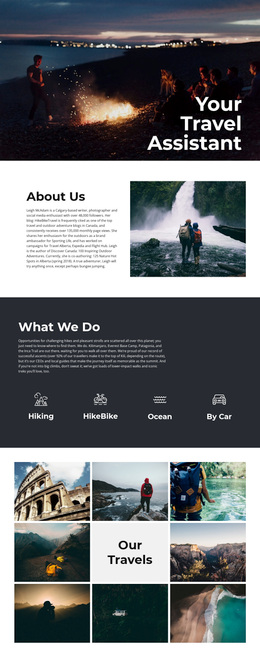
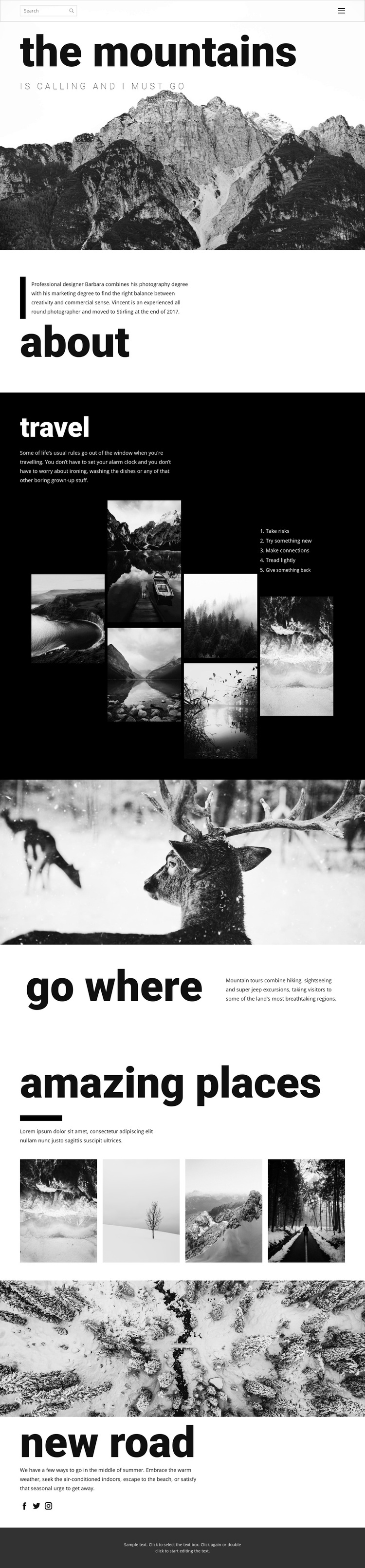
A six-image travel collage gives this design its character
The strongest reason to choose this design is the way it makes travel imagery carry the page’s central message. The opening mountain photograph establishes an immediate sense of place, then the dark “travel” section expands that idea through a six-image collage and a five-item list of principles. Instead of treating photographs as decoration around dense business content, the layout gives them the leading role and uses short editorial passages to frame their meaning.
The design also covers several related travel subjects without losing that visual emphasis. A biography-style about section provides background for the photography, while the “go where” section introduces mountain tours involving hiking, sightseeing, and off-road excursions. The four-image “amazing places” section then broadens the destination story with a compact row of landscape images. This gives the page enough content variety for a portfolio, travel feature, or destination-focused presentation while keeping the visual language consistent.
The concluding “new road” area adds seasonal travel copy and social links for Facebook, Twitter, and Instagram. Combined with the bold lowercase headings, monochrome treatment, and generous vertical pacing, these relationships make the template a useful choice for projects where atmosphere, place, and visual storytelling should be more prominent than complex navigation or dense commercial detail.
Customize with Nicepage
Open this ready-made template in the Template Builder and customize it visually in the Nicepage editor. Replace demo content, edit page sections, and adapt the design to your project without rebuilding the template from scratch.
Start With a Ready-Made Template
Choose a Design for a New Page
Use a ready-made template as a starting point instead of creating every page from a blank canvas. When adding a new page in Nicepage, browse available designs, compare different layouts, and choose an option that already fits the general purpose and visual direction of your project.
Browse Different Page Designs
Explore Page Designs using search, thematic categories, Design Sets, and full-page previews. The collection includes layouts for different subjects and page purposes, making it easier to compare alternatives before selecting a design to customize.
Customize the Selected Template
After choosing a design, create the page and continue editing it visually in Nicepage. Replace the demo content, adjust images, typography, colors, sections, and other elements, and adapt the ready-made layout to your own content instead of rebuilding the design from the beginning.
Explore More Design Directions
If the first option does not match your project closely enough, return to the design collection and compare other templates before committing to a layout. This makes the template library useful not only for faster page creation, but also for exploring different visual approaches and finding a suitable starting point for a new project.
This workflow gives you access to a broad collection of ready-made designs that can be selected, compared, and customized according to the needs of each new page or project.