Team Building feedback survey Template


A Branded Split Layout Gives Event Feedback More Presence
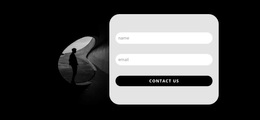
The block stands out through the combination of a dark identity panel and a white, task-focused survey panel. Instead of presenting a plain form as one uninterrupted column, it gives the “Event Poll” heading, centered brand image, three social links, and attribution text a dedicated visual side. The opposite panel begins with “Dear Employee,” and moves directly into the questionnaire, creating a clear contrast between introduction and response.
Its content coverage is also more varied than a single-field feedback form. Seven numbered questions use a 1–5 range rating, dropdown controls, radio-choice groups, and text areas, so the section can accommodate quick judgments as well as suggestions. The multi-step carousel keeps that range manageable by dividing the survey into stages. Next and Finish Poll controls make the progression visible and give the section a defined conclusion.
This is a useful choice when an event or team-building page needs feedback to feel like a considered content area rather than an afterthought. The section design combines identity, context, structured questions, and completion flow in one reusable block. Its distinctive value comes from the relationship between the branded left panel and the guided form, not from treating the block as an entire page or campaign.
Customize with Nicepage
Open this ready-made template in the Template Builder and customize it visually in the Nicepage editor. Replace demo content, edit page sections, and adapt the design to your project without rebuilding the template from scratch.
Edit Template Offline
2. Create a new page or select existing
3. Click Add new block, search for id 6536906 and click enter
Edit Template Online
Create Awesome Websites


Free Nicepage Builder
Keywords
Start With a Ready-Made Template
Choose a Design for a New Page
Use a ready-made template as a starting point instead of creating every page from a blank canvas. When adding a new page in Nicepage, browse available designs, compare different layouts, and choose an option that already fits the general purpose and visual direction of your project.
Browse Different Page Designs
Explore Page Designs using search, thematic categories, Design Sets, and full-page previews. The collection includes layouts for different subjects and page purposes, making it easier to compare alternatives before selecting a design to customize.
Customize the Selected Template
After choosing a design, create the page and continue editing it visually in Nicepage. Replace the demo content, adjust images, typography, colors, sections, and other elements, and adapt the ready-made layout to your own content instead of rebuilding the design from the beginning.
Explore More Design Directions
If the first option does not match your project closely enough, return to the design collection and compare other templates before committing to a layout. This makes the template library useful not only for faster page creation, but also for exploring different visual approaches and finding a suitable starting point for a new project.
This workflow gives you access to a broad collection of ready-made designs that can be selected, compared, and customized according to the needs of each new page or project.