Designing the Future Template


Edit Template Offline
2. Create new page and search for id 6488253
Edit Template Online
Create Awesome Websites


Free Nicepage Builder
Keywords
Two Project Stories Give the Portfolio a Distinctive Starting Point
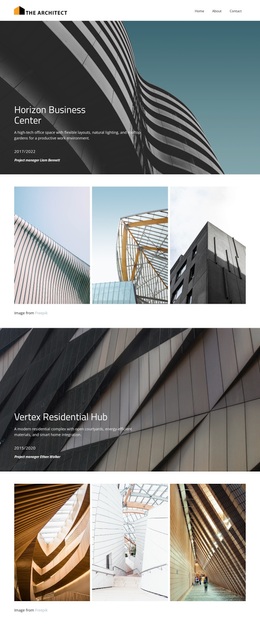
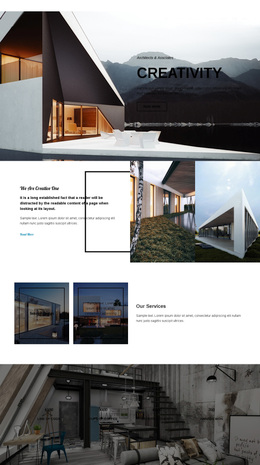
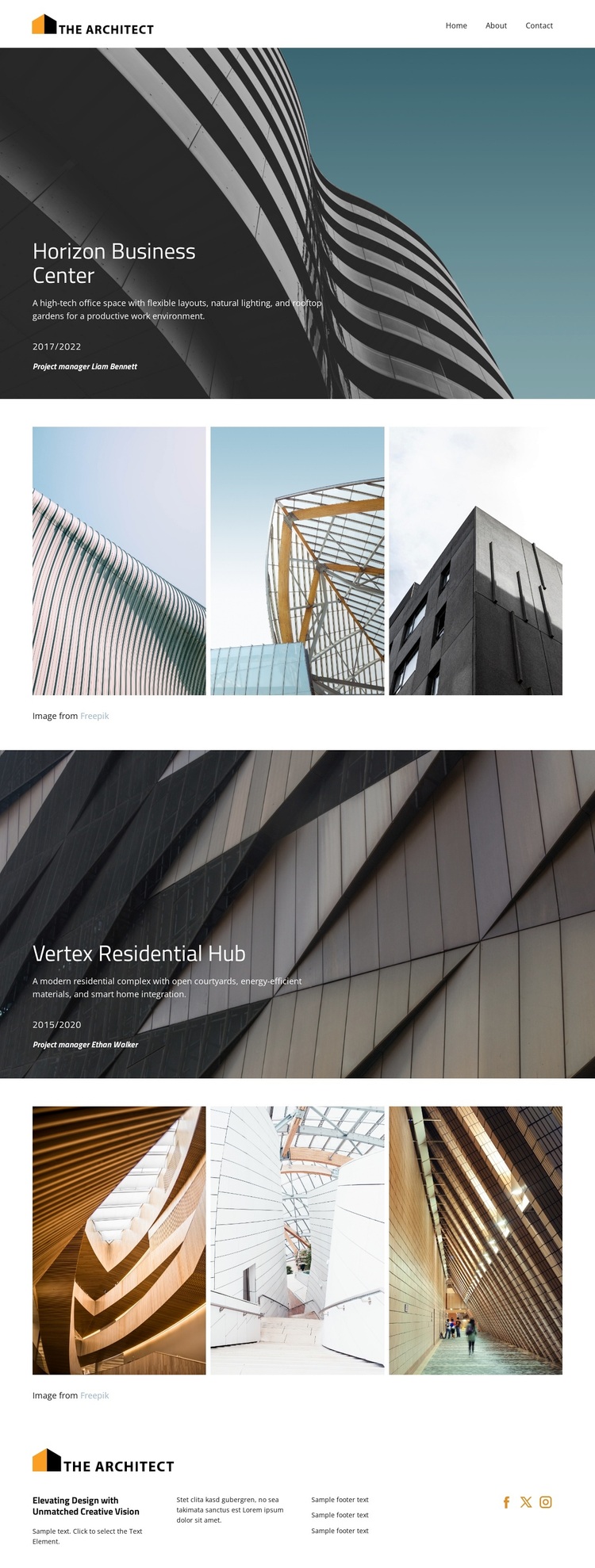
Horizon Business Center and Vertex Residential Hub make this design more specific than a generic architecture gallery. Each project receives its own full-width image-led introduction, with a title, description, date range, and manager label placed over dark architectural photography. That pairing gives the visitor an immediate sense of a featured work before the related imagery appears, establishing a repeatable storytelling pattern for projects that need both context and visual evidence.
The two following galleries strengthen that choice. Each contains three architectural images arranged horizontally, and hover overlays provide project names, descriptions, and image credit without turning every image into a permanent text panel. The result is a portfolio format that emphasizes the work itself while still making supporting information available. It suits architecture presentations where visual detail should lead and short project narratives should guide interpretation rather than compete with the photographs.
The restrained black-and-white palette, white typography, and controlled spacing reinforce that direction across the page. Navigation and mobile navigation support access to the project content, while the footer closes with a logo, text columns, and Facebook, Twitter, and Instagram links. As a template choice, its strongest distinction is the balance between two identifiable project stories and gallery-led visual proof. The structure can be adapted to real architecture work without losing that editorial portfolio emphasis.
Customize with Nicepage
Open this ready-made template in the Template Builder and customize it visually in the Nicepage editor. Replace demo content, edit page sections, and adapt the design to your project without rebuilding the template from scratch.
Start With a Ready-Made Template
Choose a Design for a New Page
Use a ready-made template as a starting point instead of creating every page from a blank canvas. When adding a new page in Nicepage, browse available designs, compare different layouts, and choose an option that already fits the general purpose and visual direction of your project.
Browse Different Page Designs
Explore Page Designs using search, thematic categories, Design Sets, and full-page previews. The collection includes layouts for different subjects and page purposes, making it easier to compare alternatives before selecting a design to customize.
Customize the Selected Template
After choosing a design, create the page and continue editing it visually in Nicepage. Replace the demo content, adjust images, typography, colors, sections, and other elements, and adapt the ready-made layout to your own content instead of rebuilding the design from the beginning.
Explore More Design Directions
If the first option does not match your project closely enough, return to the design collection and compare other templates before committing to a layout. This makes the template library useful not only for faster page creation, but also for exploring different visual approaches and finding a suitable starting point for a new project.
This workflow gives you access to a broad collection of ready-made designs that can be selected, compared, and customized according to the needs of each new page or project.