Connect with social media Template


Edit Template Offline
2. Create new page and search for id 6328836
Edit Template Online
Create Awesome Websites


Free Nicepage Builder
Keywords
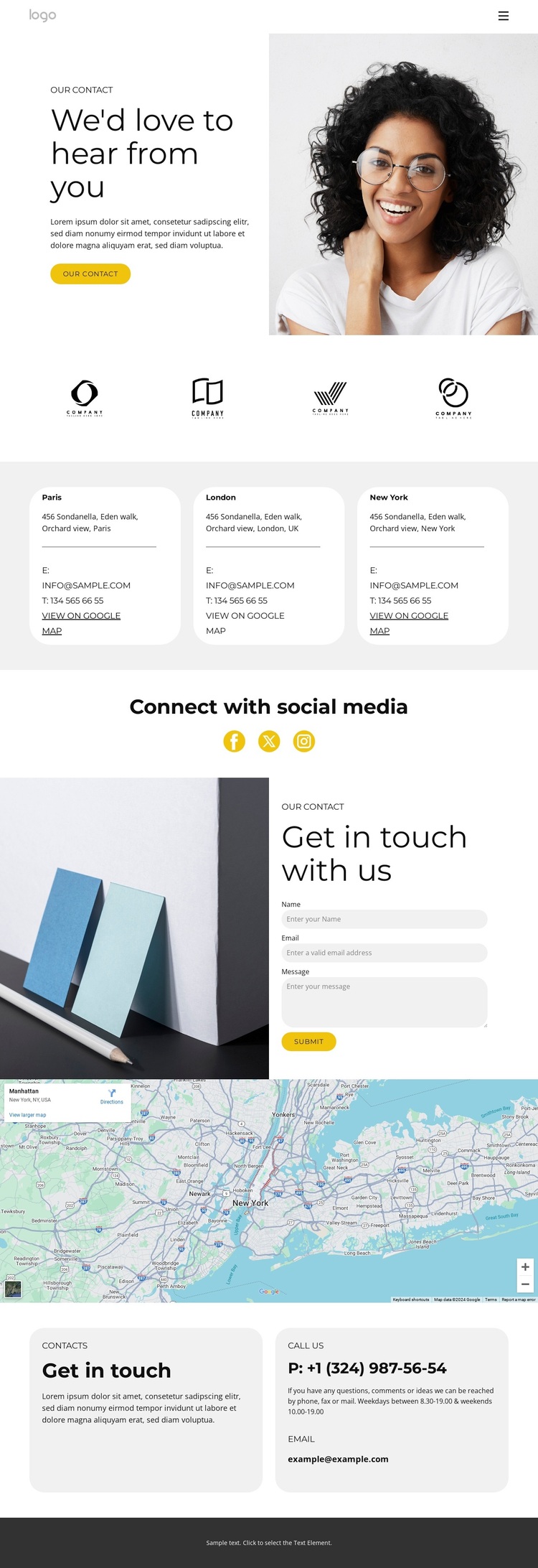
Three Cities, Social Channels, and Direct Contact in One Design
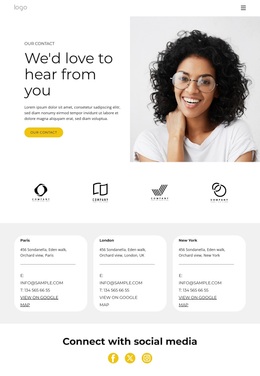
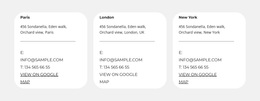
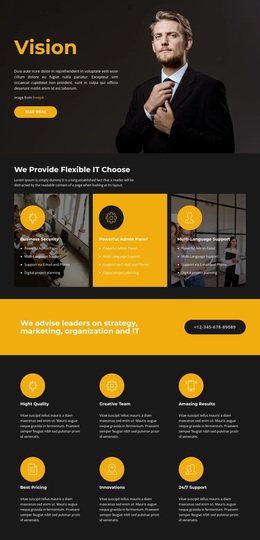
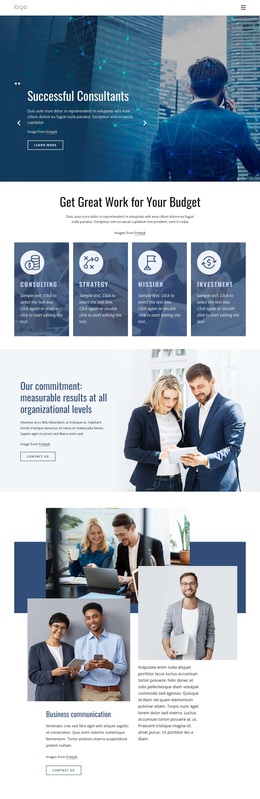
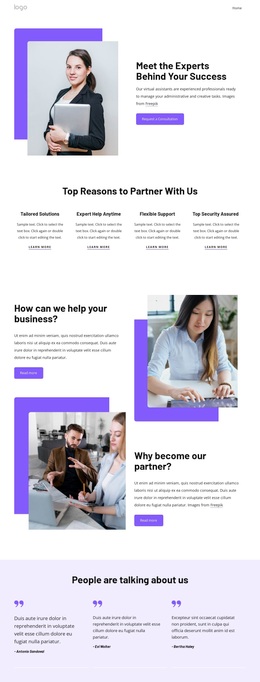
The combination of three city cards, social links, and a direct inquiry area makes this design a useful choice for projects that need to present several communication routes together. Paris, London, and New York appear as parallel location cards, so visitors can scan geographic options without moving through unrelated content. Each card is supported by address, email, telephone, and map-link information, making the location directory more practical than a purely decorative city list.
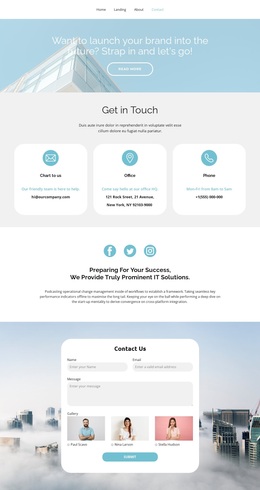
The page also covers digital and personal contact. A centered “Connect with social media” section keeps Facebook, Twitter, and Instagram visible as a distinct relationship channel. Farther down, the image-led inquiry block gives the visitor a simple Name, Email, Message, and Submit sequence. A full-width map adds spatial context, while the Contacts, Call Us, and Email panels repeat important details in a compact closing area.
That range of content is the main reason to consider this option among contact designs. It suits a project where the page must communicate locations, social presence, and direct response without introducing a dense directory or complicated navigation system. The light surfaces, rounded cards, dark text, yellow accent buttons, and generous spacing keep the varied information visually connected. Demo addresses, phone numbers, emails, and text are structural placeholders and should be replaced with verified details.
Customize with Nicepage
Open this ready-made template in the Template Builder and customize it visually in the Nicepage editor. Replace demo content, edit page sections, and adapt the design to your project without rebuilding the template from scratch.
Start With a Ready-Made Template
Choose a Design for a New Page
Use a ready-made template as a starting point instead of creating every page from a blank canvas. When adding a new page in Nicepage, browse available designs, compare different layouts, and choose an option that already fits the general purpose and visual direction of your project.
Browse Different Page Designs
Explore Page Designs using search, thematic categories, Design Sets, and full-page previews. The collection includes layouts for different subjects and page purposes, making it easier to compare alternatives before selecting a design to customize.
Customize the Selected Template
After choosing a design, create the page and continue editing it visually in Nicepage. Replace the demo content, adjust images, typography, colors, sections, and other elements, and adapt the ready-made layout to your own content instead of rebuilding the design from the beginning.
Explore More Design Directions
If the first option does not match your project closely enough, return to the design collection and compare other templates before committing to a layout. This makes the template library useful not only for faster page creation, but also for exploring different visual approaches and finding a suitable starting point for a new project.
This workflow gives you access to a broad collection of ready-made designs that can be selected, compared, and customized according to the needs of each new page or project.