Family finance planning Template


Layered Imagery Gives the Finance Introduction a Distinct Direction
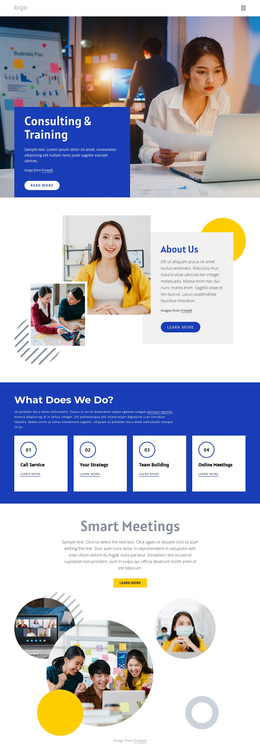
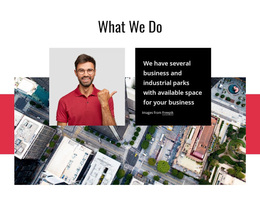
The section combines a business meeting photograph, an overlapping white message panel, and a separate portrait instead of using a plain text column or a uniform card grid. Inside the panel, the heading “Personal and Family Financial Planning” and its supporting paragraph establish a direct subject, while the red rounded “read more” button adds a clear action. This combination gives the design both informational focus and visual presence.
As a ready-made block choice, its strongest distinction is the relationship between the layered images and the protected text surface. The large background photograph supplies context, but the white panel keeps the heading readable and visually dominant. The portrait on the right extends the human dimension of the composition, while the open space around the overlapping areas prevents the section from feeling dense. Those characteristics make it useful when a page needs an introductory financial-planning section with a more editorial arrangement than a conventional row of cards.
The choice remains specific to this section design. It does not depend on claiming extra forms, statistics, menus, or interactive effects; the confirmed content is the heading, paragraph, credit line, action, and two images in a static overlap. Other blocks can provide deeper information or later destinations, while this one establishes the topic and visual tone through a compact message-and-imagery relationship.
Customize with Nicepage
Open this ready-made template in the Template Builder and customize it visually in the Nicepage editor. Replace demo content, edit page sections, and adapt the design to your project without rebuilding the template from scratch.
Edit Template Offline
2. Create a new page or select existing
3. Click Add new block, search for id 58942 and click enter
Edit Template Online
Create Awesome Websites


Free Nicepage Builder
Keywords
Start With a Ready-Made Template
Choose a Design for a New Page
Use a ready-made template as a starting point instead of creating every page from a blank canvas. When adding a new page in Nicepage, browse available designs, compare different layouts, and choose an option that already fits the general purpose and visual direction of your project.
Browse Different Page Designs
Explore Page Designs using search, thematic categories, Design Sets, and full-page previews. The collection includes layouts for different subjects and page purposes, making it easier to compare alternatives before selecting a design to customize.
Customize the Selected Template
After choosing a design, create the page and continue editing it visually in Nicepage. Replace the demo content, adjust images, typography, colors, sections, and other elements, and adapt the ready-made layout to your own content instead of rebuilding the design from the beginning.
Explore More Design Directions
If the first option does not match your project closely enough, return to the design collection and compare other templates before committing to a layout. This makes the template library useful not only for faster page creation, but also for exploring different visual approaches and finding a suitable starting point for a new project.
This workflow gives you access to a broad collection of ready-made designs that can be selected, compared, and customized according to the needs of each new page or project.