Top luxury cars Template


A Layered Automotive Introduction With Clear Visual Focus
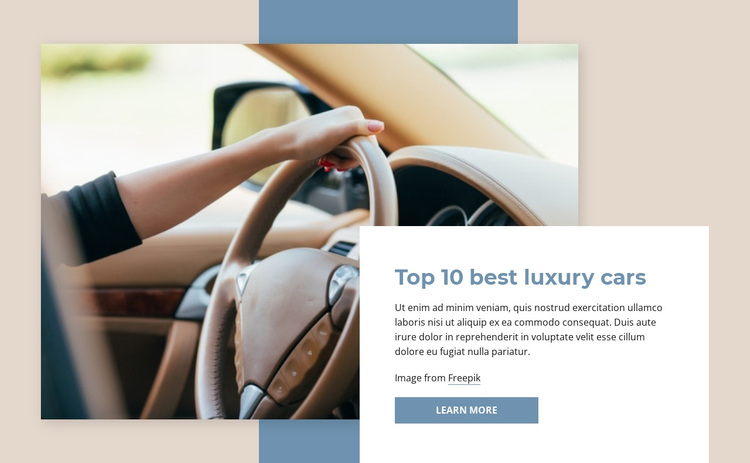
The large steering-wheel photograph gives this design an immediate subject, but its strongest distinction comes from the white card overlapping the image instead of sitting in a separate column. That decision creates a compact introduction in which the heading “Top 10 best luxury cars,” supporting paragraph, attribution line, and “learn more” button share one clearly defined reading area. The image remains prominent without forcing the text to compete with its warm-toned detail.
A muted beige background and generous whitespace make the overlap easy to read, while the blue rectangular accent adds a second geometric layer behind the content. The blue heading and button reinforce that accent, creating a restrained visual connection between typography and shape. This balance is useful when choosing among ready-made block designs: the section offers both a strong image-led opening and enough text structure to explain why a visitor should continue.
The composition can introduce a luxury automotive article or collection before surrounding sections provide deeper information. Its static arrangement keeps the message direct, and the single action gives the introductory moment a clear next step without overcrowding the card. As a reusable section choice, it suits projects that need a visual entry point with editorial layering rather than a plain image, an isolated text panel, or a dense row of cards.
Customize with Nicepage
Open this ready-made template in the Template Builder and customize it visually in the Nicepage editor. Replace demo content, edit page sections, and adapt the design to your project without rebuilding the template from scratch.
Edit Template Offline
2. Create a new page or select existing
3. Click Add new block, search for id 534175 and click enter
Edit Template Online
Create Awesome Websites


Free Nicepage Builder
Keywords
Start With a Ready-Made Template
Choose a Design for a New Page
Use a ready-made template as a starting point instead of creating every page from a blank canvas. When adding a new page in Nicepage, browse available designs, compare different layouts, and choose an option that already fits the general purpose and visual direction of your project.
Browse Different Page Designs
Explore Page Designs using search, thematic categories, Design Sets, and full-page previews. The collection includes layouts for different subjects and page purposes, making it easier to compare alternatives before selecting a design to customize.
Customize the Selected Template
After choosing a design, create the page and continue editing it visually in Nicepage. Replace the demo content, adjust images, typography, colors, sections, and other elements, and adapt the ready-made layout to your own content instead of rebuilding the design from the beginning.
Explore More Design Directions
If the first option does not match your project closely enough, return to the design collection and compare other templates before committing to a layout. This makes the template library useful not only for faster page creation, but also for exploring different visual approaches and finding a suitable starting point for a new project.
This workflow gives you access to a broad collection of ready-made designs that can be selected, compared, and customized according to the needs of each new page or project.