Eating essentials for food Template


Edit Template Offline
2. Create new page and search for id 38011
Edit Template Online
Create Awesome Websites


Free Nicepage Builder
Keywords
Food Photography Connects Green Practices With Practical Guidance
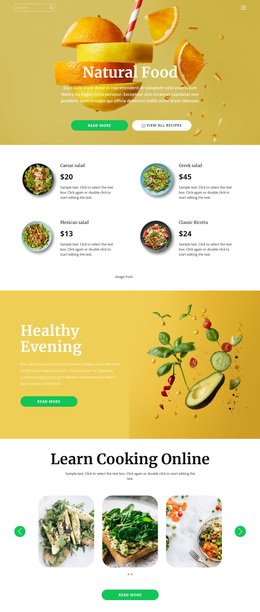
Large produce photography and high-contrast color panels make the subject immediately recognizable, while the content coverage gives the design more than a single environmental message. Organic Garden establishes the food connection through an image-and-text opening, and the three repeated feature items introduce Organic, Reduce, and Products as simple entry points. This combination suits projects that need to explain sustainability without beginning with a dense block of policy text.
The strongest distinguishing choice is the way the page joins familiar restaurant material with operational themes. Reduce, Reuse, Recycle presents waste-related ideas through a collage, numbered list, and examples, while Green restaurants and Eco-Friendly Practices connect the subject to restaurant settings. The 11 Ways to Go Green section adds a mission-led center, and the later Reduce Waste and Use Energy Efficiently sections broaden the content into practical guidance.
The visual system reinforces that direction. Navy sections create contrast for longer explanations, bright yellow areas emphasize introductions and energy guidance, and the full-width photographic band separates major content groups. The compact contact form makes the design suitable for projects that want a direct inquiry point after educating visitors. As a ready-made design option, it stands out through the relationship between food imagery, waste reduction, restaurant examples, and a clearly named green initiative.
Customize with Nicepage
Open this ready-made template in the Template Builder and customize it visually in the Nicepage editor. Replace demo content, edit page sections, and adapt the design to your project without rebuilding the template from scratch.
Start With a Ready-Made Template
Choose a Design for a New Page
Use a ready-made template as a starting point instead of creating every page from a blank canvas. When adding a new page in Nicepage, browse available designs, compare different layouts, and choose an option that already fits the general purpose and visual direction of your project.
Browse Different Page Designs
Explore Page Designs using search, thematic categories, Design Sets, and full-page previews. The collection includes layouts for different subjects and page purposes, making it easier to compare alternatives before selecting a design to customize.
Customize the Selected Template
After choosing a design, create the page and continue editing it visually in Nicepage. Replace the demo content, adjust images, typography, colors, sections, and other elements, and adapt the ready-made layout to your own content instead of rebuilding the design from the beginning.
Explore More Design Directions
If the first option does not match your project closely enough, return to the design collection and compare other templates before committing to a layout. This makes the template library useful not only for faster page creation, but also for exploring different visual approaches and finding a suitable starting point for a new project.
This workflow gives you access to a broad collection of ready-made designs that can be selected, compared, and customized according to the needs of each new page or project.