Cat stories, tips and tricks Template



Edit Template Offline
2. Create new page and search for id 3444245
Edit Template Online
Create Awesome Websites


Free Nicepage Builder
Keywords
Three Editorial Entry Points Lead Into Six Cat Topics
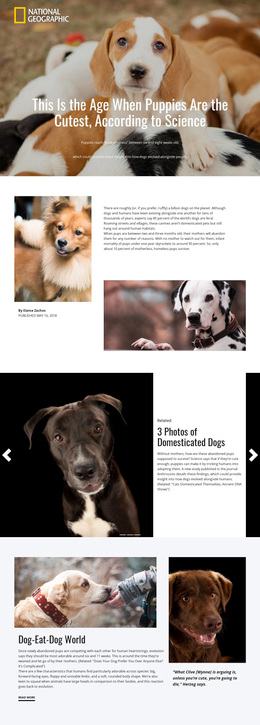
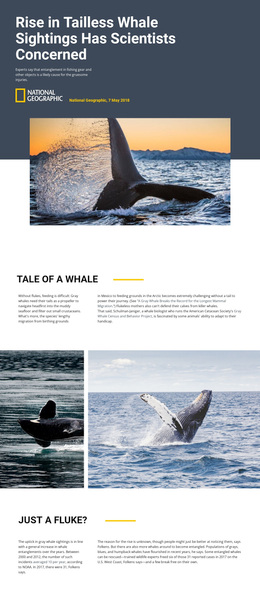
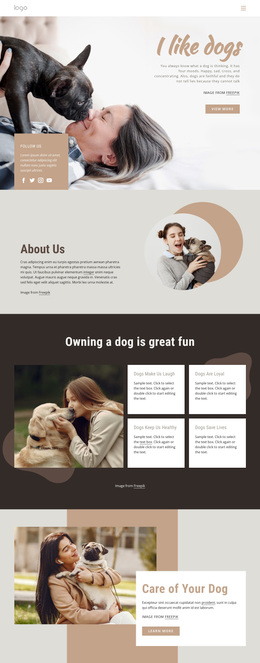
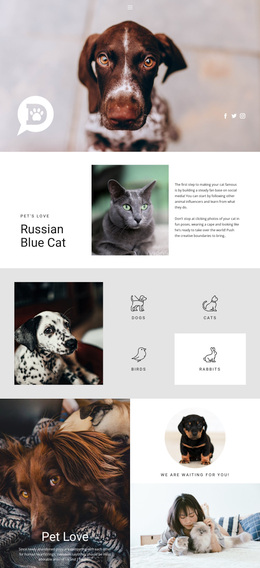
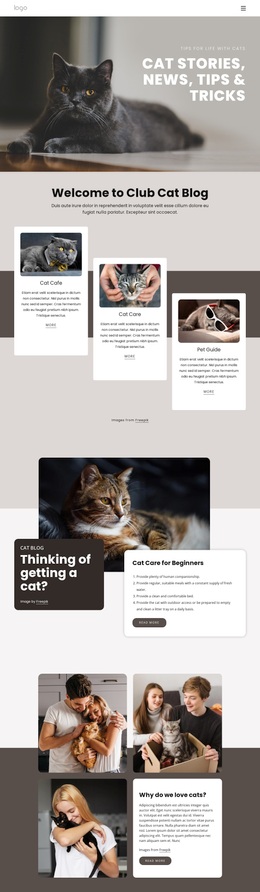
The design gives its subject matter a clear visual and informational identity from the first screen. A large cat photograph sits behind the “Cat Stories, News, Tips & Tricks” headline, making imagery the first carrier of the publication’s theme. The next section strengthens that direction with three staggered cards for Cat of the Week, Cat Care, and Pet Guide. This is a useful choice for a project that needs to present several editorial angles without making the homepage feel like a plain list of links.
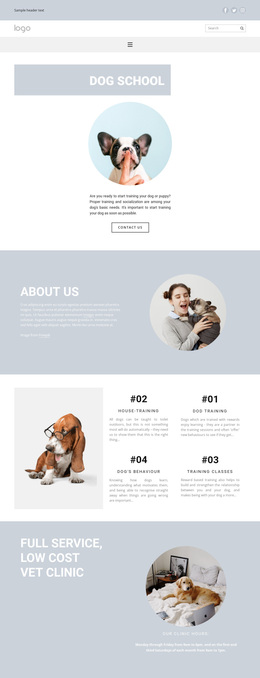
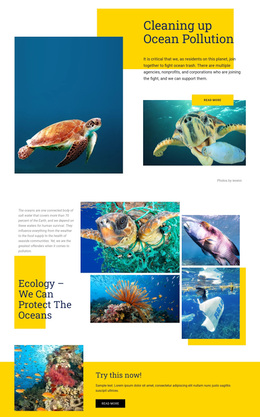
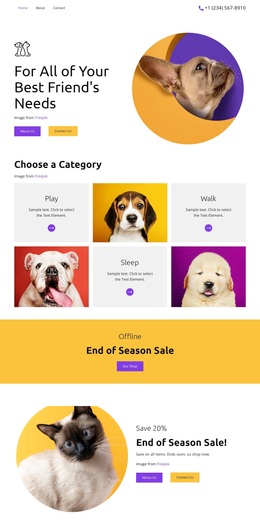
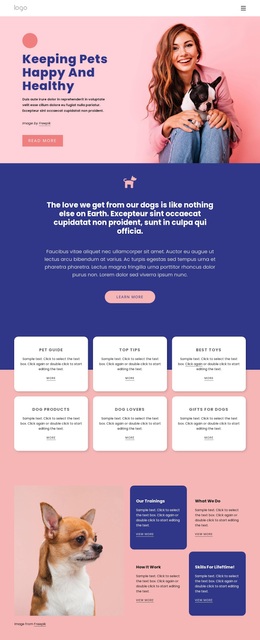
The lower topic group adds a second layer of coverage. Pet Types, Top Tips, Best Toys, Cat Products, Cat Lovers, and Guides for Cats appear as six labeled cards beside a lifestyle portrait, showing that the design can support both practical advice and broader cat-interest content. Between these groups, featured adoption, beginner-care, and pet wellbeing sections use photography with short article treatments, giving the layout room for storytelling as well as category discovery.
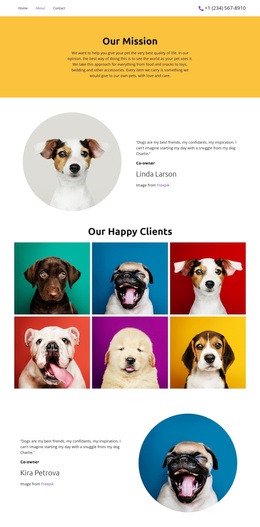
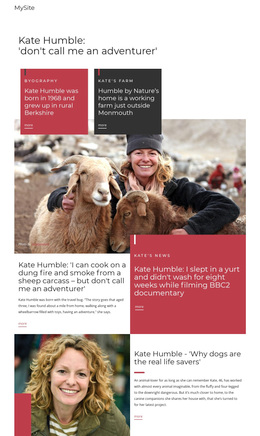
The dark newsletter section makes the design especially suitable for a publication or club that wants to invite ongoing readership. A help/contact panel and social icons complete the content direction without competing with the editorial core. The result is a focused design option for cat media, advice, or community projects where visual stories and organized topics need equal weight.
Customize with Nicepage
Open this ready-made template in the Template Builder and customize it visually in the Nicepage editor. Replace demo content, edit page sections, and adapt the design to your project without rebuilding the template from scratch.
Start With a Ready-Made Template
Choose a Design for a New Page
Use a ready-made template as a starting point instead of creating every page from a blank canvas. When adding a new page in Nicepage, browse available designs, compare different layouts, and choose an option that already fits the general purpose and visual direction of your project.
Browse Different Page Designs
Explore Page Designs using search, thematic categories, Design Sets, and full-page previews. The collection includes layouts for different subjects and page purposes, making it easier to compare alternatives before selecting a design to customize.
Customize the Selected Template
After choosing a design, create the page and continue editing it visually in Nicepage. Replace the demo content, adjust images, typography, colors, sections, and other elements, and adapt the ready-made layout to your own content instead of rebuilding the design from the beginning.
Explore More Design Directions
If the first option does not match your project closely enough, return to the design collection and compare other templates before committing to a layout. This makes the template library useful not only for faster page creation, but also for exploring different visual approaches and finding a suitable starting point for a new project.
This workflow gives you access to a broad collection of ready-made designs that can be selected, compared, and customized according to the needs of each new page or project.