World's best restaurant Template


Edit Template Offline
2. Create new page and search for id 32565
Edit Template Online
Create Awesome Websites


Free Nicepage Builder
Keywords
A Food-Led Choice With Menu, Delivery, and Contact Coverage
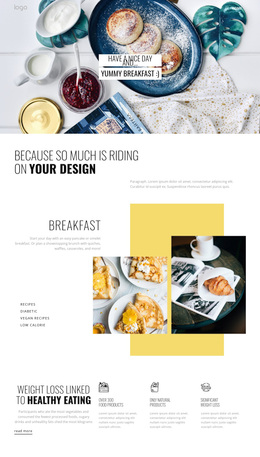
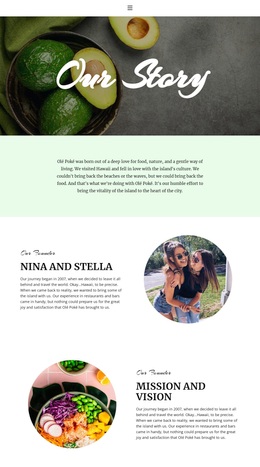
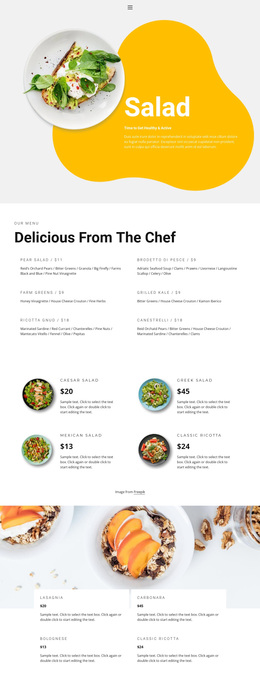
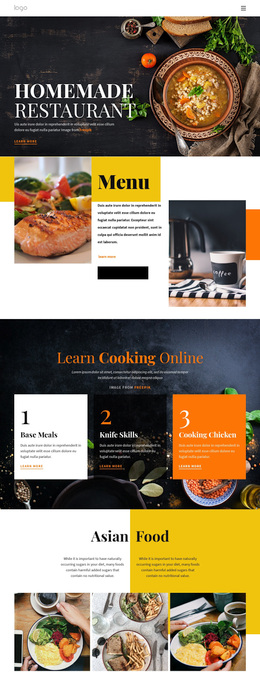
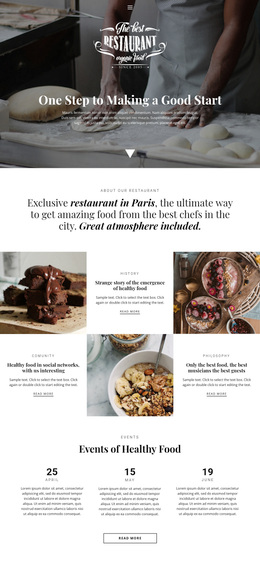
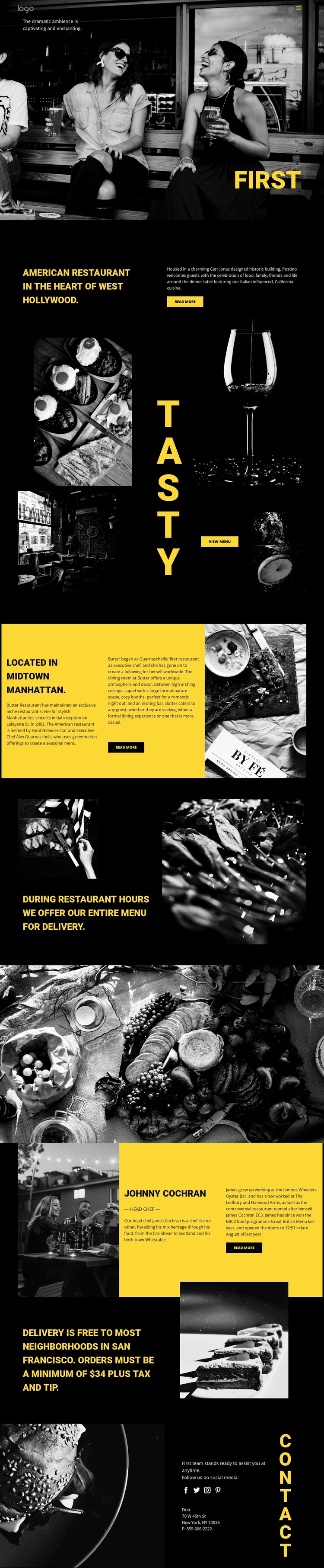
The design's strongest distinguishing feature is the way food imagery carries the presentation. A large image-led opening establishes atmosphere before the page explains the restaurant concept, and the later gallery places four food images around vertical display lettering rather than presenting them as a conventional list. The centered view-menu action gives that visual section a practical purpose, connecting appetite and information in the same composition.
The template also covers more than dining ambience. Separate sections explain restaurant background, delivery availability, and delivery policy, while a chef profile adds a human story through an image, role, biography, and read-more action. The closing contact area combines social links with address and telephone details, so the design can communicate both the character of the restaurant and the next ways to engage. Black backgrounds, yellow accent blocks, monochrome photography, generous spacing, and bold condensed type make the option especially recognizable among layouts built around lighter palettes or dense service cards. The displayed locations, names, telephone detail, and $34 minimum order should be replaced as sample content, but they demonstrate the kinds of restaurant information the structure is prepared to hold. The result is a visually led choice for projects that want dining identity and practical service content to share one page.
Customize with Nicepage
Open this ready-made template in the Template Builder and customize it visually in the Nicepage editor. Replace demo content, edit page sections, and adapt the design to your project without rebuilding the template from scratch.
Start With a Ready-Made Template
Choose a Design for a New Page
Use a ready-made template as a starting point instead of creating every page from a blank canvas. When adding a new page in Nicepage, browse available designs, compare different layouts, and choose an option that already fits the general purpose and visual direction of your project.
Browse Different Page Designs
Explore Page Designs using search, thematic categories, Design Sets, and full-page previews. The collection includes layouts for different subjects and page purposes, making it easier to compare alternatives before selecting a design to customize.
Customize the Selected Template
After choosing a design, create the page and continue editing it visually in Nicepage. Replace the demo content, adjust images, typography, colors, sections, and other elements, and adapt the ready-made layout to your own content instead of rebuilding the design from the beginning.
Explore More Design Directions
If the first option does not match your project closely enough, return to the design collection and compare other templates before committing to a layout. This makes the template library useful not only for faster page creation, but also for exploring different visual approaches and finding a suitable starting point for a new project.
This workflow gives you access to a broad collection of ready-made designs that can be selected, compared, and customized according to the needs of each new page or project.