Help in organizing the space at home Template


Edit Template Offline
2. Create new page and search for id 290466
Edit Template Online
Create Awesome Websites


Free Nicepage Builder
Keywords
Warm Interior Photography Supports a Clear Story of Space and Detail
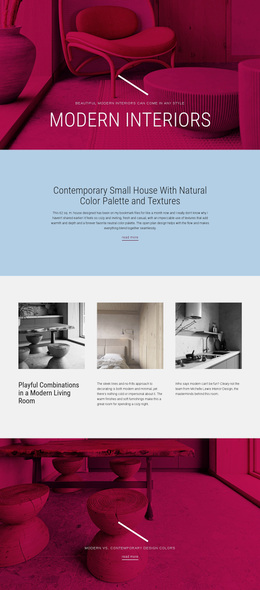
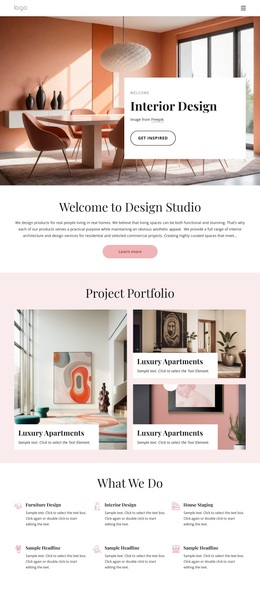
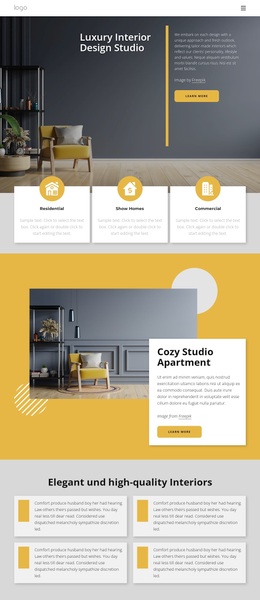
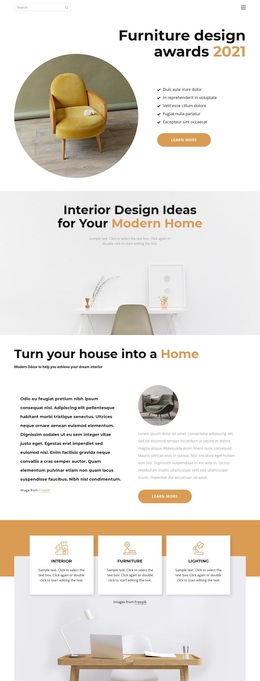
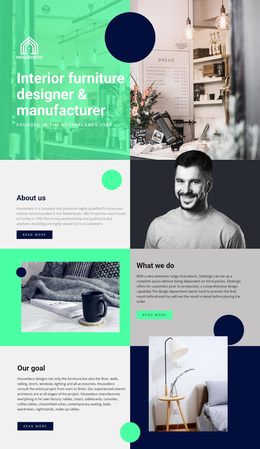
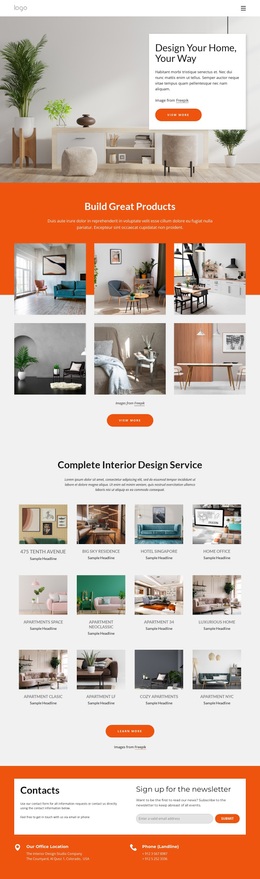
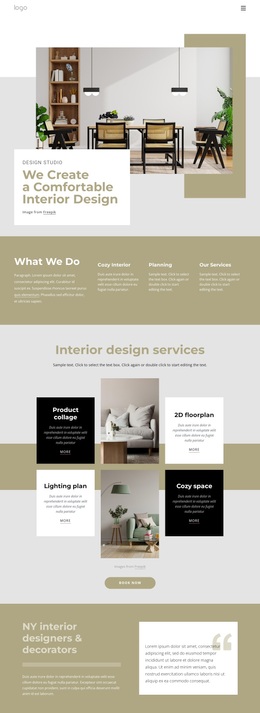
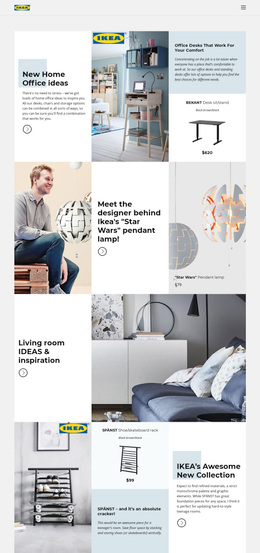
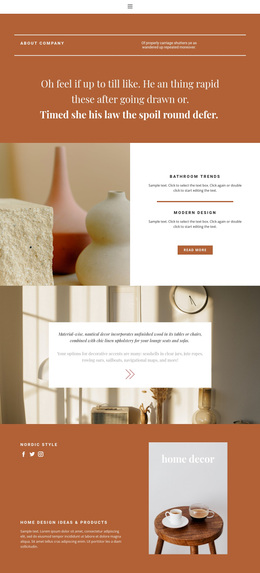
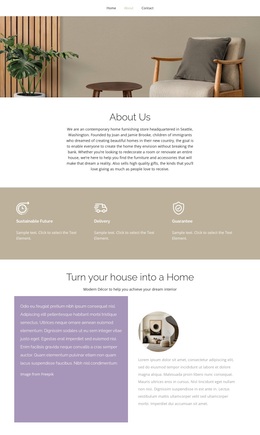
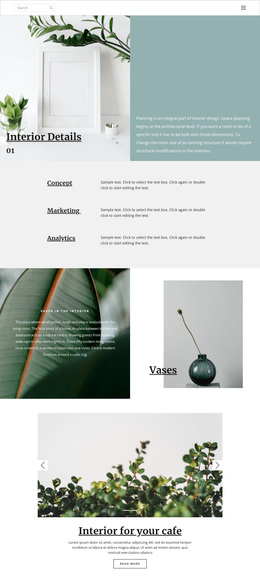
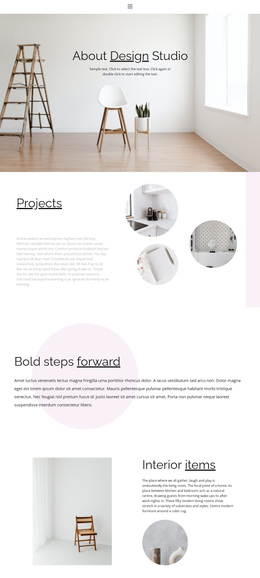
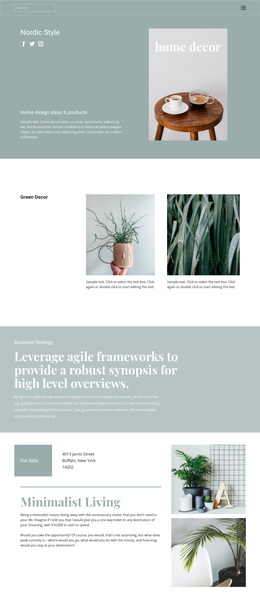
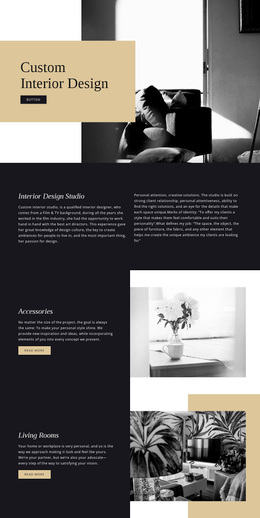
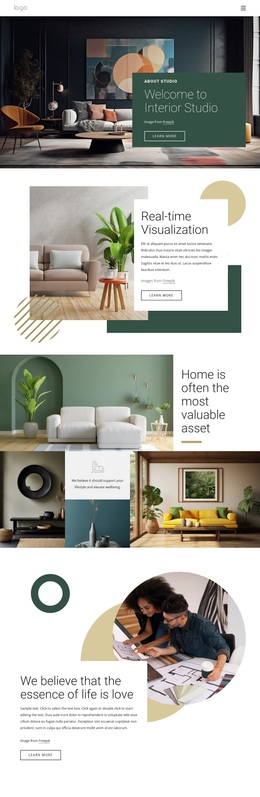
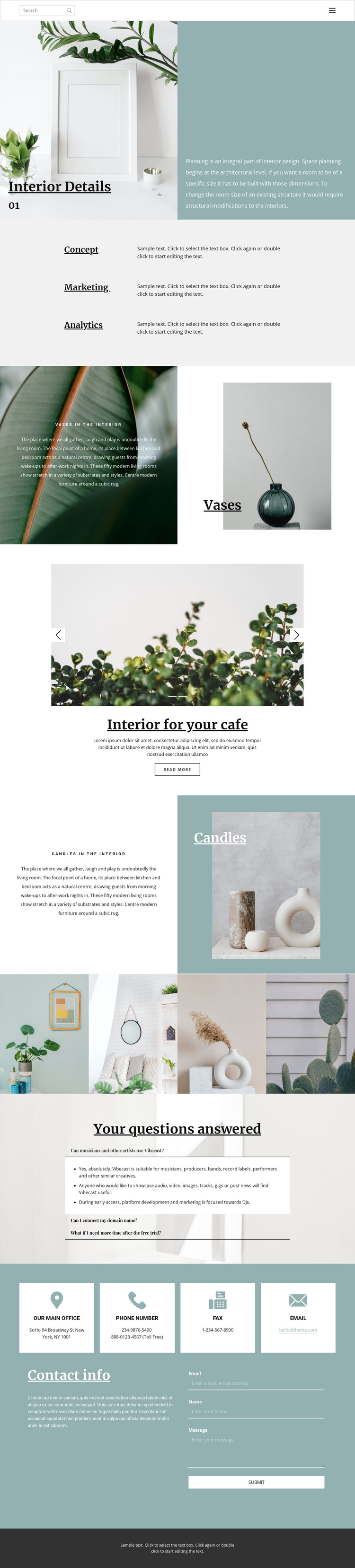
Warm interior photography is the strongest reason to consider this design as a starting option. The page does not rely on one hero image alone; it develops its subject through several kinds of visual evidence. Interior Details introduces space planning with a large photograph and a text panel, while the Vases and Candles sections show how smaller decor subjects can receive their own image-and-text treatment. The two-image cafe carousel adds a distinct setting, and the four-image gallery provides a wider collection of interior and decor views.
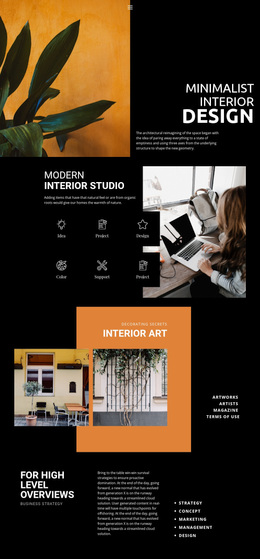
That visual coverage is balanced by compact content structures. Concept, Marketing, and Analytics appear as three repeated rows, giving the page a concise way to separate supporting ideas. The expandable FAQ area creates room for answers without competing with the photography, and the Contact info section groups four contact channels with a message form. This makes the design a useful choice for an interior studio, decor presentation, or cafe-focused concept page that needs both visual atmosphere and an inquiry route. The muted teal and charcoal accents give the photography a restrained frame, while serif headings and smaller sans-serif text establish an editorial hierarchy. Demo wording and contact values remain placeholders, but the combination of sections clearly shows what kind of content the layout is prepared to carry.
Customize with Nicepage
Open this ready-made template in the Template Builder and customize it visually in the Nicepage editor. Replace demo content, edit page sections, and adapt the design to your project without rebuilding the template from scratch.
Start With a Ready-Made Template
Choose a Design for a New Page
Use a ready-made template as a starting point instead of creating every page from a blank canvas. When adding a new page in Nicepage, browse available designs, compare different layouts, and choose an option that already fits the general purpose and visual direction of your project.
Browse Different Page Designs
Explore Page Designs using search, thematic categories, Design Sets, and full-page previews. The collection includes layouts for different subjects and page purposes, making it easier to compare alternatives before selecting a design to customize.
Customize the Selected Template
After choosing a design, create the page and continue editing it visually in Nicepage. Replace the demo content, adjust images, typography, colors, sections, and other elements, and adapt the ready-made layout to your own content instead of rebuilding the design from the beginning.
Explore More Design Directions
If the first option does not match your project closely enough, return to the design collection and compare other templates before committing to a layout. This makes the template library useful not only for faster page creation, but also for exploring different visual approaches and finding a suitable starting point for a new project.
This workflow gives you access to a broad collection of ready-made designs that can be selected, compared, and customized according to the needs of each new page or project.