Book free online classes Template


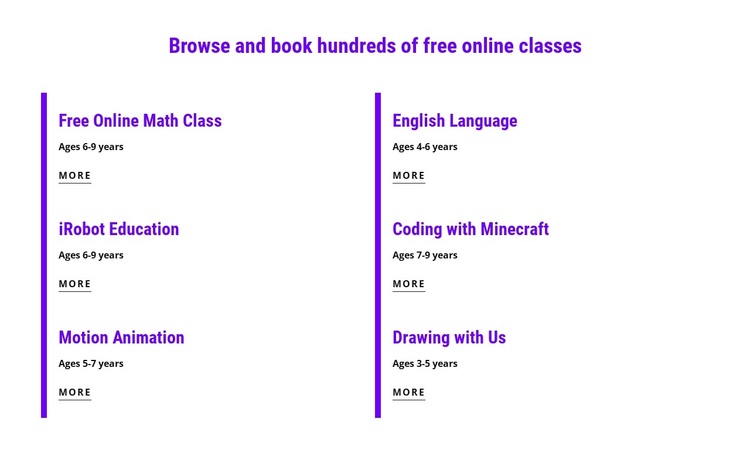
A Two-Column Catalog for Comparing Class Options
The six-item catalog makes this block a distinctive choice when a page needs to present several online class options without expanding each one into a large feature panel. Its heading, “Browse and book hundreds of free online classes,” establishes the section’s purpose immediately, while the repeated entries give that promise a practical structure. Free Online Math Class, English Language, iRobot Education, Coding with Minecraft, Motion Animation, and Drawing with Us create variety across the list, yet the shared age-range and “more” link pattern keeps comparison straightforward.
The two columns are more than a simple arrangement of text. They divide six related choices into two balanced visual groups, and the purple vertical accents reinforce that division without enclosing every item in a heavy card. Purple headings and underlined links provide emphasis against the white background, while generous vertical spacing gives the age descriptions room to remain readable beneath each class title.
This design is worth selecting when the section should feel like an organized class directory rather than a single promotional message. It can suit an education-focused page that needs a recognizable catalog area, with surrounding sections handling broader introductions or detailed booking information. The result is a compact option list with enough visual structure to guide attention from the heading to individual class destinations.
Customize with Nicepage
Open this ready-made template in the Template Builder and customize it visually in the Nicepage editor. Replace demo content, edit page sections, and adapt the design to your project without rebuilding the template from scratch.
Edit Template Offline
2. Create a new page or select existing
3. Click Add new block, search for id 2801830 and click enter
Edit Template Online
Create Awesome Websites


Free Nicepage Builder
Keywords
Start With a Ready-Made Template
Choose a Design for a New Page
Use a ready-made template as a starting point instead of creating every page from a blank canvas. When adding a new page in Nicepage, browse available designs, compare different layouts, and choose an option that already fits the general purpose and visual direction of your project.
Browse Different Page Designs
Explore Page Designs using search, thematic categories, Design Sets, and full-page previews. The collection includes layouts for different subjects and page purposes, making it easier to compare alternatives before selecting a design to customize.
Customize the Selected Template
After choosing a design, create the page and continue editing it visually in Nicepage. Replace the demo content, adjust images, typography, colors, sections, and other elements, and adapt the ready-made layout to your own content instead of rebuilding the design from the beginning.
Explore More Design Directions
If the first option does not match your project closely enough, return to the design collection and compare other templates before committing to a layout. This makes the template library useful not only for faster page creation, but also for exploring different visual approaches and finding a suitable starting point for a new project.
This workflow gives you access to a broad collection of ready-made designs that can be selected, compared, and customized according to the needs of each new page or project.