Testimonials in slider Template


A Portrait-Led Alternative to a Static Testimonial Row
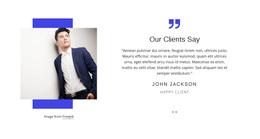
The design combines two testimonial statements with a centered, image-led carousel instead of displaying several quotes in a flat row. Each slide uses the same relationship between portrait-oriented imagery, a lower quote area, and concise person and role details, creating a consistent presentation as the visitor moves through the sequence. This gives the section a stronger visual pause than a plain list while keeping the content model compact and easy to scan.
The previous and next controls are treated as orange square accents against the dark monochrome background, and the two indicators make the number of available slides clear. Generous surrounding space keeps the active portrait and overlaid white text from feeling crowded, while the centered alignment gives the testimonial content a deliberate focal point. These characteristics make the block a useful choice when a page needs social proof with human imagery and a small amount of controlled interaction. It can introduce reassurance between other content areas, support a mid-page narrative, or provide a visually distinctive testimonial section without requiring a larger collection of cards or repeated columns. The format is especially suitable when one prominent statement should lead attention before visitors reveal the second through the carousel controls.
Customize with Nicepage
Open this ready-made template in the Template Builder and customize it visually in the Nicepage editor. Replace demo content, edit page sections, and adapt the design to your project without rebuilding the template from scratch.
Edit Template Offline
2. Create a new page or select existing
3. Click Add new block, search for id 1790243 and click enter
Edit Template Online
Create Awesome Websites


Free Nicepage Builder
Keywords
Start With a Ready-Made Template
Choose a Design for a New Page
Use a ready-made template as a starting point instead of creating every page from a blank canvas. When adding a new page in Nicepage, browse available designs, compare different layouts, and choose an option that already fits the general purpose and visual direction of your project.
Browse Different Page Designs
Explore Page Designs using search, thematic categories, Design Sets, and full-page previews. The collection includes layouts for different subjects and page purposes, making it easier to compare alternatives before selecting a design to customize.
Customize the Selected Template
After choosing a design, create the page and continue editing it visually in Nicepage. Replace the demo content, adjust images, typography, colors, sections, and other elements, and adapt the ready-made layout to your own content instead of rebuilding the design from the beginning.
Explore More Design Directions
If the first option does not match your project closely enough, return to the design collection and compare other templates before committing to a layout. This makes the template library useful not only for faster page creation, but also for exploring different visual approaches and finding a suitable starting point for a new project.
This workflow gives you access to a broad collection of ready-made designs that can be selected, compared, and customized according to the needs of each new page or project.