Interior innovations Template


Edit Template Offline
2. Create new page and search for id 12474
Edit Template Online
Create Awesome Websites


Free Nicepage Builder
Keywords
Circular Project Imagery Gives the Studio a Distinctive Starting Point
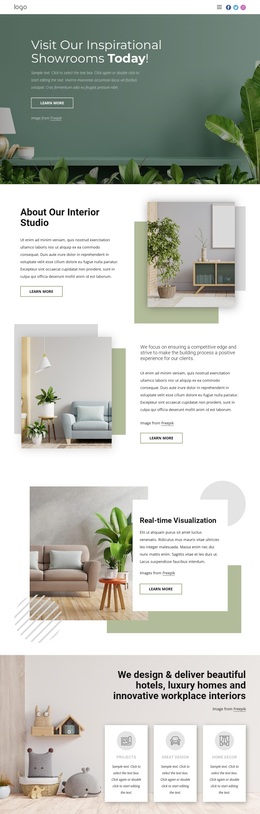
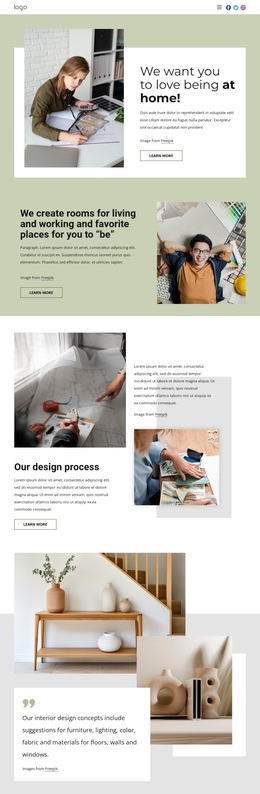
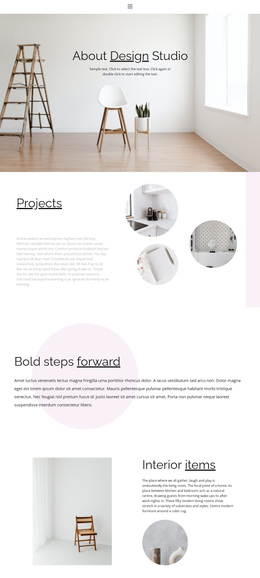
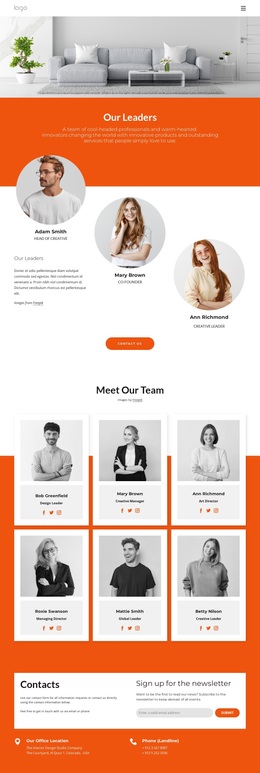
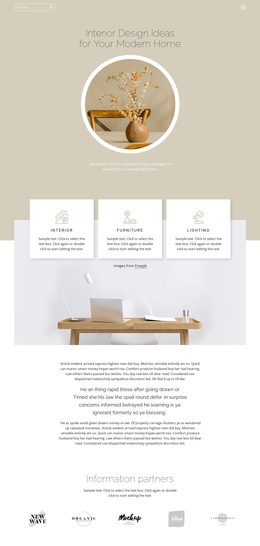
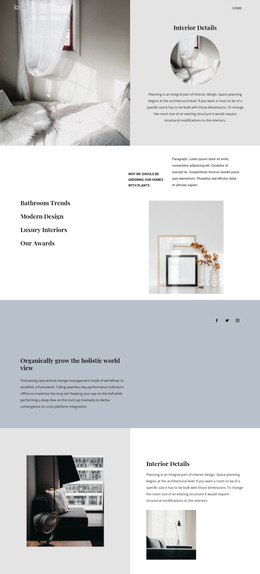
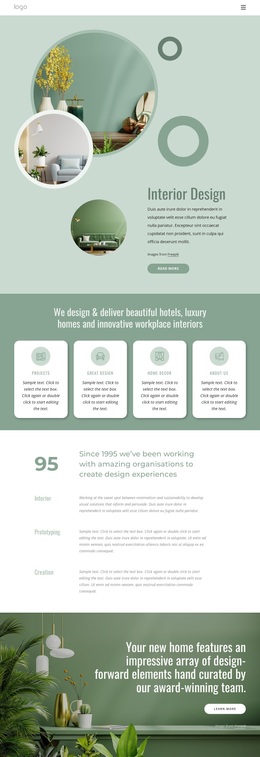
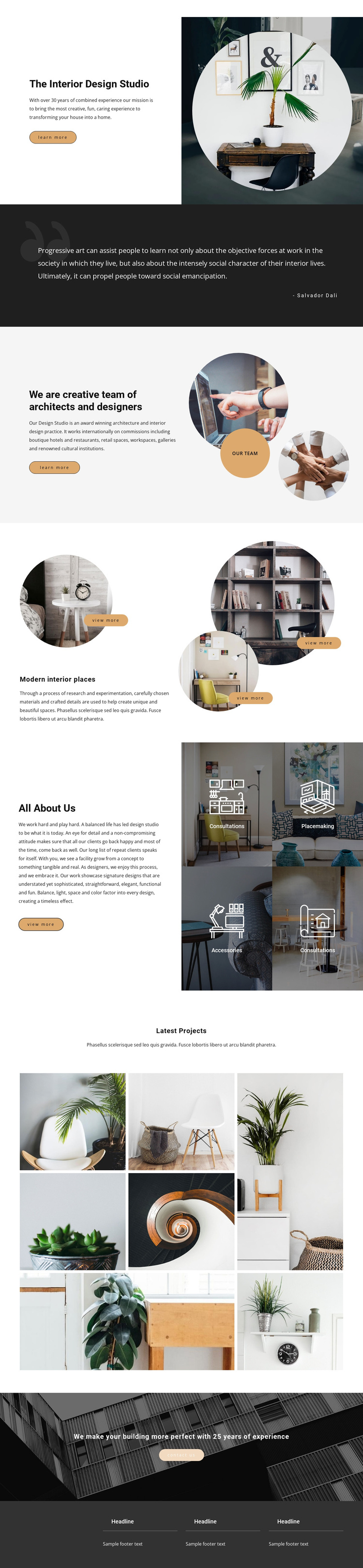
Circular photography is the clearest reason to consider this design among broader template choices. The hero uses a large circular interior image to establish an immediate visual focus, and the same treatment returns in the team introduction and the Modern interior places section. That repetition gives the page a recognizable character while allowing different kinds of content—studio identity, people, and selected spaces—to remain visually connected.
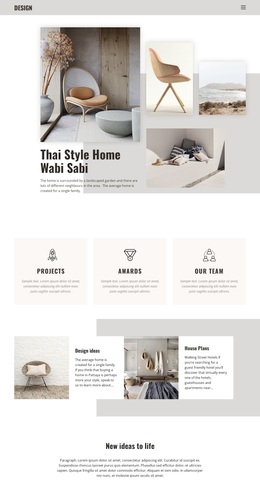
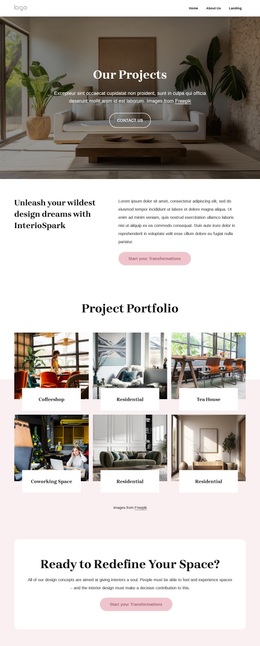
The template also covers more than a single portfolio display. Four image-backed capability tiles identify consultations, placemaking, and accessories, giving the studio a way to present areas of work beside the imagery that communicates its design approach. The seven-image Latest Projects arrangement adds a second, denser presentation mode, so the page can show both carefully framed individual places and a broader collection of completed-looking project views. This range makes the design more useful for a studio that needs visual storytelling and service context together.
The restrained neutral palette, dark charcoal bands, spacious asymmetrical composition, and warm architectural photography keep the page editorial rather than crowded. A final dark block with an experience statement and Contact us action gives the visual story a practical endpoint. The result is a strong option for projects that want to lead with atmosphere and selected work, while still providing team information, capability categories, and a direct way to continue the conversation.
Customize with Nicepage
Open this ready-made template in the Template Builder and customize it visually in the Nicepage editor. Replace demo content, edit page sections, and adapt the design to your project without rebuilding the template from scratch.
Start With a Ready-Made Template
Choose a Design for a New Page
Use a ready-made template as a starting point instead of creating every page from a blank canvas. When adding a new page in Nicepage, browse available designs, compare different layouts, and choose an option that already fits the general purpose and visual direction of your project.
Browse Different Page Designs
Explore Page Designs using search, thematic categories, Design Sets, and full-page previews. The collection includes layouts for different subjects and page purposes, making it easier to compare alternatives before selecting a design to customize.
Customize the Selected Template
After choosing a design, create the page and continue editing it visually in Nicepage. Replace the demo content, adjust images, typography, colors, sections, and other elements, and adapt the ready-made layout to your own content instead of rebuilding the design from the beginning.
Explore More Design Directions
If the first option does not match your project closely enough, return to the design collection and compare other templates before committing to a layout. This makes the template library useful not only for faster page creation, but also for exploring different visual approaches and finding a suitable starting point for a new project.
This workflow gives you access to a broad collection of ready-made designs that can be selected, compared, and customized according to the needs of each new page or project.