Chase Alpine Adventures Website Template


A Reusable Resort Section With Choices and a Featured Getaway
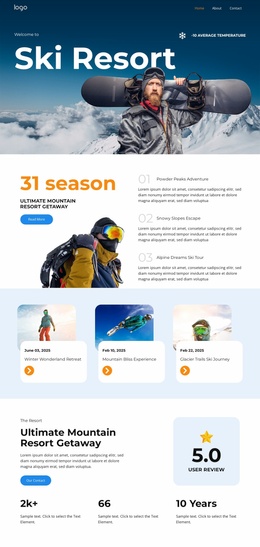
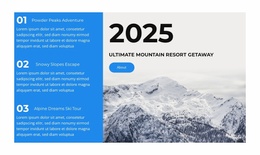
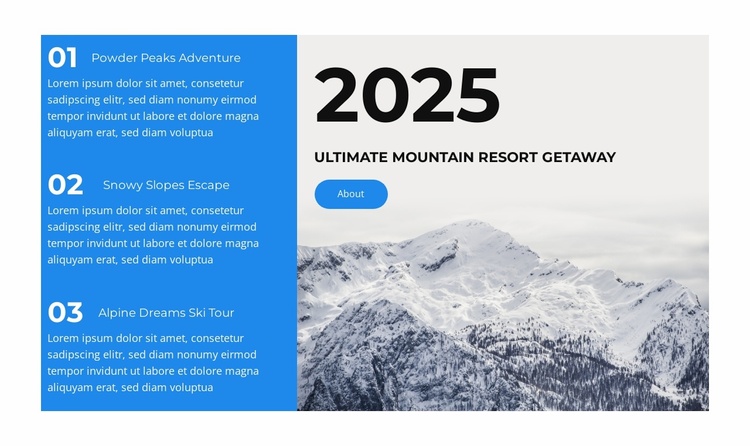
The block supplies one stable content area for a broader travel or hospitality project: a resort introduction that combines several adventure choices with one featured getaway message. Powder Peaks Adventure, Snowy Slopes Escape, and Alpine Dreams Ski Tour form a repeatable numbered group on the blue side. Their current descriptions are placeholder text, so the section can later accommodate concise tour summaries, seasonal details, or other approved content without changing the visual pattern.
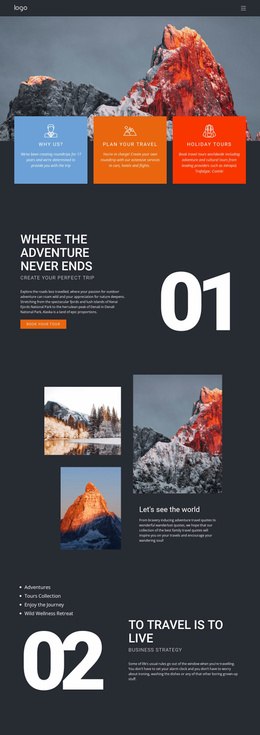
The right panel gives the broader project a recognizable destination cue through the 2025 label, Ultimate Mountain Resort Getaway heading, About button, and snowy mountain photograph. This makes the section suitable for a site area that introduces a resort experience while other blocks handle accommodation details, galleries, itineraries, testimonials, booking information, or contact content. The block contributes a defined service or destination pattern rather than attempting to cover those neighboring functions.
Its reuse value comes from the clear division between selection and emphasis. The numbered list can present several related adventure options, while the image-backed panel can maintain the primary seasonal or resort message. The blue accent and rounded button also provide visual cues that related sections may echo. In a Website Template project, that combination helps coordinate recurring travel content while leaving each surrounding page or block responsible for its own purpose.
Customize with Nicepage
Open this ready-made template in the Website Template Builder and customize it visually in the Nicepage editor. Replace demo content, edit page sections, and adapt the design to your project without rebuilding the template from scratch.
Edit Template Offline
2. Create a new page or select existing
3. Click Add new block, search for id 6426084 and click enter
Edit Template Online
Create Awesome Websites


Free Nicepage Builder
Keywords
Build a Complete Website From This Template
Customize the Website Visually
Use this ready-made website template as a starting point for your project and adapt its pages visually in Nicepage. Change content, images, typography, navigation, sections, and other design elements while keeping the website together as a single editable project.
Manage Website Pages in One Project
Use the Pages panel to open, add, duplicate, and manage the pages of your website. Work on individual pages while keeping navigation and the overall site structure accessible from the same project, making it easier to develop a complete website instead of managing separate page files.
Expand the Website With Matching Designs
When you need additional pages or sections, use Page Design Sets to find Page and Block Designs created in the same visual style. Design Sets group matching designs together, making it easier to expand the website with new content while maintaining a consistent look across its pages and sections.
Organize Larger Multi-Page Websites
As the website grows, use Page Folders to organize related pages and keep larger multi-page projects easier to navigate in the editor. This is especially useful for websites with separate service pages, company information, contacts, landing pages, and other content areas.
This workflow makes the template a practical foundation for building and expanding a complete website while managing its pages, content, and visual design within one Nicepage project.