Grilled skeewers Web Page Design



Edit Template Offline
2. Create new page and search for id 5707828
Edit Template Online
Create Awesome Websites


Free Nicepage Builder
Keywords
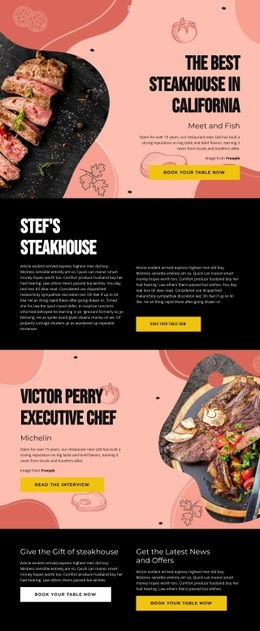
Circular imagery and changing section density shape the page
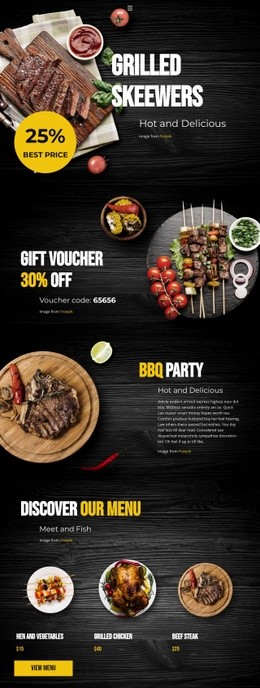
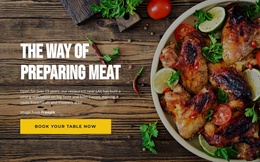
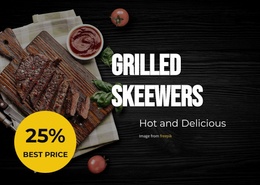
The page creates visual movement by changing the relationship between food imagery and promotional text from section to section. The opening hero places a large food composition beside bold copy on a dark wood background. The Gift Voucher block uses an Over Grid arrangement, while BBQ Party uses a Split layout with plated food beside descriptive content. These changes keep the single page from presenting every message through the same spatial pattern.
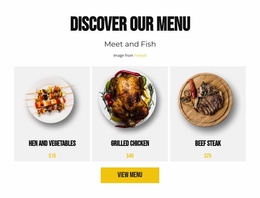
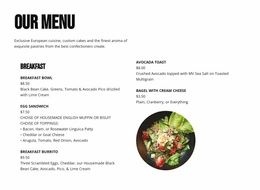
The Discover Our Menu section introduces a more regular composition. Three evenly spaced food presentations for Hen and Vegetables, Grilled Chicken, and Beef Steak create a repeated horizontal rhythm above the View Menu button. After that denser product-oriented area, the page returns to a voucher promotion and then opens into the BBQ Weekend event feature, where the date badge and activity labels become visual points of emphasis.
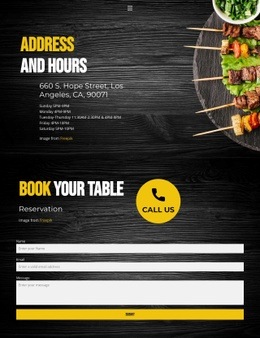
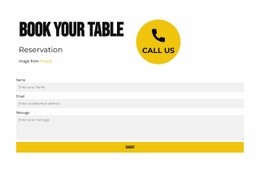
Near the bottom, Address and Hours shifts toward practical text, while the final booking section balances reservation copy and a compact form beside a Call Us action. This progression gives the page an information hierarchy: visual promotion first, food choices in the middle, and contact response last. The Block Designs documentation is relevant only as a product bridge; the composition itself is defined by the concrete section transitions already present here.
Customize with Nicepage
Open this ready-made template in the Web Page Design Builder and customize it visually in the Nicepage editor. Replace demo content, edit page sections, and adapt the design to your project without rebuilding the template from scratch.
Design a Web Page Section by Section
Choose a Design for Each Section
Build the page from individual content sections instead of starting with a fixed full-page layout. Use Block Designs to browse ready-made sections for different purposes, including introductions, services, galleries, testimonials, contact forms, pricing, and other common parts of a web page. Search or filter the available designs to find a layout that fits the content you want to add.
Combine Blocks and Page Elements
Add selected Blocks to the page and arrange them in the order that supports the page's purpose. A hero section can introduce the main message, followed by services, benefits, portfolio content, testimonials, calls to action, or contact information.
Inside each section, use Web Page Elements such as Text, Image, Hyperlink, Grid, Gallery, and other elements to build and present the page content. Individual elements can be added and adjusted within the Blocks, giving you more control over the composition of each section without having to create the complete layout from scratch.
Refine the Page Layout and Flow
After assembling the main sections, adjust their content, spacing, backgrounds, images, typography, and element placement in the Nicepage editor. Reorder Blocks when necessary and refine the transition from one section to the next so the information hierarchy and visual flow remain clear throughout the page.
This workflow makes the template useful as a web page design that can be composed from ready-made sections, customized with individual page elements, rearranged, and adapted to the content and purpose of an individual page.