Food and nutrition service Web Page Design


Edit Template Offline
2. Create new page and search for id 6456619
Edit Template Online
Create Awesome Websites


Free Nicepage Builder
Keywords
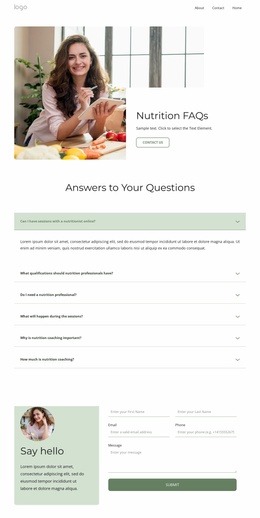
Hero Contrast and Repeated Grids Shape the Services Page
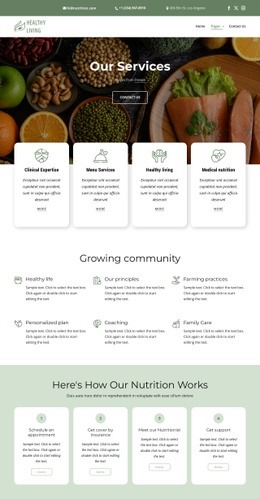
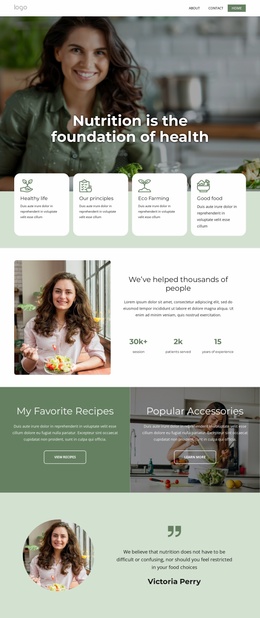
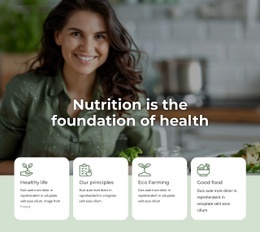
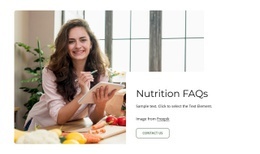
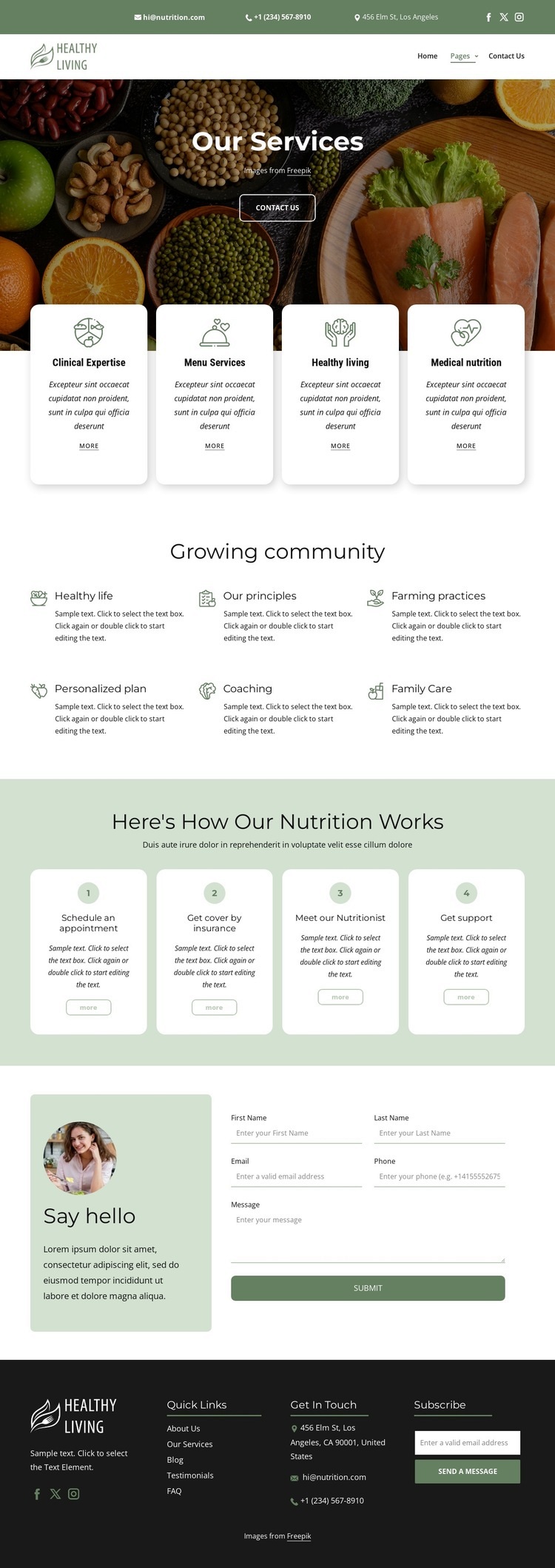
The opening composition combines a compact two-band header with a large text-on-image hero, creating a clear change from functional navigation to visual introduction. Centered typography keeps the Our Services heading and Contact Us button aligned within the food photograph, while the wide image supplies the strongest visual field on the page. The following row of four equal cards reduces that scale and gives each service offering comparable space.
Further down, the six-item Growing community section increases content density through two rows of compact feature items. This tighter grid is visually different from the four larger service cards, which helps separate supporting themes from the primary offerings. The four numbered process cards restore a more open, regular rhythm and add directional order through their step labels, titles, descriptions, and links.
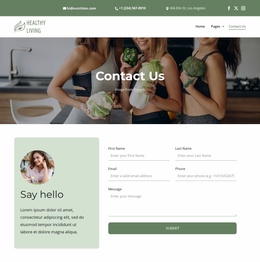
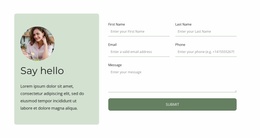
The contact area changes the composition once more. Its two-column arrangement places an illustrated text panel beside the form, balancing explanation and interaction rather than stacking both into one narrow zone. Finally, the dark footer uses four columns to distribute Quick Links, contact content, subscription, and social links before the page ends. These shifts in image scale, card width, grid density, alignment, and color contrast create a readable composition for one services page, with each transition supporting a different information role.
Customize with Nicepage
Open this ready-made template in the Web Page Design Builder and customize it visually in the Nicepage editor. Replace demo content, edit page sections, and adapt the design to your project without rebuilding the template from scratch.
Design a Web Page Section by Section
Choose a Design for Each Section
Build the page from individual content sections instead of starting with a fixed full-page layout. Use Block Designs to browse ready-made sections for different purposes, including introductions, services, galleries, testimonials, contact forms, pricing, and other common parts of a web page. Search or filter the available designs to find a layout that fits the content you want to add.
Combine Blocks and Page Elements
Add selected Blocks to the page and arrange them in the order that supports the page's purpose. A hero section can introduce the main message, followed by services, benefits, portfolio content, testimonials, calls to action, or contact information.
Inside each section, use Web Page Elements such as Text, Image, Hyperlink, Grid, Gallery, and other elements to build and present the page content. Individual elements can be added and adjusted within the Blocks, giving you more control over the composition of each section without having to create the complete layout from scratch.
Refine the Page Layout and Flow
After assembling the main sections, adjust their content, spacing, backgrounds, images, typography, and element placement in the Nicepage editor. Reorder Blocks when necessary and refine the transition from one section to the next so the information hierarchy and visual flow remain clear throughout the page.
This workflow makes the template useful as a web page design that can be composed from ready-made sections, customized with individual page elements, rearranged, and adapted to the content and purpose of an individual page.