Pricing table with green header Joomla Template


Structured plan limits fit a Joomla-managed content region
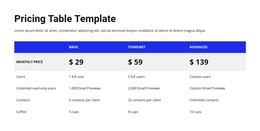
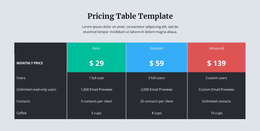
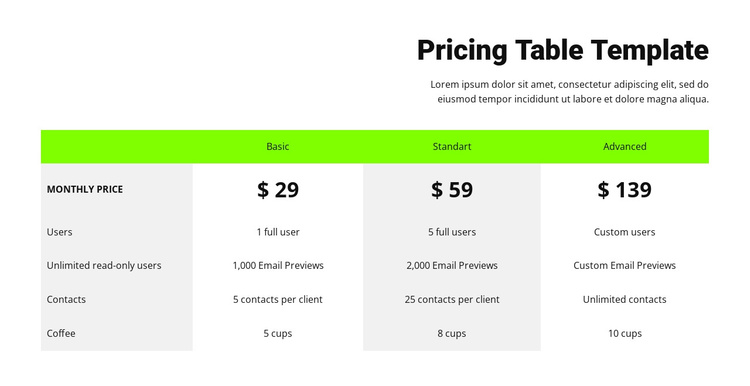
The four-column table divides this block into a clear informational region: one column identifies the comparison criteria and three columns describe the displayed plans. That organization is well suited to a Joomla-managed page where a pricing section needs to remain visually stable while the surrounding site handles broader editorial content. The section heading and supporting paragraph provide context before visitors reach the comparison itself.
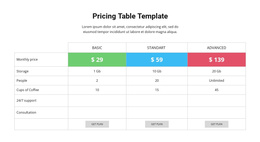
The monthly price row introduces the plan differences, while Users, Unlimited read-only users, Contacts, and Coffee create the labeled content groups beneath it. Basic, Standart, and Advanced are not separate sections; they are parallel plan columns within one pricing structure. The bright green header keeps those columns identifiable, and the gray alternating treatment helps readers follow each value across the wide table.
In a Joomla-oriented project, this block can function as a reusable pricing information area alongside other managed page content. The displayed labels and figures are presentation material that can be adapted to the relevant project. The section does not need to carry CMS-wide structure: its role is to preserve a concise comparison that a broader Joomla-managed page can place near explanatory content or a separate response point.
Customize with Nicepage
Open this ready-made template in the Joomla Page Builder and customize it visually in the Nicepage editor. Replace demo content, edit page sections, and adapt the design to your project without rebuilding the template from scratch.
Edit Template Offline
2. Create a new page or select existing
3. Click Add new block, search for id 89655 and click enter
Edit Template Online
Create Awesome Websites


Free Nicepage Builder
Keywords
Work With This Template in Joomla
Customize and Install the Joomla Template
Start with this ready-made template instead of building the Joomla design from scratch. Customize its layout, content, typography, images, sections, and other design elements visually in the Nicepage application, then export and install the Joomla Template, Nicepage Extension, and supported content on your Joomla website.
Edit the Template Directly in Joomla
After installation, you can edit the Joomla Template directly in Joomla with the Nicepage Joomla Extension. Customize the Header, Footer, Colors, Fonts, typography, and Page Templates from the Joomla workflow while keeping the site design connected with your CMS content.
Edit Joomla Articles Visually
Use the Nicepage Joomla Extension to open and edit Joomla Articles visually from the Joomla Administrator. Change text, images, sections, layouts, and other page content in the Nicepage editor while continuing to manage the Articles through Joomla.
Joomla Content and Template Integration
Use the customized template together with Joomla Articles, module Positions, menus, forms, Blog Pages, and other supported CMS elements. With the Nicepage Extension used as the Site Style Source, shared design settings can be applied across Joomla Articles while Joomla continues to provide the CMS environment for managing site content.
This workflow combines a ready-made Joomla Template with visual customization, direct template editing in Joomla, and continued content management through the Nicepage Joomla Extension.