Team of creative people Joomla Template



A Compact Portrait Collection for Structured Joomla Content
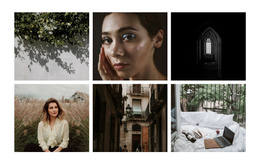
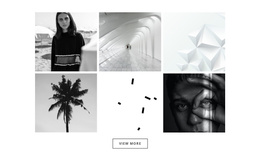
The six portraits create a clearly bounded visual information region that can participate in a Joomla-managed page. Their repeated subject format and shared monochrome treatment make the block suitable for presenting a cohesive image collection, while the three-column, two-row grid keeps the region compact. In a broader Joomla content structure, this gallery can sit alongside descriptive or article-like material without needing to carry the surrounding page's navigation or editorial framework.
The visual organization is led by contrast. A black background contains the image grid, and a bright yellow horizontal accent runs behind the gallery's upper portion. The high-contrast monochrome photographs remain the primary content, while the accent supplies a recognizable visual marker for the section. Minimal gaps between portraits preserve the tight rectangular collage and help the six items read as one coordinated gallery rather than separate content cards.
The interaction supports the content role without changing its structure. Hover overlays provide a visual response as visitors move across individual portraits, and lightbox viewing can open a closer presentation of the selected image. Within a Joomla-oriented project, the block can therefore function as a reusable gallery region for fashion, beauty, creative work, or portrait-led content. Related articles, categories, menus, and other CMS-managed areas belong to the wider site, while this section retains its focused six-image presentation.
Customize with Nicepage
Open this ready-made template in the Joomla Page Builder and customize it visually in the Nicepage editor. Replace demo content, edit page sections, and adapt the design to your project without rebuilding the template from scratch.
Edit Template Offline
2. Create a new page or select existing
3. Click Add new block, search for id 76398 and click enter
Edit Template Online
Create Awesome Websites


Free Nicepage Builder
Keywords
Work With This Template in Joomla
Customize and Install the Joomla Template
Start with this ready-made template instead of building the Joomla design from scratch. Customize its layout, content, typography, images, sections, and other design elements visually in the Nicepage application, then export and install the Joomla Template, Nicepage Extension, and supported content on your Joomla website.
Edit the Template Directly in Joomla
After installation, you can edit the Joomla Template directly in Joomla with the Nicepage Joomla Extension. Customize the Header, Footer, Colors, Fonts, typography, and Page Templates from the Joomla workflow while keeping the site design connected with your CMS content.
Edit Joomla Articles Visually
Use the Nicepage Joomla Extension to open and edit Joomla Articles visually from the Joomla Administrator. Change text, images, sections, layouts, and other page content in the Nicepage editor while continuing to manage the Articles through Joomla.
Joomla Content and Template Integration
Use the customized template together with Joomla Articles, module Positions, menus, forms, Blog Pages, and other supported CMS elements. With the Nicepage Extension used as the Site Style Source, shared design settings can be applied across Joomla Articles while Joomla continues to provide the CMS environment for managing site content.
This workflow combines a ready-made Joomla Template with visual customization, direct template editing in Joomla, and continued content management through the Nicepage Joomla Extension.