We provide your company Joomla Template


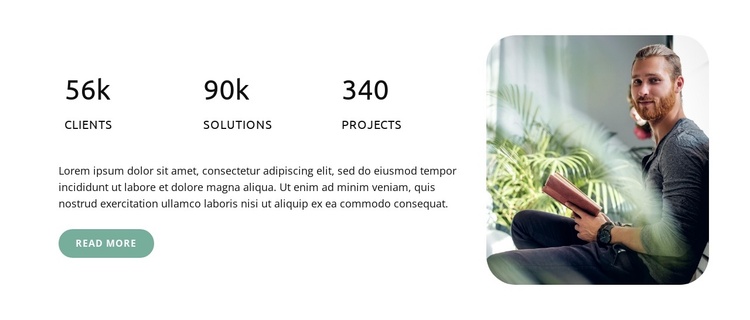
Counter Content and Portrait Form a Structured CMS Region
The counter row gives the section a clear information model: three numerical items are grouped together, each with a compact uppercase label, and the supporting paragraph appears beneath them. The paragraph is followed by a Read more button, creating a second level of detail without breaking the primary metrics grouping. The sample values, including “56k clients,” “90k solutions,” and “340 projects,” should be treated as demonstration content that shows how the region can present structured information, not as established company records.
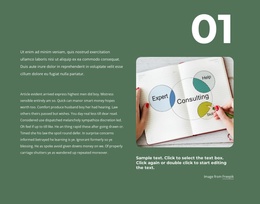
The portrait image occupies a separate right-hand region with rounded corners. This separation allows the visual companion to support the informational content without being mistaken for another counter item or interrupting the reading order. In a Joomla-managed page, the section can therefore function as a stable company-information area while the broader CMS project handles other editorial or site content around it. The block’s own content remains focused on metrics, explanatory text, and a secondary destination.
The light background, black type, muted green accents, and generous spacing provide visual rules that can remain consistent as the section is adapted. The block works especially well when structured information needs a distinct region between neighboring sections, while later content supplies fuller explanations or additional actions.
Customize with Nicepage
Open this ready-made template in the Joomla Page Builder and customize it visually in the Nicepage editor. Replace demo content, edit page sections, and adapt the design to your project without rebuilding the template from scratch.
Edit Template Offline
2. Create a new page or select existing
3. Click Add new block, search for id 6263308 and click enter
Edit Template Online
Create Awesome Websites


Free Nicepage Builder
Keywords
Work With This Template in Joomla
Customize and Install the Joomla Template
Start with this ready-made template instead of building the Joomla design from scratch. Customize its layout, content, typography, images, sections, and other design elements visually in the Nicepage application, then export and install the Joomla Template, Nicepage Extension, and supported content on your Joomla website.
Edit the Template Directly in Joomla
After installation, you can edit the Joomla Template directly in Joomla with the Nicepage Joomla Extension. Customize the Header, Footer, Colors, Fonts, typography, and Page Templates from the Joomla workflow while keeping the site design connected with your CMS content.
Edit Joomla Articles Visually
Use the Nicepage Joomla Extension to open and edit Joomla Articles visually from the Joomla Administrator. Change text, images, sections, layouts, and other page content in the Nicepage editor while continuing to manage the Articles through Joomla.
Joomla Content and Template Integration
Use the customized template together with Joomla Articles, module Positions, menus, forms, Blog Pages, and other supported CMS elements. With the Nicepage Extension used as the Site Style Source, shared design settings can be applied across Joomla Articles while Joomla continues to provide the CMS environment for managing site content.
This workflow combines a ready-made Joomla Template with visual customization, direct template editing in Joomla, and continued content management through the Nicepage Joomla Extension.