Incredible travel stories Joomla Template



Travel Story Content Forms a Structured Joomla Page Region
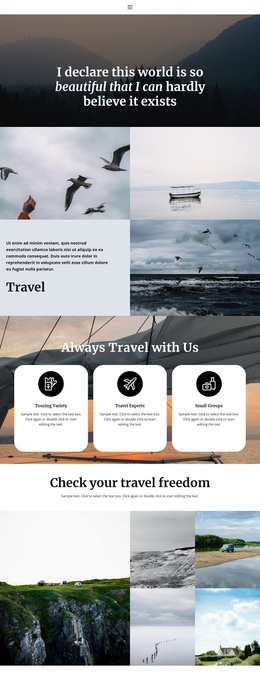
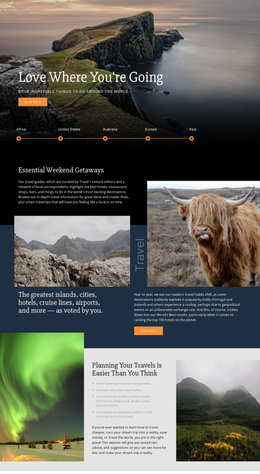
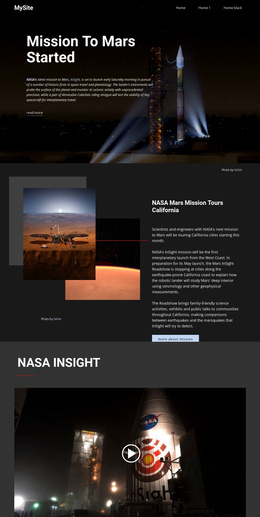
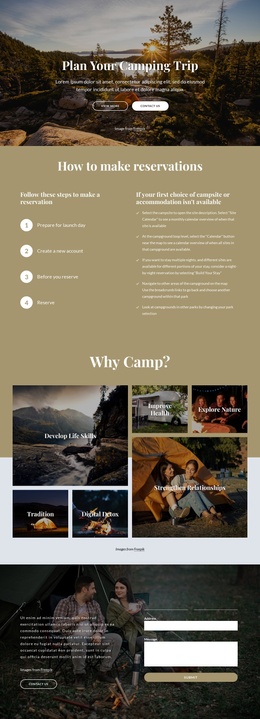
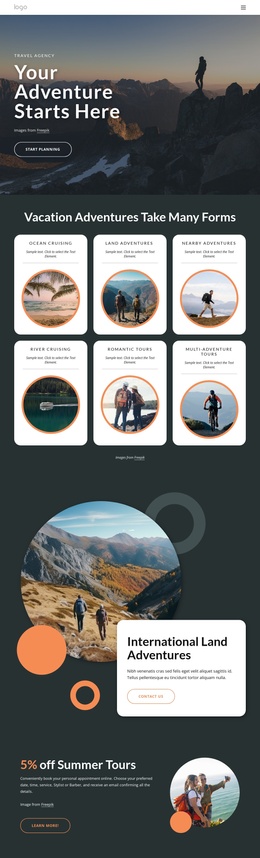
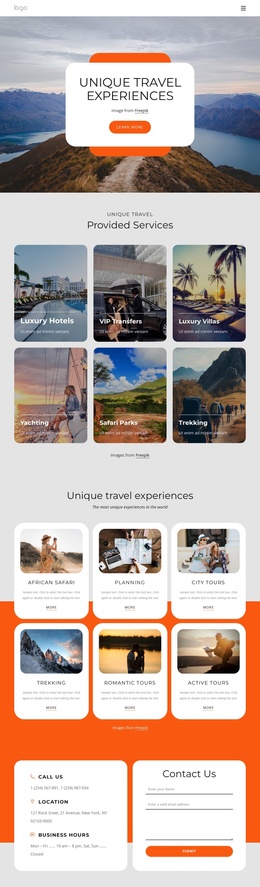
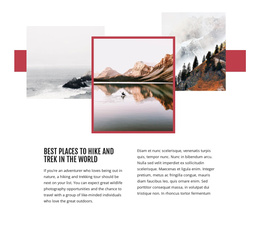
The block separates its travel-guide message into several clear content roles: the “travel story” eyebrow identifies the subject, supporting copy provides an introductory layer, and the “guide for best travel” heading states the central theme. The circular photograph of a mosque-like landmark is not mixed into the text as a flat background; it occupies its own visual region in the two-column composition. This separation gives the section a stable structure for presenting travel-oriented information in a Joomla-managed page.
The white background and generous whitespace help distinguish the text groups from the image area. Black uppercase eyebrow text provides a compact label, while the large bold heading carries the strongest typographic weight. The static interaction keeps the content exposed at once, so the region works as an immediately readable introduction rather than as a set of hidden panels or rotating items. The visual hierarchy also makes the section recognizable when it appears beside other content regions managed within the wider site.
In a Joomla context, this block can serve as a structured travel-guide area while the surrounding project manages its broader articles and page content. The section could introduce destination stories, cultural points of interest, or tourism information placed elsewhere in the page flow. Its role is specific: it gives one CMS-managed content region a clear topic, image relationship, and introductory heading without becoming the entire Joomla site or template.
Customize with Nicepage
Open this ready-made template in the Joomla Page Builder and customize it visually in the Nicepage editor. Replace demo content, edit page sections, and adapt the design to your project without rebuilding the template from scratch.
Edit Template Offline
2. Create a new page or select existing
3. Click Add new block, search for id 180340 and click enter
Edit Template Online
Create Awesome Websites


Free Nicepage Builder
Keywords
Work With This Template in Joomla
Customize and Install the Joomla Template
Start with this ready-made template instead of building the Joomla design from scratch. Customize its layout, content, typography, images, sections, and other design elements visually in the Nicepage application, then export and install the Joomla Template, Nicepage Extension, and supported content on your Joomla website.
Edit the Template Directly in Joomla
After installation, you can edit the Joomla Template directly in Joomla with the Nicepage Joomla Extension. Customize the Header, Footer, Colors, Fonts, typography, and Page Templates from the Joomla workflow while keeping the site design connected with your CMS content.
Edit Joomla Articles Visually
Use the Nicepage Joomla Extension to open and edit Joomla Articles visually from the Joomla Administrator. Change text, images, sections, layouts, and other page content in the Nicepage editor while continuing to manage the Articles through Joomla.
Joomla Content and Template Integration
Use the customized template together with Joomla Articles, module Positions, menus, forms, Blog Pages, and other supported CMS elements. With the Nicepage Extension used as the Site Style Source, shared design settings can be applied across Joomla Articles while Joomla continues to provide the CMS environment for managing site content.
This workflow combines a ready-made Joomla Template with visual customization, direct template editing in Joomla, and continued content management through the Nicepage Joomla Extension.