We will tell you about the team Joomla Template


Heading, Supporting Copy, and Numeral Form a Structured Team Region
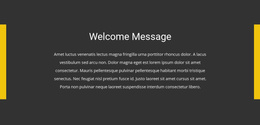
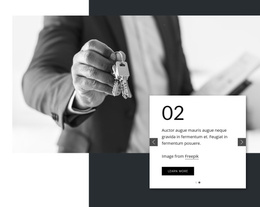
The heading “Meet our creative team” and the paragraph beneath it create two clear informational layers inside the section. The heading names the subject, while the supporting copy can carry the introductory explanation that a Joomla-managed page needs before visitors reach more detailed team content elsewhere. Because the block contains no portraits, names, or repeated team cards, its role stays focused on introduction rather than individual profiles.
The large colored panel gives this content a stable visual boundary. Pale blue-green provides the field, and white serif typography separates the primary heading from the smaller paragraph through scale and placement. The standalone numeral 2 sits near the panel’s lower right as an independent display element. It can contribute rhythm and emphasis to the design without being presented as a verified team count, achievement, or other business claim.
The narrow empty area beside the panel is meaningful to the content region as well. It leaves room for the section to breathe and helps distinguish this introductory unit from neighboring page material. In a Joomla-oriented project, the block can serve as a reusable structured information area within a broader CMS-managed page, while related editorial content, team profiles, navigation, and contact details remain separate. The result is a focused visual section rather than a complete Joomla site or template.
Customize with Nicepage
Open this ready-made template in the Joomla Page Builder and customize it visually in the Nicepage editor. Replace demo content, edit page sections, and adapt the design to your project without rebuilding the template from scratch.
Edit Template Offline
2. Create a new page or select existing
3. Click Add new block, search for id 137696 and click enter
Edit Template Online
Create Awesome Websites


Free Nicepage Builder
Keywords
Work With This Template in Joomla
Customize and Install the Joomla Template
Start with this ready-made template instead of building the Joomla design from scratch. Customize its layout, content, typography, images, sections, and other design elements visually in the Nicepage application, then export and install the Joomla Template, Nicepage Extension, and supported content on your Joomla website.
Edit the Template Directly in Joomla
After installation, you can edit the Joomla Template directly in Joomla with the Nicepage Joomla Extension. Customize the Header, Footer, Colors, Fonts, typography, and Page Templates from the Joomla workflow while keeping the site design connected with your CMS content.
Edit Joomla Articles Visually
Use the Nicepage Joomla Extension to open and edit Joomla Articles visually from the Joomla Administrator. Change text, images, sections, layouts, and other page content in the Nicepage editor while continuing to manage the Articles through Joomla.
Joomla Content and Template Integration
Use the customized template together with Joomla Articles, module Positions, menus, forms, Blog Pages, and other supported CMS elements. With the Nicepage Extension used as the Site Style Source, shared design settings can be applied across Joomla Articles while Joomla continues to provide the CMS environment for managing site content.
This workflow combines a ready-made Joomla Template with visual customization, direct template editing in Joomla, and continued content management through the Nicepage Joomla Extension.