
Summary
- Overview
- Video Lesson
- Add Icon
- Search Icons In Different Languages
- Icon Styles And Presets
- Change Icon Dialog
- Icon Upload
- Icon Size
- Icon Properties
- Link To Icons In Shapes
Overview
The Icon is a popular element on a web page and serves as a Text illustration. It helps visitors to understand concepts easier.

Video Lesson
See Also
Add Icon
Add the Icon Element from the Quick Access -> Icon or press Alt+O.

Search Icons In Different Languages
Adding the Icon Element, you can search in different languages, including English, German, French, Spanish, Portuguese, and Russian.

Icon Styles And Presets
You can add the Icon separated by Categories: Flat, Fill, Linear, и Background, and Border.

You can also quickly insert the Text with Icon presets and Social Icons.

Change Icon Dialog
Open the dialog to change the Icon by clicking on the Icon button in the Context Toolbar. You can use the Icons from the Media Library in the opened dialog.
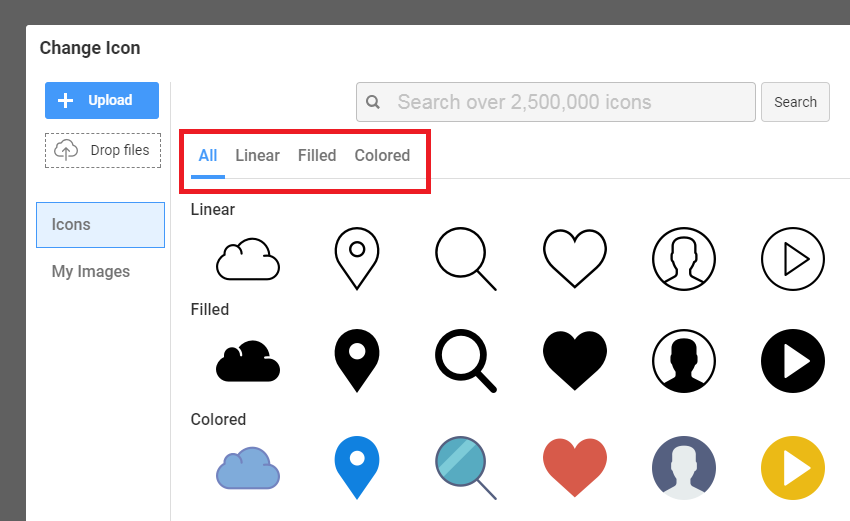
The Icons in the dialog are presented in four Tabs: All, Linear, Filled and Colored. The All Tab has links to three basic Icon Styles.
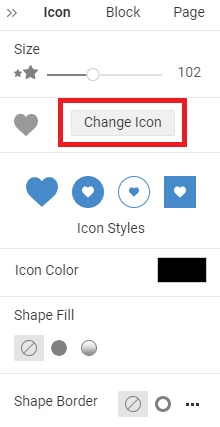
You can also open it by clicking the Change Icon button in the Property Panel.
Icon Upload
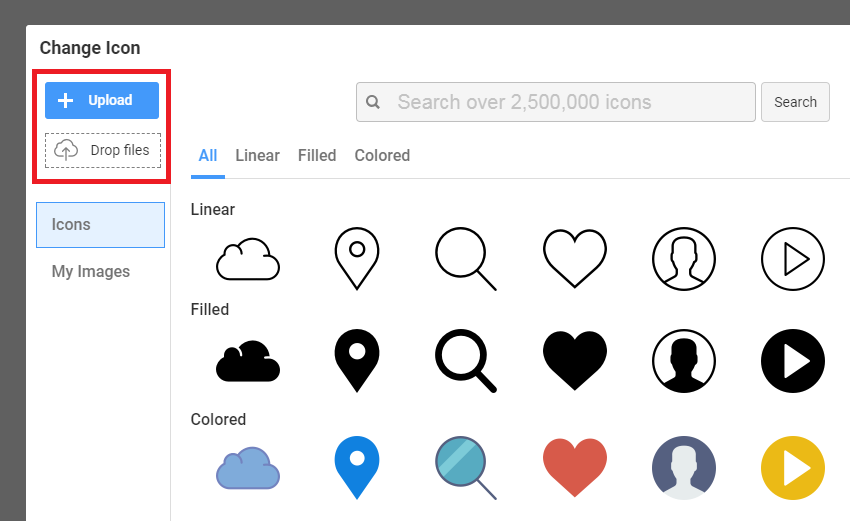
Upload your icons by clicking on the Upload button in the Change Icon dialog and selecting an icon from your disk. You can also drop files by dragging icons from the desktop and dropping them on the dashed "Drop Files" area.
Icon Properties
Use Property Panel to Edit Icon Element Properties or the Quick Edit Panel above the Icon Element.
Icon Size
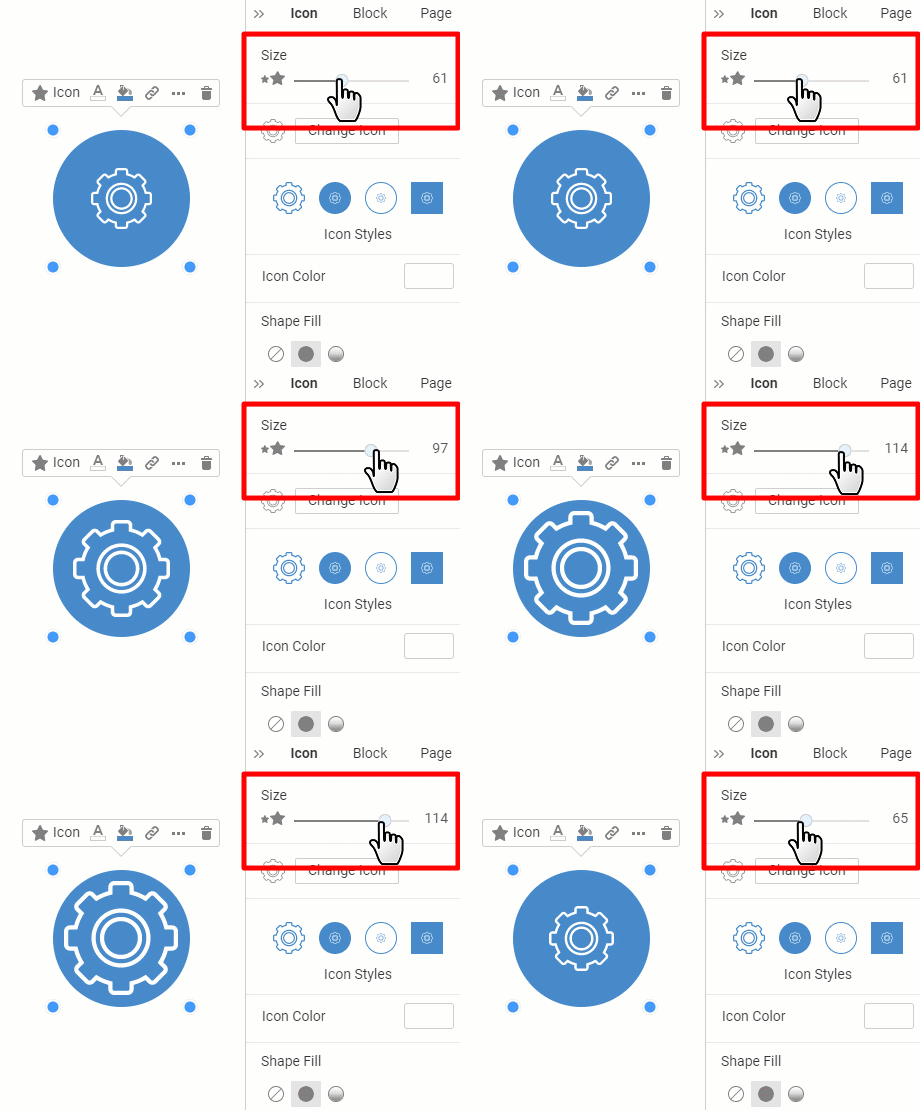
You can resize the Icon in its Dimensions by dragging the slider. Enter the precise value in pixels in the property input.
Icon Color
Change the Icon Color in the Property Panel. You can recolor SVG and PNG Icons added from the Media Library or uploaded from the disk.

Icon Resize And Position
Manually resize and move the Icon Element in the Editor by dragging the markers.
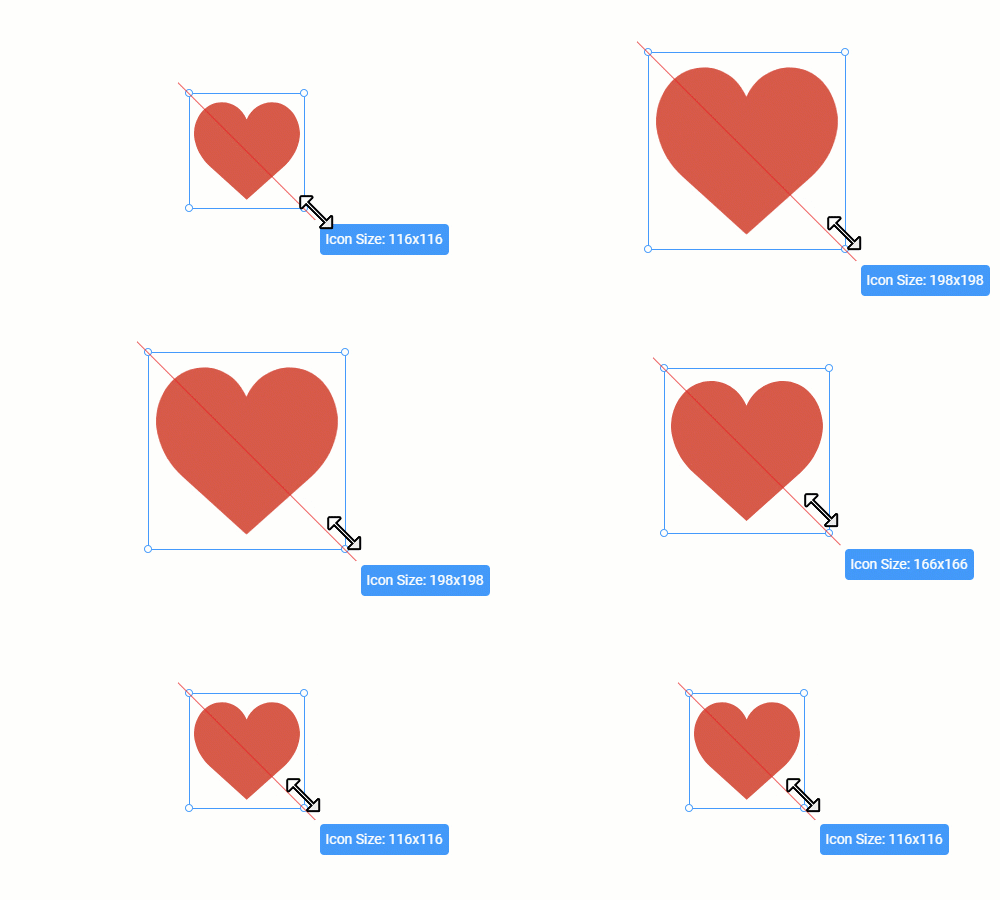
You can set the Width, Height, and Margins by entering the values in the Property Panel.

Icon Shape Styles
In the Property Panel, you can pick one of the four Icon Shape Styles: No Shape, Round Filled, Round Bordered, and Square Filled.

Icon Shape Fill, Border, And Radius
You can select the No Fill, Solid, or Gradient Fill.
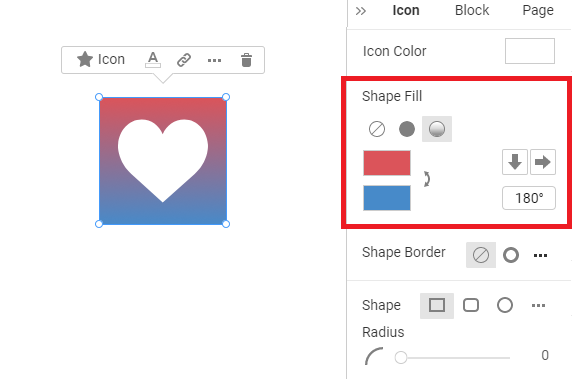
Change the Icon Shape Border, its Width, and Radius. You can also switch the Icon Shape to Round.

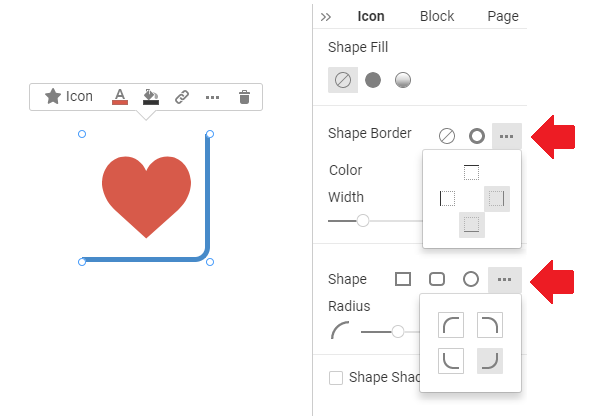
Icon Shape Custom Border And Radius
Icon Shape Shadow
Check the Shadow checkbox to apply a shadow. Adjust the shadow in the Settings tab.

Icon Flip And Rotate
You can change the Icon position along the axis, making it upside down or facing a certain side.

Icon Transparency
Adjust the Transparency of the Icon Element in the Property Panel.

Link To Icons In Shapes
You can go to the Icon Element in the Shape Element of the Add Panel.
