Blog Posts Wysiwyg Html Editor

Free Rich Text Editor Download
Use the buttons below to download Free HTML5 Editor for Windows or MacOS. Create mobile-friendly HTML pages and high-ranking websites! No coding and free.
Easy-To-Use Blog Posts WYSIWYG HTML Editor for Visual Article Preview Editing
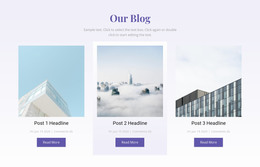
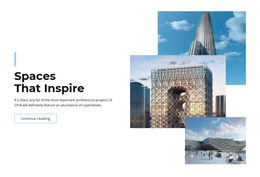
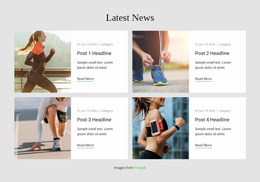
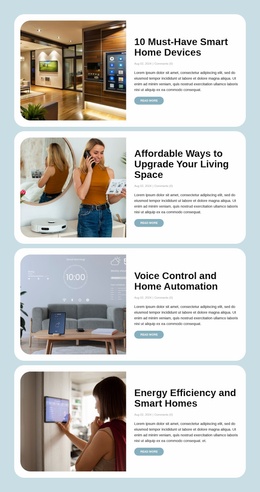
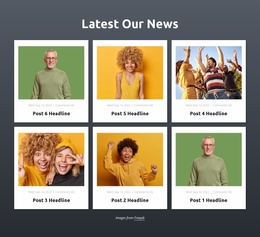
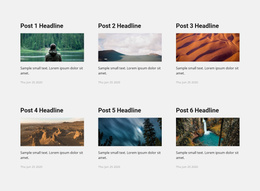
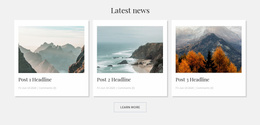
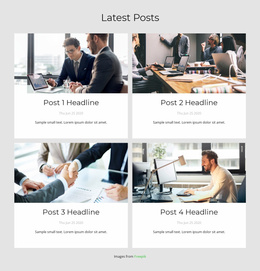
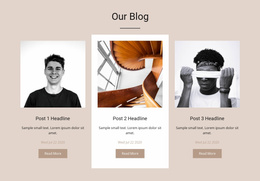
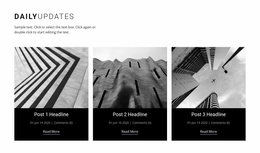
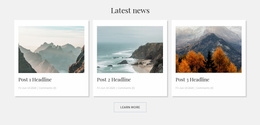
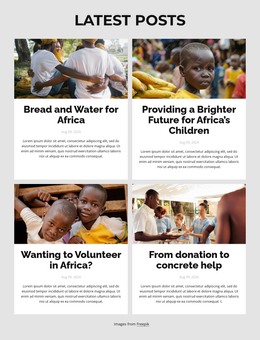
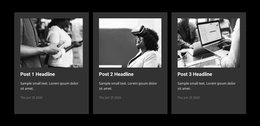
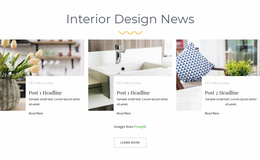
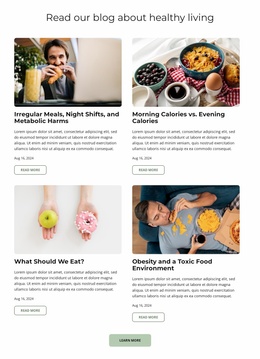
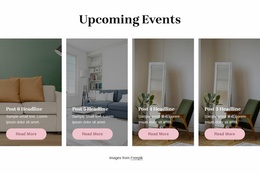
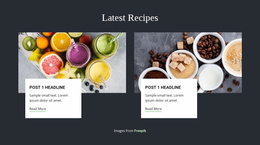
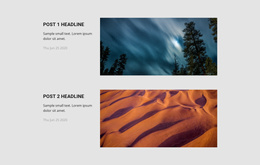
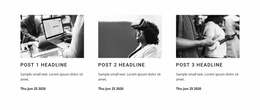
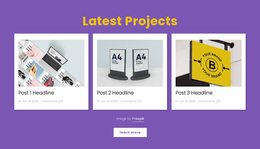
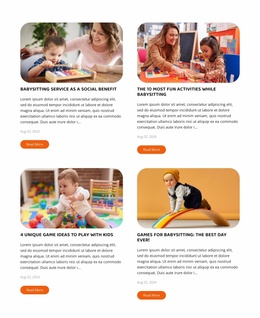
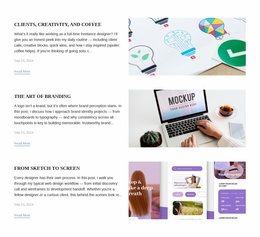
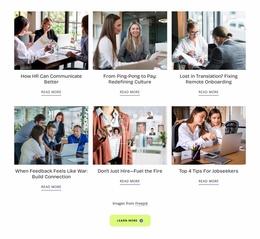
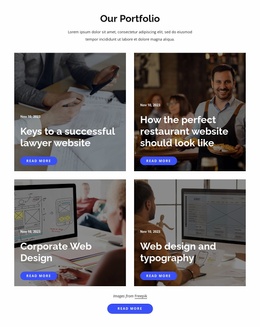
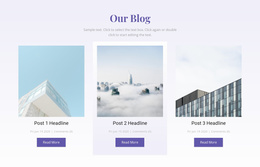
Editing an article feed is easier when you can see how its headlines, images, and summaries fit together. Blog Posts WYSIWYG HTML Editor layouts focus on arranging recurring editorial previews through a visual editing workflow. Instead of treating every article as an unrelated content card, the section maintains a recognizable structure that helps visitors browse recent stories, identify relevant topics, and open individual posts.
What Can You Edit in a Blog Posts Section?
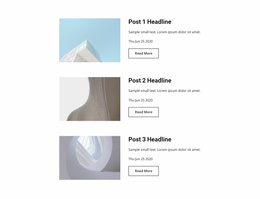
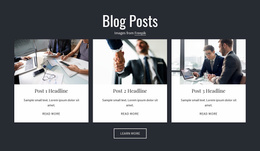
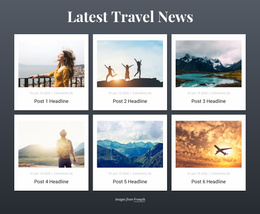
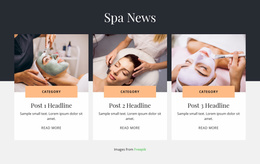
A Blog Posts section displays multiple articles in a repeated editorial layout. Each entry can include a title, featured image, excerpt, publication details, and a link to the complete article.
Visual editing helps you evaluate how these elements work together before the section becomes part of a larger page.
For example, a headline may need more space than its accompanying excerpt, while a featured image should support the article preview without dominating it. Publication dates and categories can remain secondary to the main reading information.
Unlike a general Grid, which can hold different types of content, Blog Posts follow an editorial publishing model. The repeated entries represent articles, and their arrangement supports content discovery rather than general card alignment.
Creating a Clean Editorial Layout in the Nicepage Editor
Use the visual editor to identify whether a problem belongs to one article’s content or to the repeated listing layout. The distinction becomes clearer when you test the feed with real posts.
Edit an Individual Article, Then Inspect Its Preview
Suppose a published article has an outdated headline and a featured image that crops badly in the listing. Begin in the Post Editor, not by redesigning the entire page. Update the article title, edit the relevant paragraphs, and replace the featured image. Then return to the Blog Posts section and review how that content appears among neighboring entries.
A reliable editing check includes:
- Text: look for awkward line breaks in the new headline and readable paragraph formatting inside the article.
- Images: confirm the chosen featured image makes sense both on its own page and as a smaller preview.
- Preview: inspect the repeated layout after the edit, especially when an excerpt or title is longer than before.
The Post Editor handles an individual article's information. The Blog Posts Element handles the collection's appearance, including spacing and column count. These two controls solve different editing problems.
For example, shortening a vague headline is a content edit. Increasing room for all headlines in a row is a layout edit. You can consult post layouts for examples of the full-article view, then check the preview in Nicepage's responsive views. Visual editing applies to supported Nicepage content; it is not a general-purpose importer for existing HTML websites.
Choosing a Visual Editing Approach for Article Collections
The useful WYSIWYG test happens after a visible change. Update a real headline or featured image, inspect its preview beside other articles, and adjust the repeated layout only if the issue affects the whole feed.
Nicepage responsive views help you spot a title that wraps awkwardly or an image crop that breaks at mobile width. This is preview-driven editing, not the complete create-to-publish process described by a website builder.
Frequently Asked Questions About Blog Posts WYSIWYG HTML Editor
Can I edit blog post layouts visually in Nicepage?
Yes. The Nicepage Blog Posts Element provides layout and styling controls in the Property Panel. You can adjust columns, rows, spacing, and post item properties while working in the visual editor.
Can I edit article titles and featured images separately from the post listing?
Yes. Nicepage provides a Post Editor for modifying article titles, content, and featured images. The Blog Posts Element controls how the collection of articles is presented within a page section.
Do I need to write HTML to arrange blog post previews?
No. You can use the Blog Posts Element and its visual layout controls to arrange article previews without manually writing HTML for each entry. More complex custom functionality may require additional development.
Refine Your Blog Posts Section Through Visual Editing
Select a Blog Posts block and open it in the Nicepage editor. Adjust the article preview structure, spacing, and image presentation, then review how headlines, excerpts, and links appear together. Once the section supports clear article discovery, integrate it into your page and continue with the appropriate project publishing workflow.