300 Gallery Wysiwyg Html Editor






















































































Free Rich Text Editor Download
Use the buttons below to download Free HTML5 Editor for Windows or MacOS. Create mobile-friendly HTML pages and high-ranking websites! No coding and free.
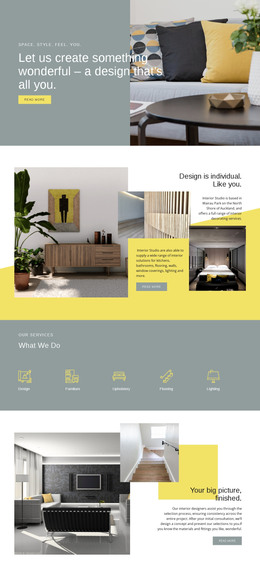
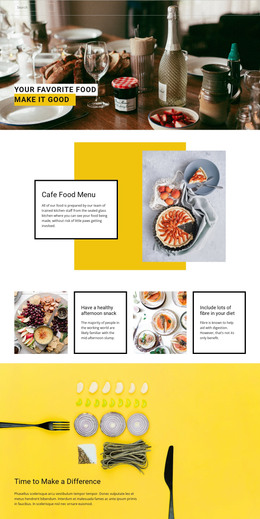
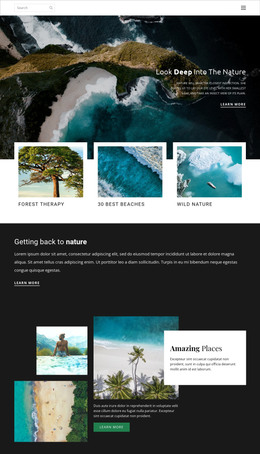
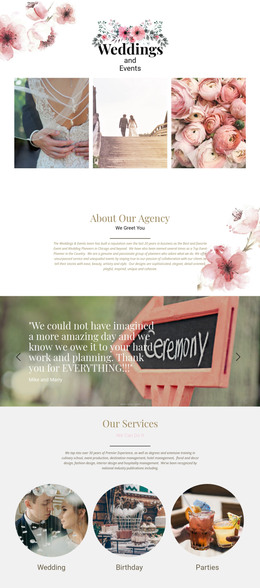
Gallery WYSIWYG HTML Editor Templates for Visual Selection
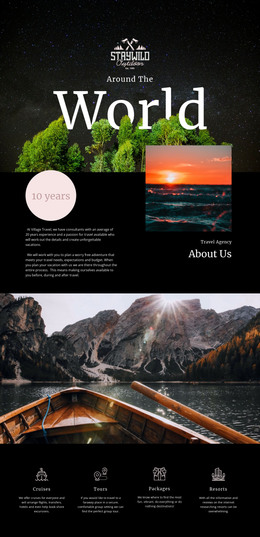
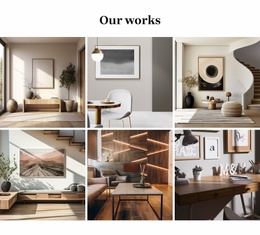
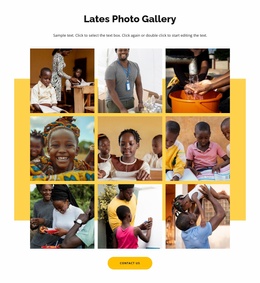
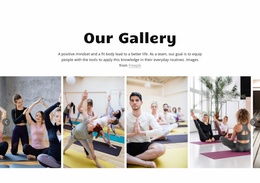
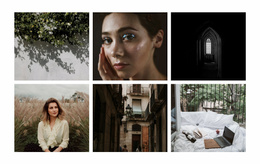
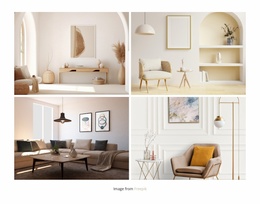
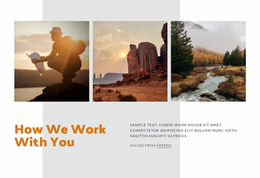
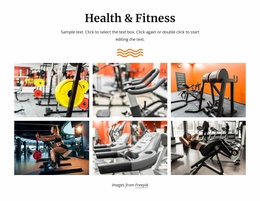
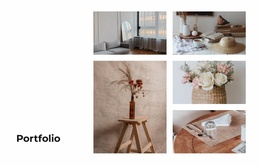
Gallery WYSIWYG HTML Editor templates combine ready-made image arrangements with a visual editing context. Start by choosing a gallery design that fits the photographs: spacious image rows, a more varied composition, or a layout with captions. When choosing a template, consider both the finished composition and your ability to adapt it visually.
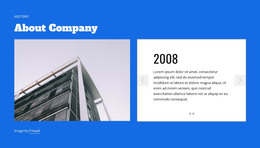
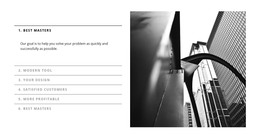
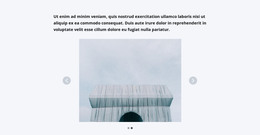
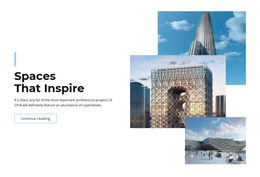
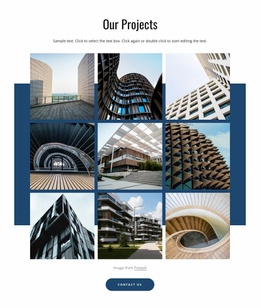
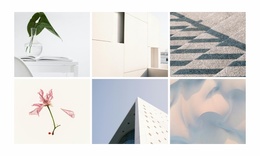
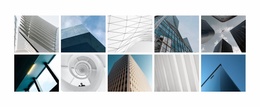
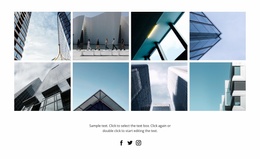
A portrait portfolio may need consistent framing. A mixed set of architecture photographs may benefit from a layout that gives one wide image more room.
Browse Gallery Designs You Can Adapt Visually
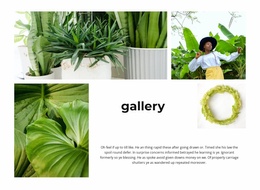
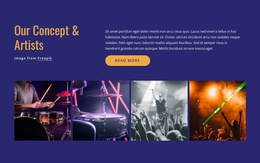
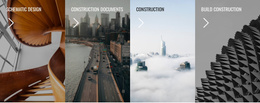
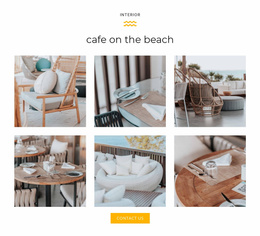
A useful starting point is a Gallery that already looks close to the intended result. Regular image rows suit collections with consistent proportions; mixed-size arrangements can make one project more prominent. Captions help when the work needs titles or short background details.
For a visual editor workflow, compare the finished compositions first:
- Spacious galleries give individual photographs room.
- Denser collections reveal more work in one section.
- Caption-friendly arrangements put text where readers expect it.
Nicepage's Visual Page Editor makes it possible to adapt the selected design on the page. That is especially convenient when the sample imagery differs from your own.
A ready-made Gallery is especially useful in a visual HTML editor because you can choose a finished composition and adapt it without manually rebuilding the image arrangement. Compare spacious, compact, and caption-friendly designs according to the photographs you want to show. Nicepage's visual editing controls let you change images and refine supported details while keeping the selected layout as a starting point.
Keep Image Browsing Clear as the Gallery Evolves
A gallery is not simply a Grid containing photographs. Its main function is to present related visual media as a browsable collection, with image order, spacing, and presentation determining how visitors examine the content.
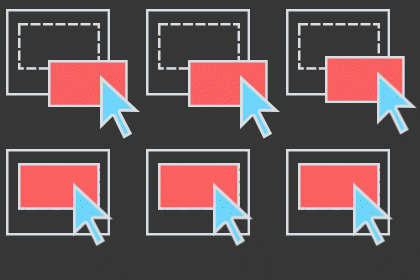
A Slider emphasizes sequential viewing, while Layered Images focuses on an overlapping visual composition. Gallery is more suitable when visitors should recognize several connected images and explore them individually.
When updating the section, check that captions remain useful, new photographs match the intended hierarchy, and the collection still feels coherent. This helps preserve the gallery's purpose even when its contents change.
For reference, Nicepage also documents its Image Gallery Element; this is a supporting capability, while the Gallery layout is chosen for its visual fit.
Gallery WYSIWYG HTML Editor FAQ
Can I replace Gallery images directly in the Nicepage editor?
Yes. Nicepage allows you to replace individual Gallery images by double-clicking them or using the Change Image option. Multiple images can also be replaced through supported gallery editing controls.
Do I need to write HTML code to change a Gallery layout?
No. Nicepage provides visual gallery layout controls for supported arrangements, including gallery, slider, thumbnail, and caption-based presentations. Standard layout changes can be made through the editor without manually writing HTML.
Can I add captions and hover effects to Gallery images?
Yes. The Nicepage Image Gallery Element supports image captions and hover effects. Available text and styling options depend on the selected gallery layout.
Can visitors open Gallery images in a larger preview?
Yes. Nicepage supports a lightbox option for viewing Gallery images in an enlarged format. The setting is available for supported gallery layouts and can be configured through the Image Gallery properties.
When should I choose Gallery instead of Grid in the visual editor?
Choose Gallery when the section's primary purpose is to display and browse related photographs or visual media. Grid suits a broader range of content arrangements, including text, cards, images, and mixed content elements.
Edit Your Gallery Section Visually in Nicepage
Choose a Gallery block design that fits your collection and open it in the Nicepage editor. Replace the sample images, adjust the gallery layout, refine spacing, and add captions where they improve browsing.
Review the composition as you edit, then incorporate the section into your page project. The result is a gallery that stays focused on visual media while letting you make everyday content and layout changes through a WYSIWYG editing workflow.