
The Social Icons element lets you add a block with icons and links to your social media profiles. You can select an available icon or add a custom icon if needed.

Add Social Icons
You can add a Social Network by clicking the Add Button in the Property Panel for the selected Social Icons Element and adding the needed ones from the list. We have chosen the most popular networks to start.

Social Icons Styles
Use the Style property in the Property Panel to quickly customize the Social Icons appearance.

Move Social Icons
You can move the Social Icons by clicking and dragging the Three-Dot Icon.

Edit Social Icon URL
To edit the Social Network URL, click the link in the Property Panel.

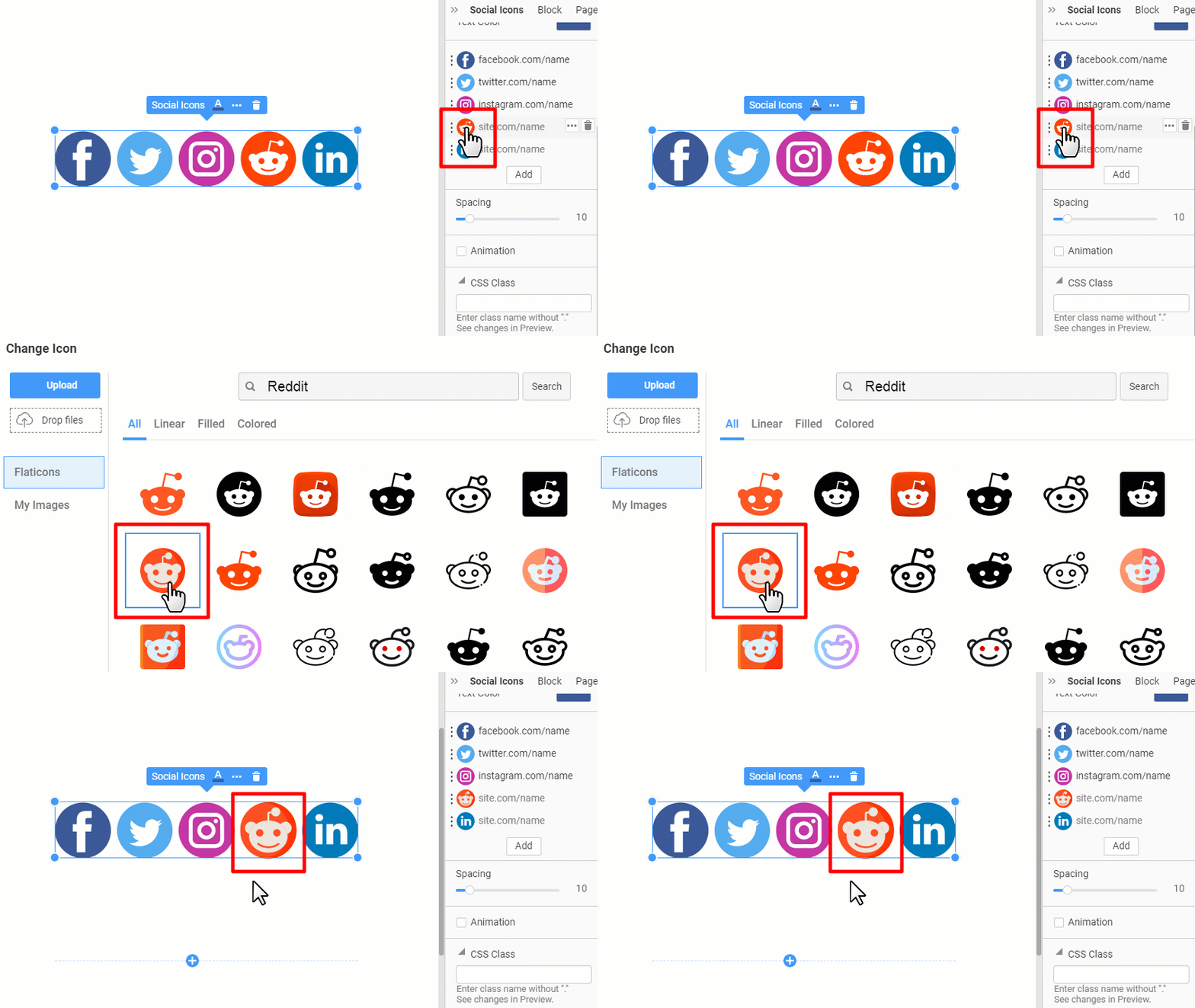
Change Social Icon
You can change the Social Icon for the Network by clicking on the Icon and selecting another from the Edit Icon dialog.
Recolor Social Icons
Recolor the Social Icons by picking a color in the Property Panel.

You can restore original colors by selecting the No Color option in the Color Picker.

Social Icon Menu
You can also click the Options icon to use the operations supported for the Social Icons Element.

Add a Custom Social Icon
There are many social networks we did not cover in our presentations for the Social Icons Element. Therefore, the Nicepage Social Icons element allows you to add custom Social Icons.

Filter Social Icons
For the Social Icons and the Add Icon list, we have added the Filter and the Viber Messenger icon.
