HR consulting benefits WordPress Theme


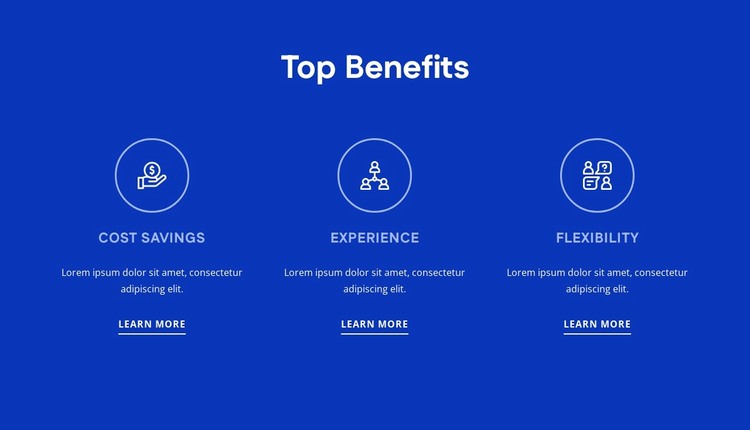
Three Named Benefits Make Stable Page Content
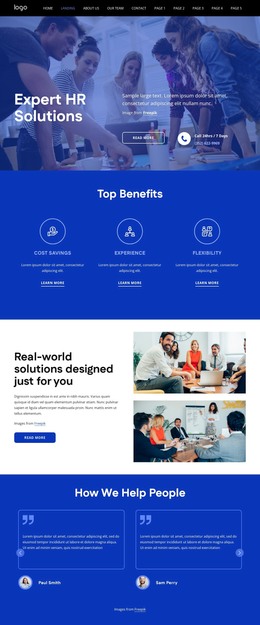
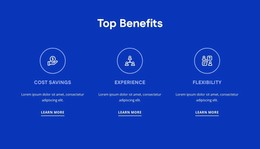
The “Top Benefits” heading and its three parallel items create content that can sit naturally within a managed page. Cost Savings, Experience, and Flexibility are distinct informational units, but their matching structure keeps them connected. Each unit uses a circular outlined icon, an uppercase label, a compact paragraph, and a learn more link, allowing the section to present concise benefit information while directing visitors toward more detailed content when appropriate.
The centered three-column arrangement gives the section a predictable reading pattern. The heading introduces the group before the eye moves across the three benefits, and even spacing prevents one item from appearing structurally more important than the others. A solid deep blue background provides the visual container, while white and light-blue typography separates the title, labels, descriptions, and links through contrast. The repeated icon treatment adds recognition without requiring a more complex component or interaction.
In a WordPress-oriented project, this block can serve as permanent page content for a services, company, or information area, depending on the surrounding material. The section itself remains focused on its three benefit messages and their learn more destinations. Other pages and content areas can provide broader editorial, navigation, or contact functions, while this reusable block preserves a consistent visual presentation for the benefits it contains.
Customize with Nicepage
Open this ready-made template in the WordPress Website Builder and customize it visually in the Nicepage editor. Replace demo content, edit page sections, and adapt the design to your project without rebuilding the template from scratch.
Edit Template Offline
2. Create a new page or select existing
3. Click Add new block, search for id 6400484 and click enter
Edit Template Online
Create Awesome Websites


Free Nicepage Builder
Keywords
Manage and Edit This Theme in WordPress
Customize and Install the WordPress Theme
Start with this ready-made theme instead of building the WordPress design from scratch. Customize its layout, content, typography, images, sections, and other design elements visually in Nicepage editor, then export and install the WordPress Theme, Plugin, and Pages on your WordPress site. The Nicepage WordPress Plugin lets you continue working with the site after installation.
Edit the Theme Directly in WordPress
After installation, you can edit the WordPress Theme directly in WordPress with the Nicepage WordPress Plugin. Use Site Style to customize site Colors, Fonts, Header, Footer, Blog, and Post Page Templates while working within your WordPress website.
Edit WordPress Pages Visually
Use the Nicepage WordPress Plugin to edit page content directly from the WordPress admin area. Open a WordPress Page with Nicepage and visually change its text, images, sections, and other page elements while continuing to manage the Page through WordPress.
WordPress Content and Theme Integration
Use the customized theme with WordPress Pages, Posts, Blog and Post Templates, menus, widgets, and other CMS-managed content. Shared theme elements such as Colors, Fonts, Header, Footer, Blog, and Post Page Templates can be managed as part of the overall site design, while WordPress provides the CMS environment for managing site content.
This workflow combines a ready-made WordPress Theme with visual customization, direct theme editing in WordPress, and continued content management through the Nicepage WordPress Plugin.