Four columns with text Template


A Square Image and Four Text Items Create a Distinctive Section Option
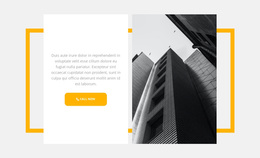
The section’s main design choice is the contrast between one editorial introduction and a repeated information grid. “Architecting the digital” gives the left column a strong verbal entry point, followed by copy about a company branding process, a comprehensive brand guideline, a marketing website, and brand illustrations. The square architectural image then anchors that column visually. Rather than spreading all content evenly across identical cards, the composition gives the introduction more space and weight.
The right side provides four supporting text items in a two-by-two grid. Each item includes a “read more” link, so the repeated group can carry several related explanations while keeping their follow-up actions consistent. Generous spacing prevents the grid from becoming dense, and the light gray lower-right panel introduces a small visual variation within the otherwise white and black treatment. The thin outlined links reinforce the editorial character instead of shifting the design toward heavy promotional controls.
This makes the block a useful choice when a page needs architecture or branding content with a clear image-to-text contrast and more structure than a single text column. It offers a defined section direction without requiring the surrounding page to adopt the same composition. The design can be selected as one option among other block alternatives and then adapted to the containing page’s content.
Customize with Nicepage
Open this ready-made template in the Template Builder and customize it visually in the Nicepage editor. Replace demo content, edit page sections, and adapt the design to your project without rebuilding the template from scratch.
Edit Template Offline
2. Create a new page or select existing
3. Click Add new block, search for id 801535 and click enter
Edit Template Online
Create Awesome Websites


Free Nicepage Builder
Keywords
Start With a Ready-Made Template
Choose a Design for a New Page
Use a ready-made template as a starting point instead of creating every page from a blank canvas. When adding a new page in Nicepage, browse available designs, compare different layouts, and choose an option that already fits the general purpose and visual direction of your project.
Browse Different Page Designs
Explore Page Designs using search, thematic categories, Design Sets, and full-page previews. The collection includes layouts for different subjects and page purposes, making it easier to compare alternatives before selecting a design to customize.
Customize the Selected Template
After choosing a design, create the page and continue editing it visually in Nicepage. Replace the demo content, adjust images, typography, colors, sections, and other elements, and adapt the ready-made layout to your own content instead of rebuilding the design from the beginning.
Explore More Design Directions
If the first option does not match your project closely enough, return to the design collection and compare other templates before committing to a layout. This makes the template library useful not only for faster page creation, but also for exploring different visual approaches and finding a suitable starting point for a new project.
This workflow gives you access to a broad collection of ready-made designs that can be selected, compared, and customized according to the needs of each new page or project.