Modern Airline Booking Template


Edit Template Offline
2. Create new page and search for id 6648746
Edit Template Online
Create Awesome Websites


Free Nicepage Builder
Keywords
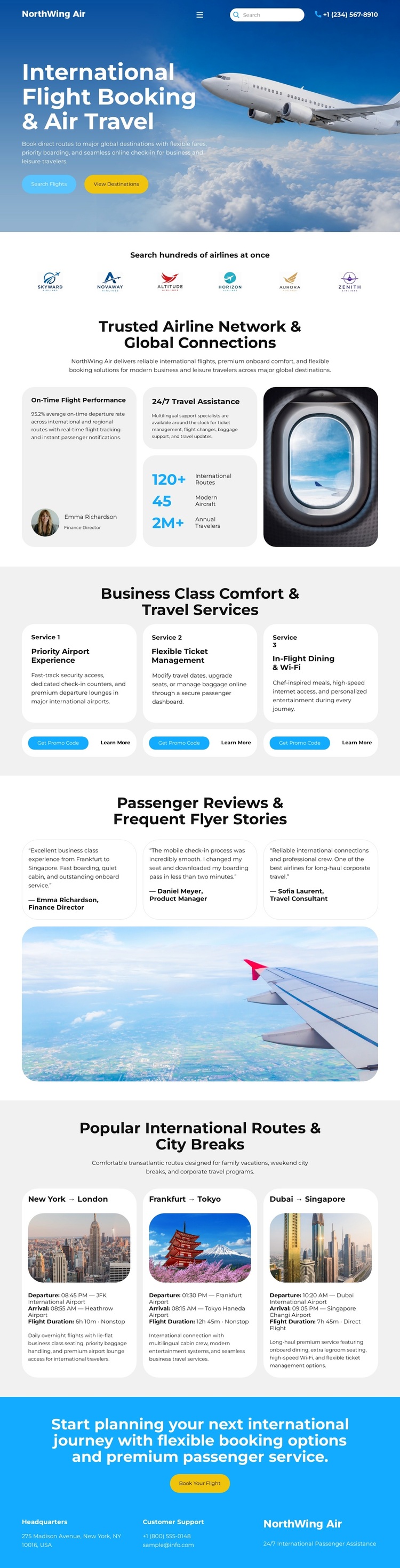
Three International Routes Give the Travel Concept a Concrete Focus
The three route cards make this design more specific than a generic travel layout. New York–London, Frankfurt–Tokyo, and Dubai–Singapore give the international booking subject visible destinations, while the aircraft imagery and blue aviation palette keep those choices within one recognizable travel direction. The page can therefore suit a project that needs to present route discovery together with a broader airline service message.
The opening hero adds an immediate planning context through the flight-search control and booking buttons. Rather than relying only on destination photography, the design explains what visitors can do next. The airline-network section supports that message with five airline marks and trust-oriented copy, while the business class grid covers Priority Airport Experience, Flexible Ticket Management, and In-Flight Dining & Wi-Fi. These sections give the template content coverage across search, network, premium service, and route exploration.
Passenger Reviews & Frequent Flyer Stories introduces three review blocks before the route cards, adding a different kind of travel content and changing the page rhythm. The final blue call to action returns the visitor to the planning purpose and includes contact information for support. This makes the template a useful option when a project needs a visual airline presentation with concrete route examples, premium service categories, and a defined booking direction. Its distinction comes from the relationship between global destinations and airline-service content, rather than from generic claims about being customizable.
Customize with Nicepage
Open this ready-made template in the Template Builder and customize it visually in the Nicepage editor. Replace demo content, edit page sections, and adapt the design to your project without rebuilding the template from scratch.
Start With a Ready-Made Template
Choose a Design for a New Page
Use a ready-made template as a starting point instead of creating every page from a blank canvas. When adding a new page in Nicepage, browse available designs, compare different layouts, and choose an option that already fits the general purpose and visual direction of your project.
Browse Different Page Designs
Explore Page Designs using search, thematic categories, Design Sets, and full-page previews. The collection includes layouts for different subjects and page purposes, making it easier to compare alternatives before selecting a design to customize.
Customize the Selected Template
After choosing a design, create the page and continue editing it visually in Nicepage. Replace the demo content, adjust images, typography, colors, sections, and other elements, and adapt the ready-made layout to your own content instead of rebuilding the design from the beginning.
Explore More Design Directions
If the first option does not match your project closely enough, return to the design collection and compare other templates before committing to a layout. This makes the template library useful not only for faster page creation, but also for exploring different visual approaches and finding a suitable starting point for a new project.
This workflow gives you access to a broad collection of ready-made designs that can be selected, compared, and customized according to the needs of each new page or project.