Discount Coupons Website Template


Edit Template Offline
2. Create new page and search for id 6632652
Edit Template Online
Create Awesome Websites


Free Nicepage Builder
Keywords
Recognizable Merchants and Practical Coupon Guidance Strengthen the Choice
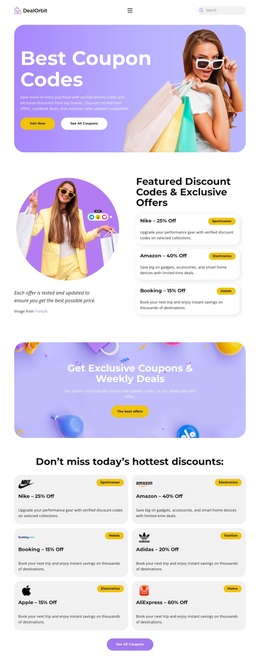
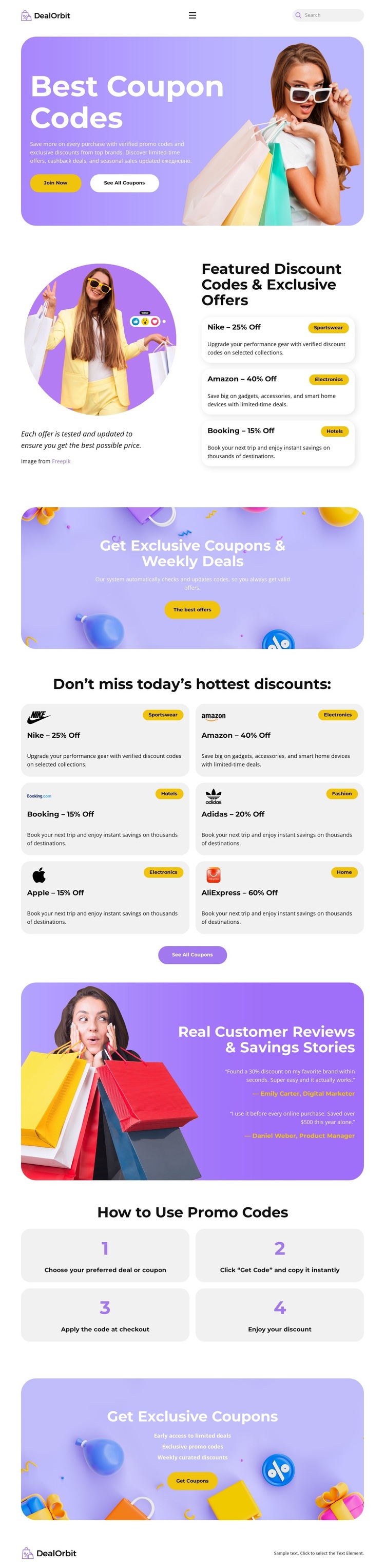
The design is worth considering when a project needs to communicate savings through both recognizable offers and simple usage guidance. DealOrbit appears alongside merchant content for Nike, Amazon, Booking, Adidas, Apple, and AliExpress, giving the page immediate coverage for browsing different deal categories. The featured section introduces three offers in a compact arrangement, while the six-card collection makes the design feel prepared for a broader set of promotional entries.
Its strongest distinction is the connection between offer discovery and redemption education. The weekly-deals and exclusive-coupons panels create energetic promotional moments, but the four numbered cards explain what visitors should do next: choose a deal, copy the code, apply it at checkout, and enjoy the discount. A customer savings panel adds another shopper-focused layer without turning the page into a dense editorial layout. This combination suits coupon, affiliate-deals, voucher, and promotional projects that need a cheerful visual presentation with enough structure to explain the offer journey. The rounded cards and narrow single-column composition keep the information compact, while purple panels and yellow actions give the page a clear visual direction. It is therefore a distinctive option for projects centered on deal browsing rather than a generic business or product showcase.
Customize with Nicepage
Open this ready-made template in the Template Builder and customize it visually in the Nicepage editor. Replace demo content, edit page sections, and adapt the design to your project without rebuilding the template from scratch.
Start With a Ready-Made Template
Choose a Design for a New Page
Use a ready-made template as a starting point instead of creating every page from a blank canvas. When adding a new page in Nicepage, browse available designs, compare different layouts, and choose an option that already fits the general purpose and visual direction of your project.
Browse Different Page Designs
Explore Page Designs using search, thematic categories, Design Sets, and full-page previews. The collection includes layouts for different subjects and page purposes, making it easier to compare alternatives before selecting a design to customize.
Customize the Selected Template
After choosing a design, create the page and continue editing it visually in Nicepage. Replace the demo content, adjust images, typography, colors, sections, and other elements, and adapt the ready-made layout to your own content instead of rebuilding the design from the beginning.
Explore More Design Directions
If the first option does not match your project closely enough, return to the design collection and compare other templates before committing to a layout. This makes the template library useful not only for faster page creation, but also for exploring different visual approaches and finding a suitable starting point for a new project.
This workflow gives you access to a broad collection of ready-made designs that can be selected, compared, and customized according to the needs of each new page or project.