Your data, your rights Template


Edit Template Offline
2. Create new page and search for id 6543085
Edit Template Online
Create Awesome Websites


Free Nicepage Builder
Keywords
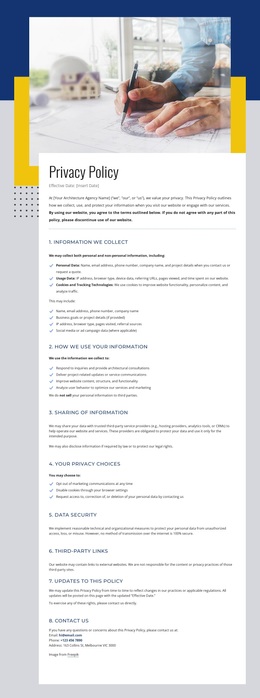
An Architectural Frame for Detailed Privacy Information
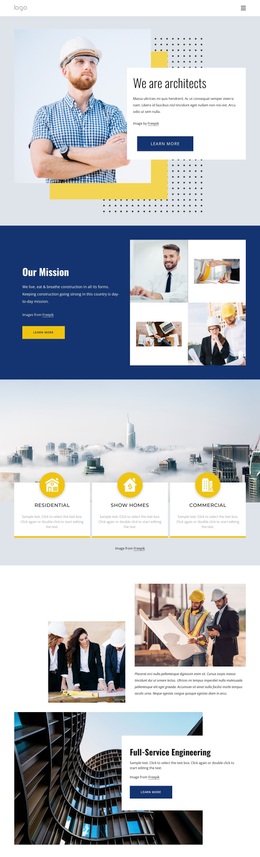
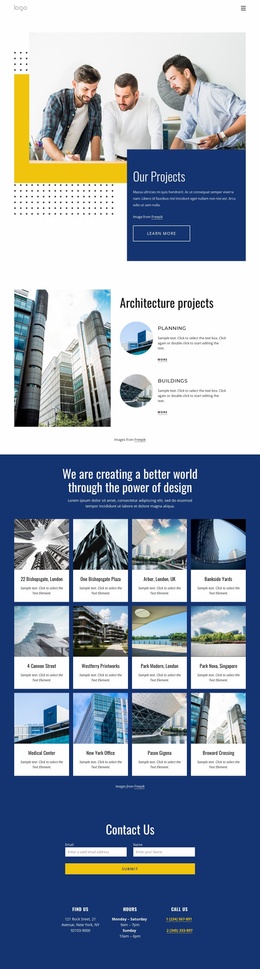
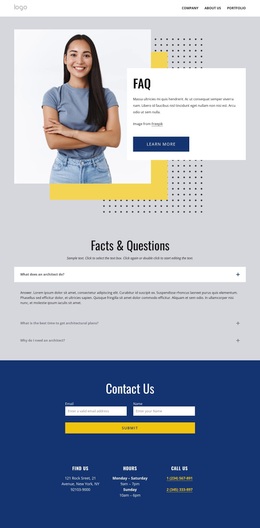
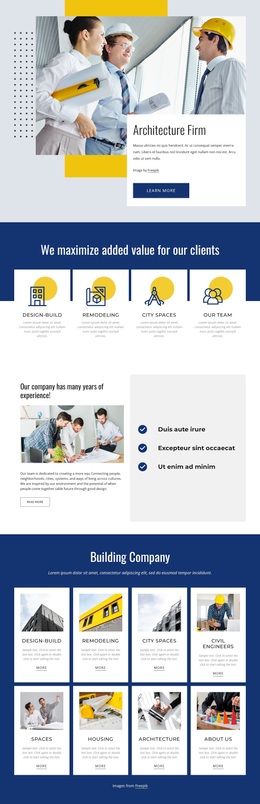
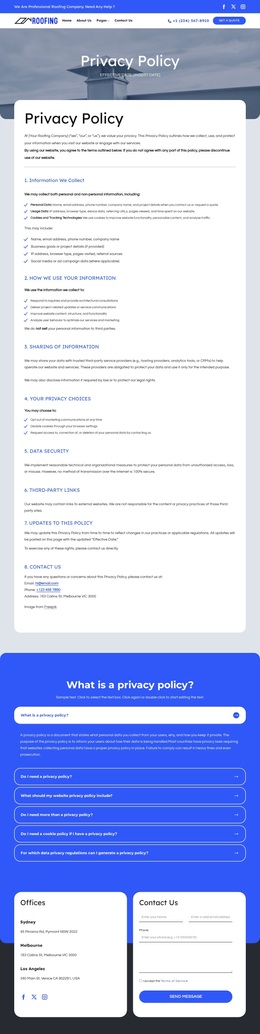
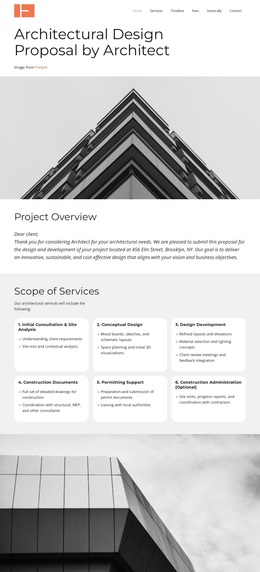
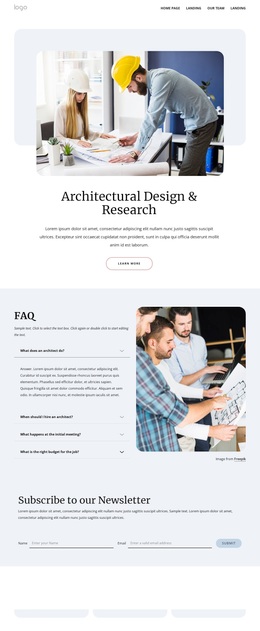
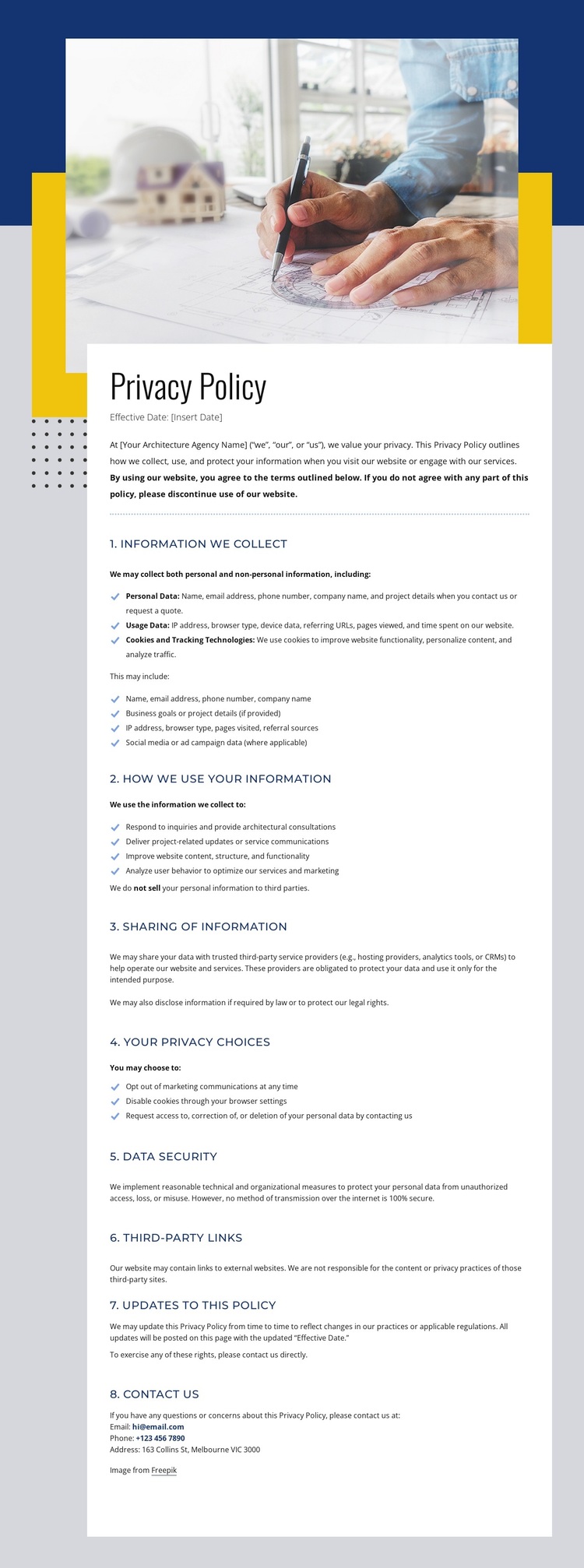
The architectural photograph and geometric navy-and-yellow framing give this design a distinctive starting point for a privacy policy page. Instead of treating policy text as an unstyled legal insert, the page places it within the same visual direction as the surrounding site navigation and footer. The image-led introduction creates a recognizable opening, while the white document panel shifts attention toward the information itself.
The content coverage is another reason to choose this layout. Eight numbered sections address personal data, usage data, cookies, information use, sharing, privacy choices, security, third-party links, policy updates, and contact information. That sequence supports projects that need to explain several privacy subjects in one page while keeping each topic visibly separated. Paragraphs and bulleted lists provide a practical reading pattern for dense material rather than forcing every point into decorative cards or short promotional blocks.
The footer broadens the page beyond the policy document with Help resources, contact details, social links, and a compact Free Consultation form. This combination suits a website that wants its legal information to remain connected to its broader identity and contact routes. The result is a design option for organizations that need a formal, document-led page with a stronger visual context than a plain text-only policy layout.
Customize with Nicepage
Open this ready-made template in the Template Builder and customize it visually in the Nicepage editor. Replace demo content, edit page sections, and adapt the design to your project without rebuilding the template from scratch.
Start With a Ready-Made Template
Choose a Design for a New Page
Use a ready-made template as a starting point instead of creating every page from a blank canvas. When adding a new page in Nicepage, browse available designs, compare different layouts, and choose an option that already fits the general purpose and visual direction of your project.
Browse Different Page Designs
Explore Page Designs using search, thematic categories, Design Sets, and full-page previews. The collection includes layouts for different subjects and page purposes, making it easier to compare alternatives before selecting a design to customize.
Customize the Selected Template
After choosing a design, create the page and continue editing it visually in Nicepage. Replace the demo content, adjust images, typography, colors, sections, and other elements, and adapt the ready-made layout to your own content instead of rebuilding the design from the beginning.
Explore More Design Directions
If the first option does not match your project closely enough, return to the design collection and compare other templates before committing to a layout. This makes the template library useful not only for faster page creation, but also for exploring different visual approaches and finding a suitable starting point for a new project.
This workflow gives you access to a broad collection of ready-made designs that can be selected, compared, and customized according to the needs of each new page or project.