How I protect your data Template


Edit Template Offline
2. Create new page and search for id 6542959
Edit Template Online
Create Awesome Websites


Free Nicepage Builder
Keywords
A Privacy Document Paired With a Distinctive Reader Offer
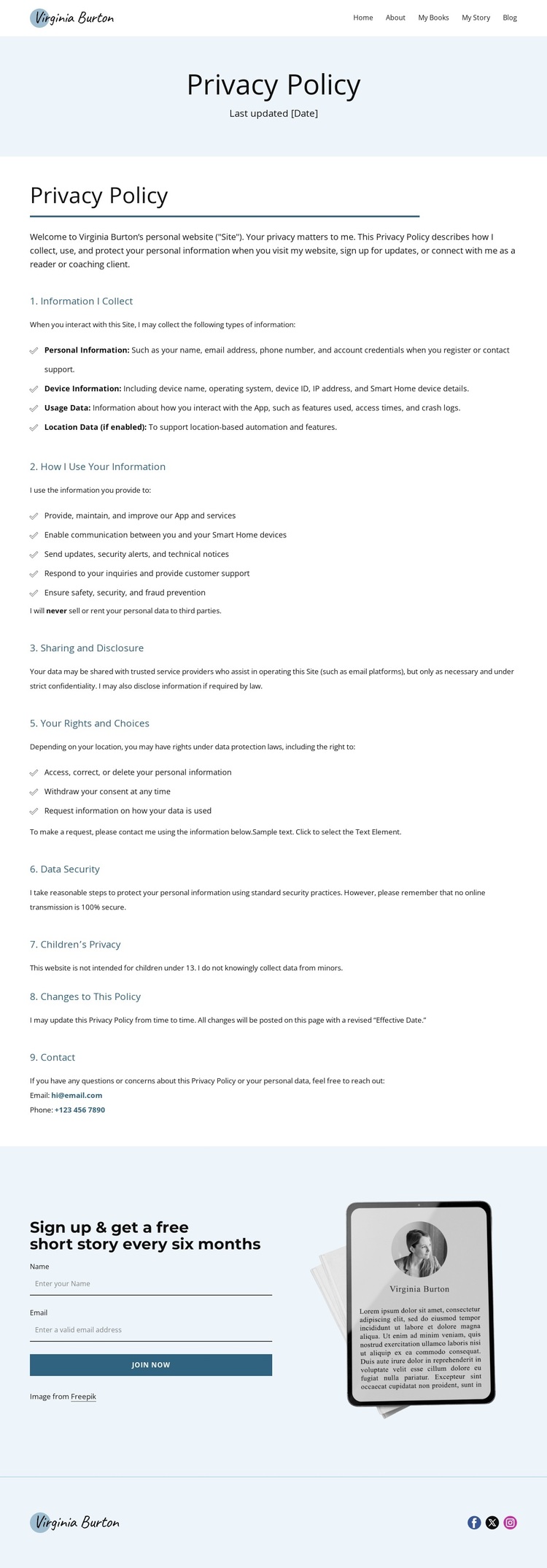
The design stands out because it does not treat the privacy policy as an isolated wall of legal copy. It places a recognizable Virginia Burton author identity at the top, with navigation to Home, About, My Books, My Story, and Blog, then uses a pale blue title banner to make the document feel connected to the wider site. The main content is substantial but controlled: numbered sections and bullet lists cover information collection, use, disclosure, rights and choices, security, children’s privacy, policy changes, and contact.
That practical policy structure is followed by a more personal reader-oriented offer. The signup block invites visitors to receive a free short story every six months, pairing the message and form with a device illustration. This creates a clear contrast between the explanatory middle of the page and the relationship-building purpose of the final section. The Join Now action gives the design a specific use case for an author website that communicates privacy expectations while continuing to build a subscriber audience.
The choice is especially relevant when a project needs a page that feels editorial rather than purely administrative. Pale blue backgrounds, dark text, blue rules, generous spacing, and a footer with Facebook, Twitter, and Instagram links keep the visual language quiet and consistent. The result is a ready-made option for projects combining policy content, author branding, and a modest newsletter response without adding unrelated promotional sections.
Customize with Nicepage
Open this ready-made template in the Template Builder and customize it visually in the Nicepage editor. Replace demo content, edit page sections, and adapt the design to your project without rebuilding the template from scratch.
Start With a Ready-Made Template
Choose a Design for a New Page
Use a ready-made template as a starting point instead of creating every page from a blank canvas. When adding a new page in Nicepage, browse available designs, compare different layouts, and choose an option that already fits the general purpose and visual direction of your project.
Browse Different Page Designs
Explore Page Designs using search, thematic categories, Design Sets, and full-page previews. The collection includes layouts for different subjects and page purposes, making it easier to compare alternatives before selecting a design to customize.
Customize the Selected Template
After choosing a design, create the page and continue editing it visually in Nicepage. Replace the demo content, adjust images, typography, colors, sections, and other elements, and adapt the ready-made layout to your own content instead of rebuilding the design from the beginning.
Explore More Design Directions
If the first option does not match your project closely enough, return to the design collection and compare other templates before committing to a layout. This makes the template library useful not only for faster page creation, but also for exploring different visual approaches and finding a suitable starting point for a new project.
This workflow gives you access to a broad collection of ready-made designs that can be selected, compared, and customized according to the needs of each new page or project.