Picture Perfect Template



Edit Template Offline
2. Create new page and search for id 6403902
Edit Template Online
Create Awesome Websites


Free Nicepage Builder
Keywords
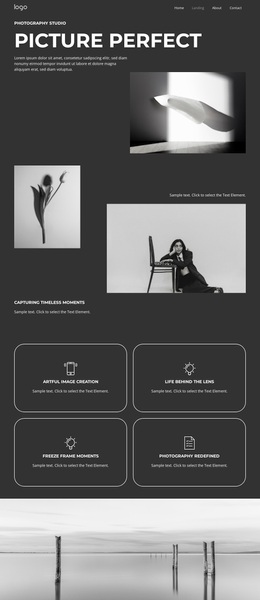
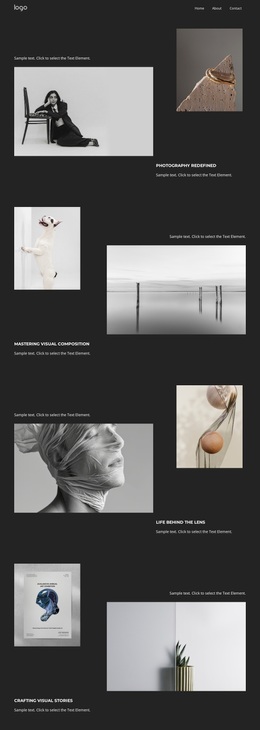
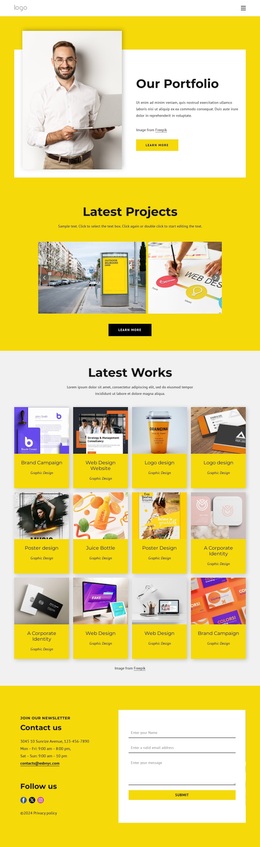
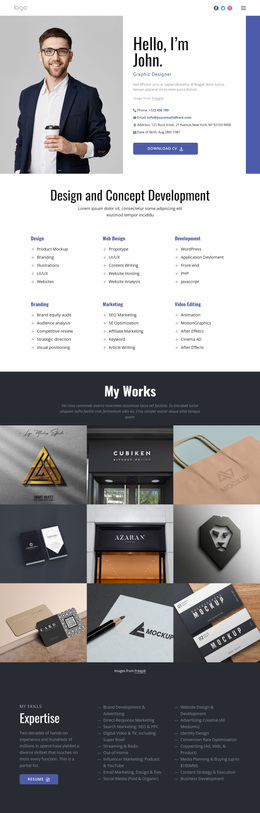
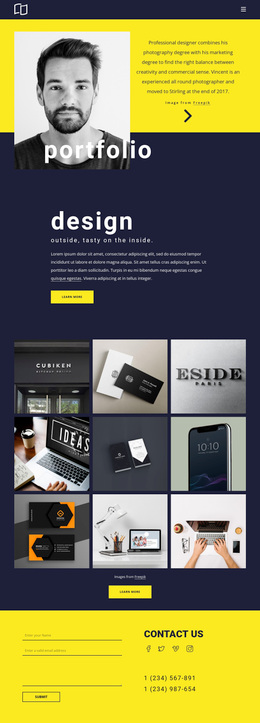
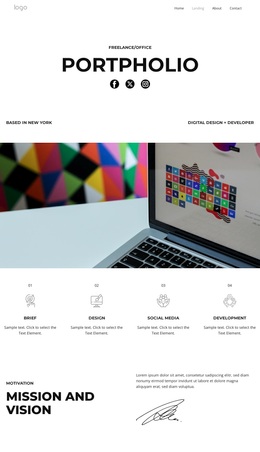
A Six-Image Portfolio Connects Studio Identity With Practical Visitor Content
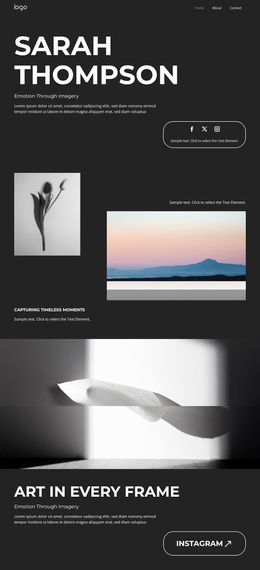
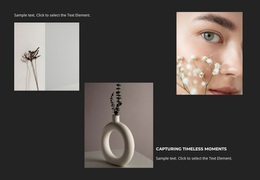
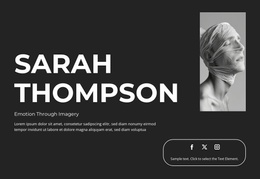
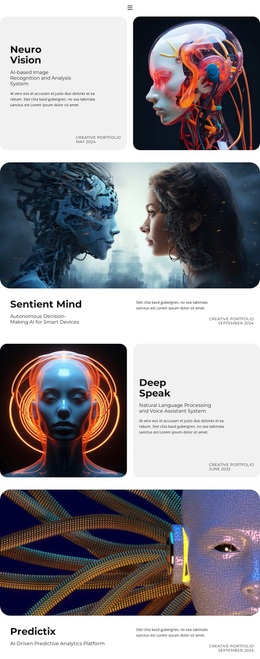
The Visual Storytelling gallery gives this design a clear reason to stand out among broader template choices: photography is not treated as decoration around a text-heavy business layout. Six editorial images occupy a dedicated gallery section, while the split hero and two Capturing Timeless Moments compositions establish imagery as the main carrier of the studio’s message. The four outlined feature cards then add concise categories such as Artful Image Creation and Freeze Frame Moments without competing with the portfolio.
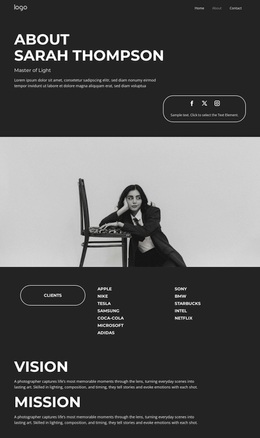
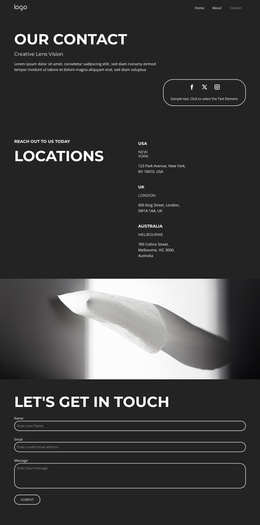
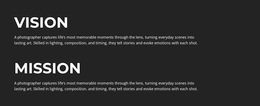
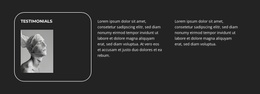
The design also covers the questions and reassurance that sit around a visual presentation. Three circular profile items introduce people, and the Vision and Mission section explains the practice through two labeled statements. Two outlined testimonial cards add a compact proof area, while the FAQ answers practical questions about pricing, travel, booking, and packages. The page closes with a contact area requesting a name, email address, and message, linking the visual story to a direct inquiry opportunity. This combination makes Picture Perfect worth considering when a project needs a photography-led starting point with editorial atmosphere, portfolio space, supporting information, and a visible contact route rather than a layout centered only on services or long-form copy.
Customize with Nicepage
Open this ready-made template in the Template Builder and customize it visually in the Nicepage editor. Replace demo content, edit page sections, and adapt the design to your project without rebuilding the template from scratch.
Start With a Ready-Made Template
Choose a Design for a New Page
Use a ready-made template as a starting point instead of creating every page from a blank canvas. When adding a new page in Nicepage, browse available designs, compare different layouts, and choose an option that already fits the general purpose and visual direction of your project.
Browse Different Page Designs
Explore Page Designs using search, thematic categories, Design Sets, and full-page previews. The collection includes layouts for different subjects and page purposes, making it easier to compare alternatives before selecting a design to customize.
Customize the Selected Template
After choosing a design, create the page and continue editing it visually in Nicepage. Replace the demo content, adjust images, typography, colors, sections, and other elements, and adapt the ready-made layout to your own content instead of rebuilding the design from the beginning.
Explore More Design Directions
If the first option does not match your project closely enough, return to the design collection and compare other templates before committing to a layout. This makes the template library useful not only for faster page creation, but also for exploring different visual approaches and finding a suitable starting point for a new project.
This workflow gives you access to a broad collection of ready-made designs that can be selected, compared, and customized according to the needs of each new page or project.