Optimizing Operational Efficiency Template


Edit Template Offline
2. Create new page and search for id 6389784
Edit Template Online
Create Awesome Websites


Free Nicepage Builder
Keywords
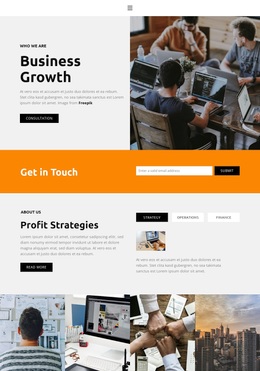
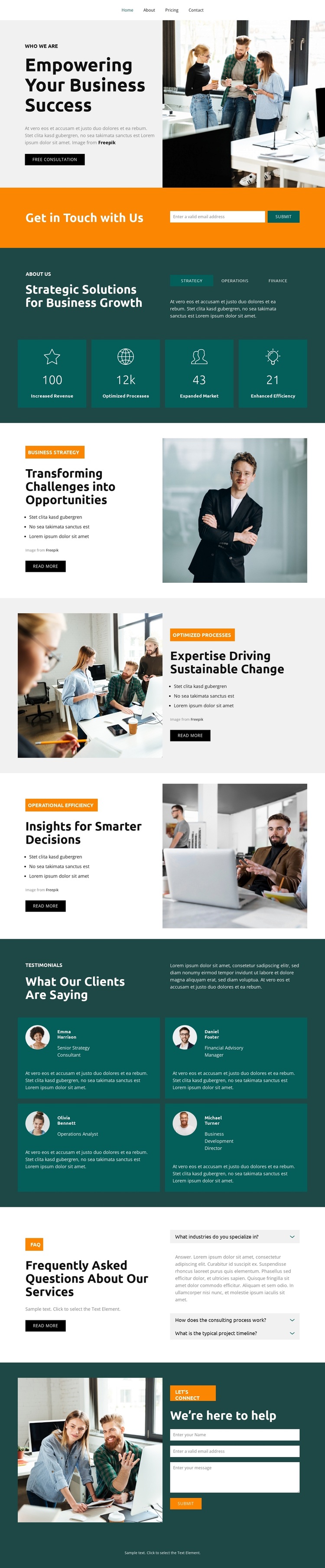
Workplace Imagery Connects Strategy, Services, and Client Proof
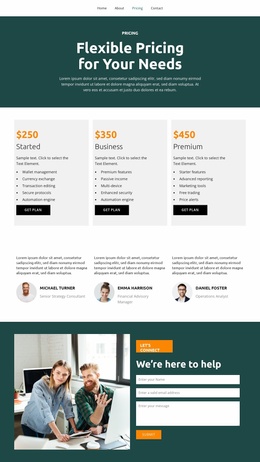
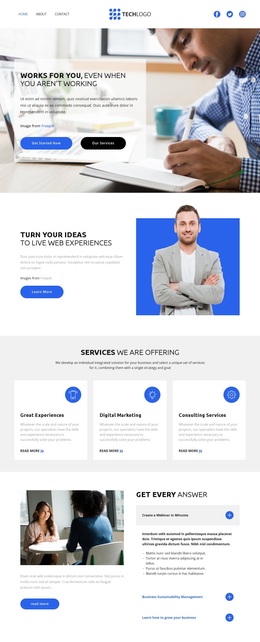
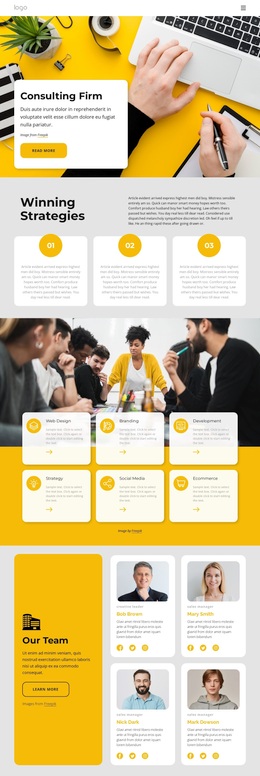
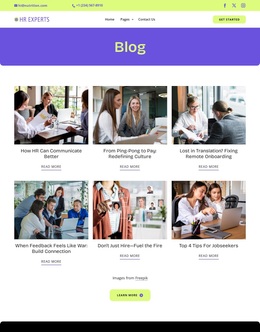
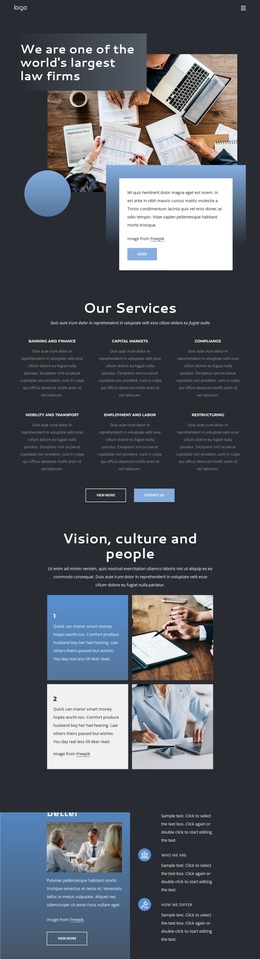
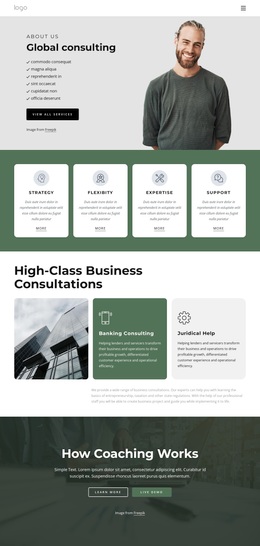
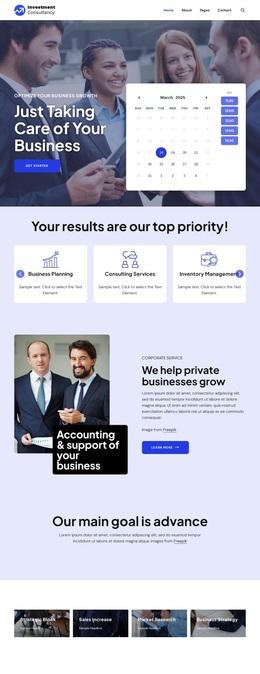
Workplace and business-team photography carries a consistent subject through the page, beginning with the hero and continuing through the three service sections and final contact area. That visual continuity makes the design a strong option for projects that need to present consulting as both strategic and practical. The imagery is not isolated in a gallery; it is paired with business messages, service labels, bullet lists, and calls to action so the page can explain an offer while keeping the human workplace context visible.
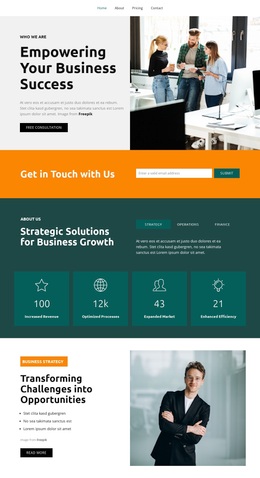
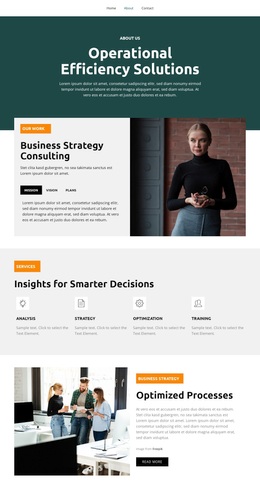
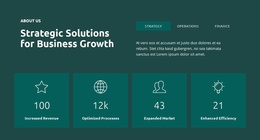
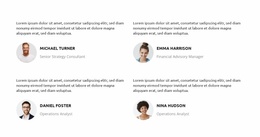
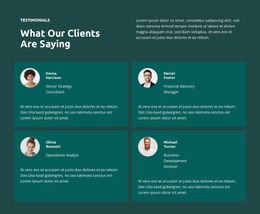
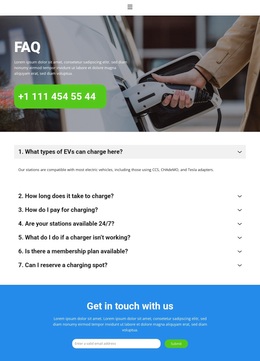
The content coverage is another reason to consider this design. The overview section introduces Strategic Solutions for Business Growth and four metric panels, then the service sequence expands into Business Strategy, Optimizing Processes, and Operational Efficiency. Four testimonial cards provide a separate client-feedback layer, while the FAQ section gives the page room to address common questions. These elements distinguish the layout from a simpler consulting page built only around a hero and a short list of services.
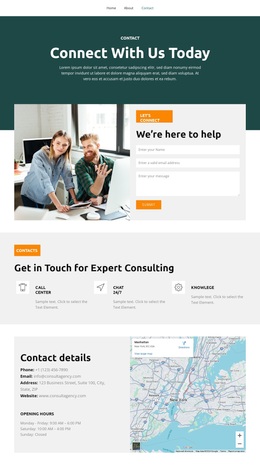
The visual direction also supports a clear ending. Dark teal panels create emphasis, orange buttons and callouts mark response opportunities, and the closing form sits beside a workplace image under the message “We're here to help.” As a ready-made design choice, it suits a consulting project that needs credible service coverage, visual storytelling, supporting proof, and a visible route to contact without starting from an empty page.
Customize with Nicepage
Open this ready-made template in the Template Builder and customize it visually in the Nicepage editor. Replace demo content, edit page sections, and adapt the design to your project without rebuilding the template from scratch.
Start With a Ready-Made Template
Choose a Design for a New Page
Use a ready-made template as a starting point instead of creating every page from a blank canvas. When adding a new page in Nicepage, browse available designs, compare different layouts, and choose an option that already fits the general purpose and visual direction of your project.
Browse Different Page Designs
Explore Page Designs using search, thematic categories, Design Sets, and full-page previews. The collection includes layouts for different subjects and page purposes, making it easier to compare alternatives before selecting a design to customize.
Customize the Selected Template
After choosing a design, create the page and continue editing it visually in Nicepage. Replace the demo content, adjust images, typography, colors, sections, and other elements, and adapt the ready-made layout to your own content instead of rebuilding the design from the beginning.
Explore More Design Directions
If the first option does not match your project closely enough, return to the design collection and compare other templates before committing to a layout. This makes the template library useful not only for faster page creation, but also for exploring different visual approaches and finding a suitable starting point for a new project.
This workflow gives you access to a broad collection of ready-made designs that can be selected, compared, and customized according to the needs of each new page or project.