Loving initiative & transparency Template


Edit Template Offline
2. Create new page and search for id 6288092
Edit Template Online
Create Awesome Websites


Free Nicepage Builder
Keywords
A Four-Profile Contact Story With a Clear Collaboration Focus
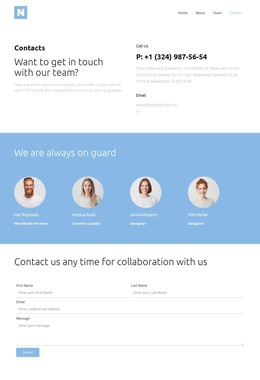
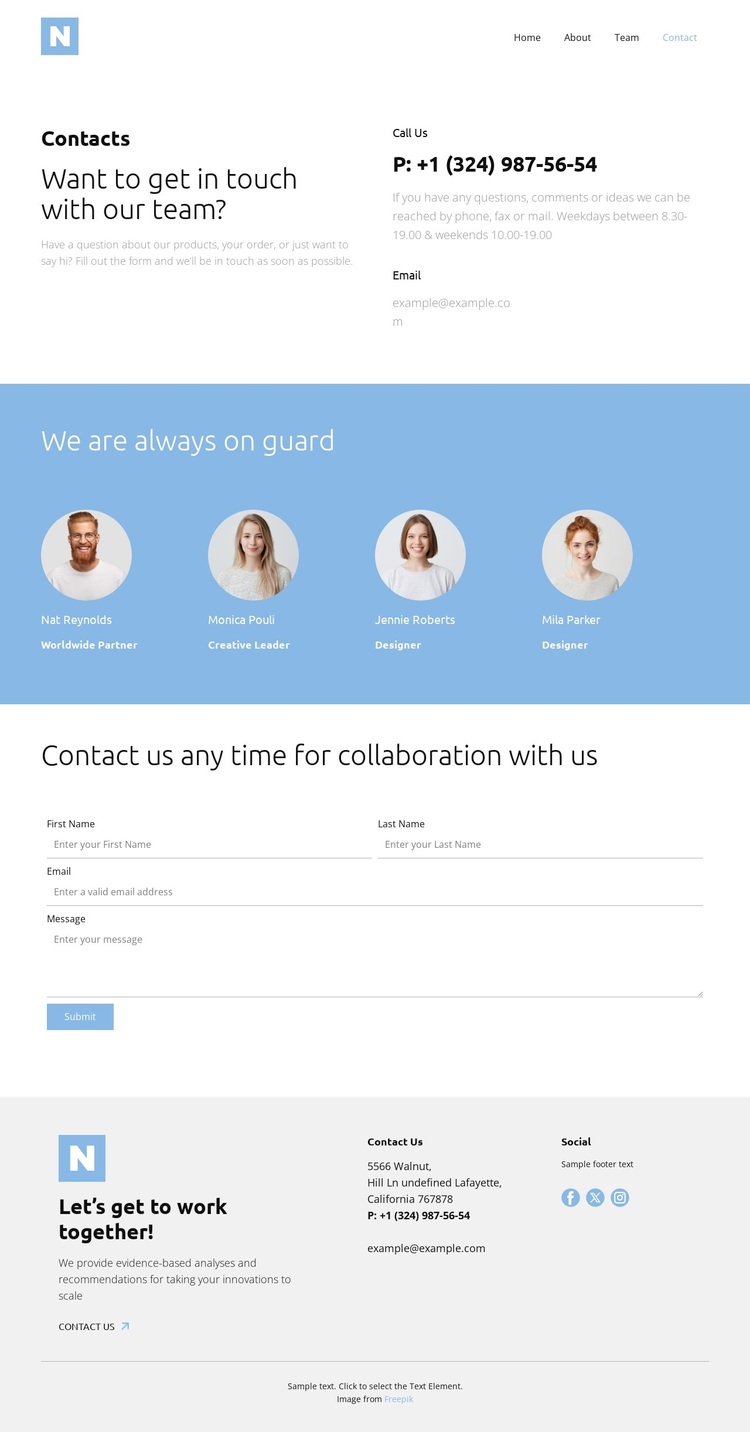
The design makes human contact its main organizing idea. It begins with a compact navigation linking Home, About, Team, and Contact, then moves directly into a contact section where an introduction sits beside phone and email channels. That combination makes the page more than a generic form: visitors can understand the purpose of the page and choose a direct communication route from the first content area.
The blue band with four circular portraits is the most distinctive content choice. Repeated names and role labels create a visible team group, while the blue background separates that human context from the lighter contact areas around it. This gives the page a useful balance between information and recognition, especially for projects where visitors need to see the people connected with a collaboration request.
The form then provides a practical next step through name, email, and message inputs, followed by a footer that repeats contact information and adds Facebook, Twitter, and Instagram links. The sequence moves from orientation, to people, to inquiry, to continued contact. That combination makes this template worth choosing when a project needs a concise contact page with team presence and collaboration as its central message, rather than a layout dominated by products, pricing, or long-form content.
Customize with Nicepage
Open this ready-made template in the Template Builder and customize it visually in the Nicepage editor. Replace demo content, edit page sections, and adapt the design to your project without rebuilding the template from scratch.
Start With a Ready-Made Template
Choose a Design for a New Page
Use a ready-made template as a starting point instead of creating every page from a blank canvas. When adding a new page in Nicepage, browse available designs, compare different layouts, and choose an option that already fits the general purpose and visual direction of your project.
Browse Different Page Designs
Explore Page Designs using search, thematic categories, Design Sets, and full-page previews. The collection includes layouts for different subjects and page purposes, making it easier to compare alternatives before selecting a design to customize.
Customize the Selected Template
After choosing a design, create the page and continue editing it visually in Nicepage. Replace the demo content, adjust images, typography, colors, sections, and other elements, and adapt the ready-made layout to your own content instead of rebuilding the design from the beginning.
Explore More Design Directions
If the first option does not match your project closely enough, return to the design collection and compare other templates before committing to a layout. This makes the template library useful not only for faster page creation, but also for exploring different visual approaches and finding a suitable starting point for a new project.
This workflow gives you access to a broad collection of ready-made designs that can be selected, compared, and customized according to the needs of each new page or project.