UI and UX design Template


A Lime-Framed Four-Card Alternative to a Generic Services Grid
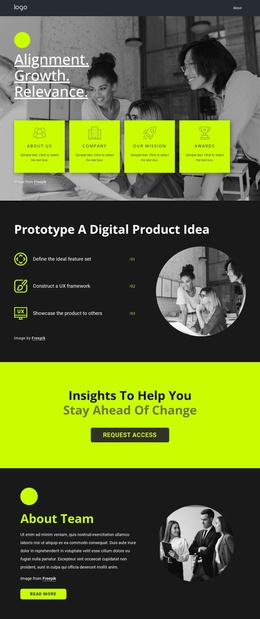
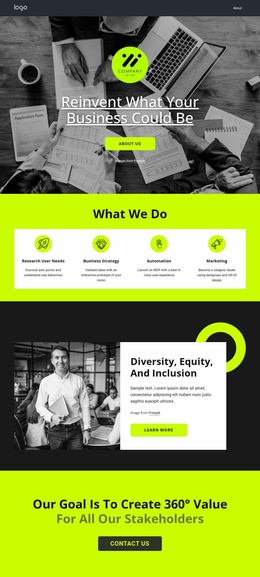
The section stands out through the combination of a bright lime-green field, a contrasting white panel, and a large heading that names the team disciplines behind the work. Instead of presenting a generic list of services, it uses four focused cards: Research user needs, Prototype an idea, Design a new product, and Improve a product. Their descriptions add different reasons to choose the arrangement, including pain-point discovery, interactive validation, MVP experience, and DesignOps or UX/UI improvement.
The repeated line icons give each card a visual entry point, while the consistent title-and-description treatment keeps the four items related. The wide horizontal row is useful when a page needs several capabilities visible together rather than hidden behind interaction or divided across multiple sections. The large heading provides context above the row, so the design can communicate both an overall approach and individual areas of work.
Among alternative ready-made sections, this option fits a project that needs a capability statement with strong color contrast and an editorial sense of space. It is more specific than a simple feature grid because its content moves from research through prototyping and product design toward improvement. The result is a focused block choice for presenting a digital product design offer while preserving a clear, reusable section structure.
Customize with Nicepage
Open this ready-made template in the Template Builder and customize it visually in the Nicepage editor. Replace demo content, edit page sections, and adapt the design to your project without rebuilding the template from scratch.
Edit Template Offline
2. Create a new page or select existing
3. Click Add new block, search for id 499807 and click enter
Edit Template Online
Create Awesome Websites


Free Nicepage Builder
Keywords
Start With a Ready-Made Template
Choose a Design for a New Page
Use a ready-made template as a starting point instead of creating every page from a blank canvas. When adding a new page in Nicepage, browse available designs, compare different layouts, and choose an option that already fits the general purpose and visual direction of your project.
Browse Different Page Designs
Explore Page Designs using search, thematic categories, Design Sets, and full-page previews. The collection includes layouts for different subjects and page purposes, making it easier to compare alternatives before selecting a design to customize.
Customize the Selected Template
After choosing a design, create the page and continue editing it visually in Nicepage. Replace the demo content, adjust images, typography, colors, sections, and other elements, and adapt the ready-made layout to your own content instead of rebuilding the design from the beginning.
Explore More Design Directions
If the first option does not match your project closely enough, return to the design collection and compare other templates before committing to a layout. This makes the template library useful not only for faster page creation, but also for exploring different visual approaches and finding a suitable starting point for a new project.
This workflow gives you access to a broad collection of ready-made designs that can be selected, compared, and customized according to the needs of each new page or project.