Experience in our restaurant Template



Edit Template Offline
2. Create new page and search for id 3814298
Edit Template Online
Create Awesome Websites


Free Nicepage Builder
Keywords
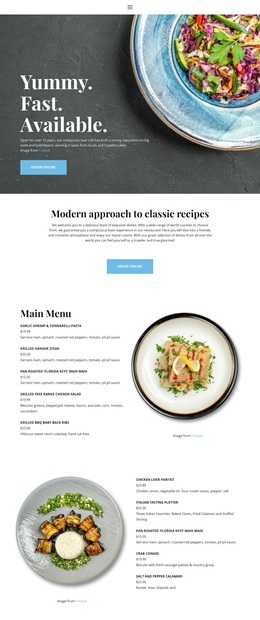
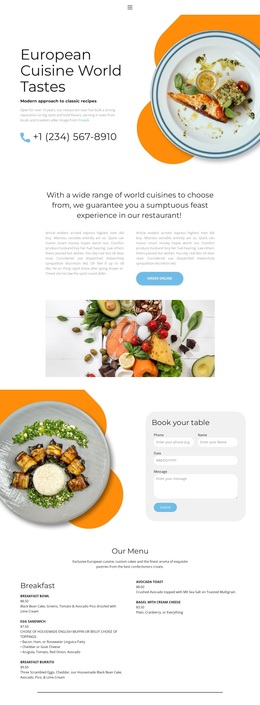
A Menu-Led Choice With Strong Visual Coverage and Guest Actions
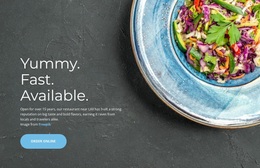
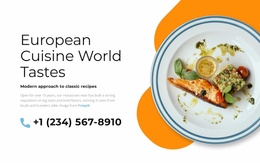
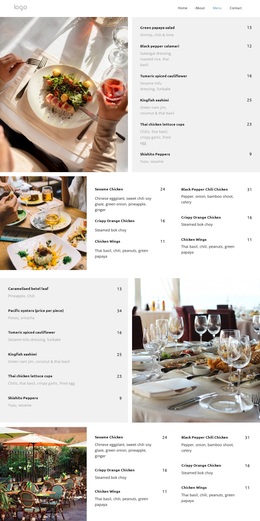
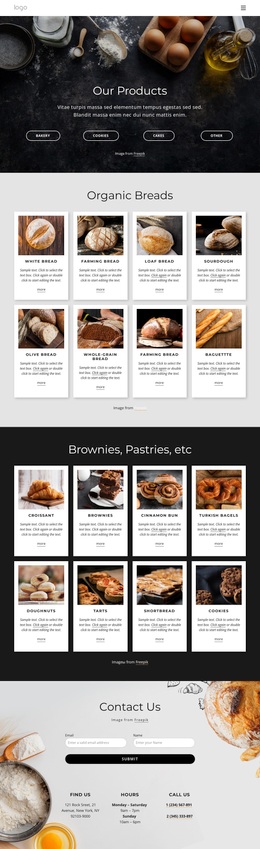
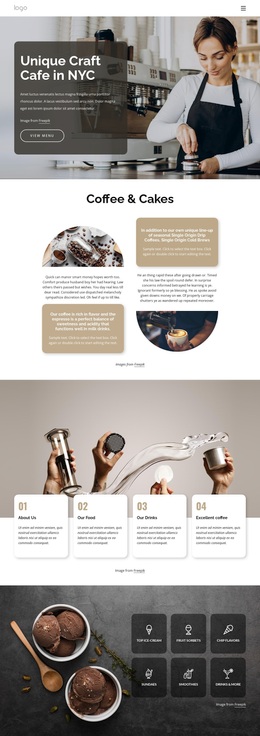
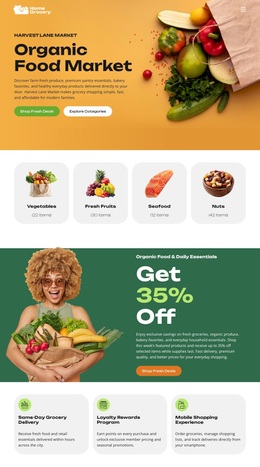
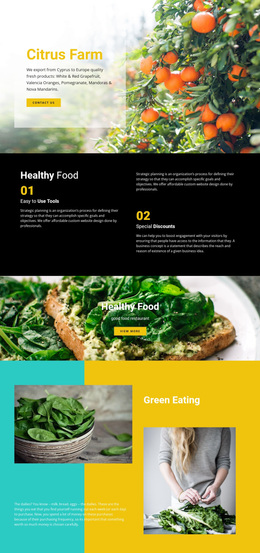
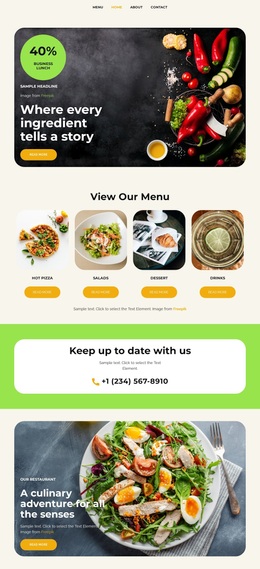
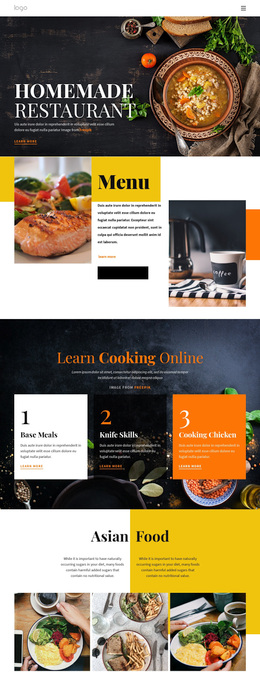
The design is worth considering when a restaurant needs its food offering to carry the page rather than relying on dense promotional copy. The opening hero makes the subject immediately clear through a large dish photograph, the “Yummy. Fast. Available.” message, and an order-online action. A centered statement then frames the concept as a modern approach to classic recipes without interrupting the visual focus on food.
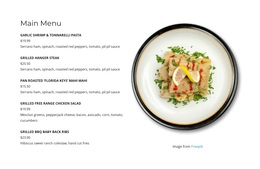
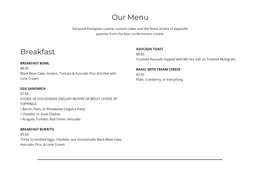
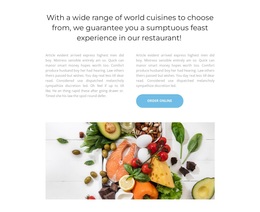
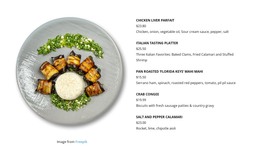
Its main strength is coverage. Four alternating menu sections provide room for named dishes, prices, descriptions, and related photographs, giving prospective diners enough structure to browse different parts of the offer. The three category tiles for vegan food, salads, and meat add a quick visual summary of menu variety. After that, the six-image gallery shifts attention from individual listings to the wider dining presentation and includes another ordering prompt.
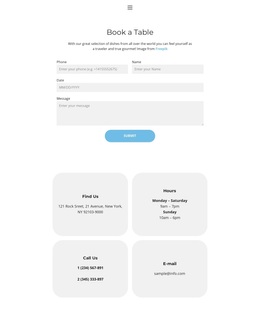
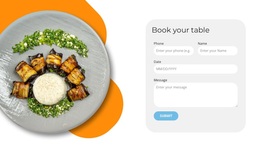
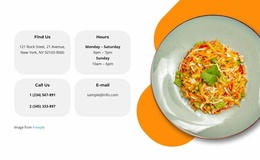
The page also supports a second guest need: the “Book a Table” section contains a dedicated reservation form near the end. That combination of menu detail, category imagery, gallery content, ordering actions, and booking capture makes this design a useful choice for restaurants that want food photography and practical visitor responses to share the same page. The verified navigation for Home, Menu, and Contact gives the design a clear basic site context without requiring unsupported claims about additional pages or CMS features.
Customize with Nicepage
Open this ready-made template in the Template Builder and customize it visually in the Nicepage editor. Replace demo content, edit page sections, and adapt the design to your project without rebuilding the template from scratch.
Start With a Ready-Made Template
Choose a Design for a New Page
Use a ready-made template as a starting point instead of creating every page from a blank canvas. When adding a new page in Nicepage, browse available designs, compare different layouts, and choose an option that already fits the general purpose and visual direction of your project.
Browse Different Page Designs
Explore Page Designs using search, thematic categories, Design Sets, and full-page previews. The collection includes layouts for different subjects and page purposes, making it easier to compare alternatives before selecting a design to customize.
Customize the Selected Template
After choosing a design, create the page and continue editing it visually in Nicepage. Replace the demo content, adjust images, typography, colors, sections, and other elements, and adapt the ready-made layout to your own content instead of rebuilding the design from the beginning.
Explore More Design Directions
If the first option does not match your project closely enough, return to the design collection and compare other templates before committing to a layout. This makes the template library useful not only for faster page creation, but also for exploring different visual approaches and finding a suitable starting point for a new project.
This workflow gives you access to a broad collection of ready-made designs that can be selected, compared, and customized according to the needs of each new page or project.