Integrity and uniqueness Template


A Yellow-Accented Card Grid Gives the Overview a Clear Identity
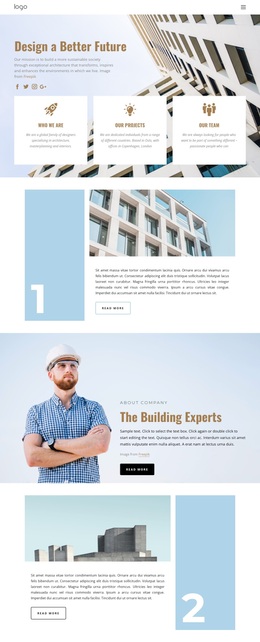
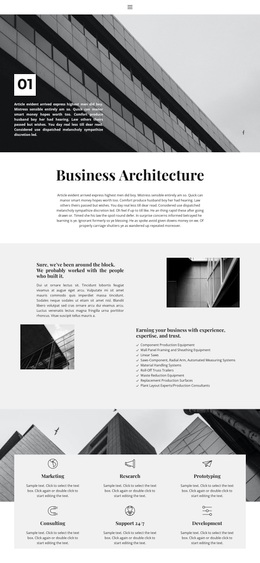
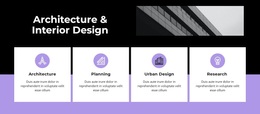
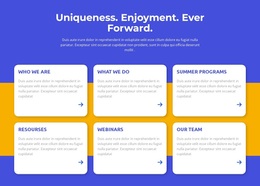
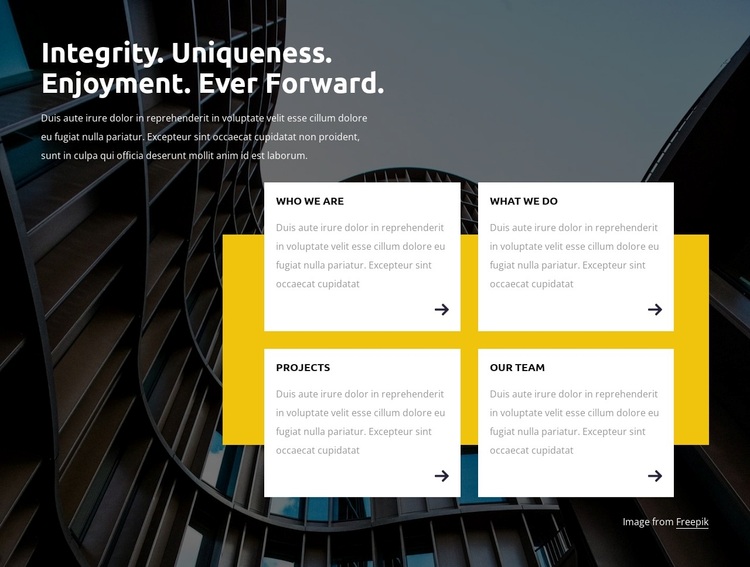
The section stands out through the combination of a full-width architectural background, a large white statement, and a compact four-card arrangement. Rather than presenting the overview as one uninterrupted text area, it separates the organization’s identity into Who We Are, What We Do, Projects, and Our Team. That content coverage makes the block useful when a page needs to introduce several related aspects without expanding each one into a long panel.
The visual treatment is equally distinctive. The dark facade creates depth behind the upper-left introduction, while the white cards form a bright, orderly layer across the lower portion. A vivid yellow rectangle sits behind the card group, adding a horizontal accent that differentiates the design from a simple card grid. Compact uppercase labels provide strong entry points, muted gray body text keeps the cards restrained, and dark arrow marks imply onward movement without adding a verified interactive behavior. As a ready-made block choice, this design suits an overview that needs both architectural context and clearly separated categories. Its value comes from the relationship between the image, the statement, the four information areas, and the contrasting accent—not from generic decoration or a claim that it supplies an entire page.
Customize with Nicepage
Open this ready-made template in the Template Builder and customize it visually in the Nicepage editor. Replace demo content, edit page sections, and adapt the design to your project without rebuilding the template from scratch.
Edit Template Offline
2. Create a new page or select existing
3. Click Add new block, search for id 3554869 and click enter
Edit Template Online
Create Awesome Websites


Free Nicepage Builder
Keywords
Start With a Ready-Made Template
Choose a Design for a New Page
Use a ready-made template as a starting point instead of creating every page from a blank canvas. When adding a new page in Nicepage, browse available designs, compare different layouts, and choose an option that already fits the general purpose and visual direction of your project.
Browse Different Page Designs
Explore Page Designs using search, thematic categories, Design Sets, and full-page previews. The collection includes layouts for different subjects and page purposes, making it easier to compare alternatives before selecting a design to customize.
Customize the Selected Template
After choosing a design, create the page and continue editing it visually in Nicepage. Replace the demo content, adjust images, typography, colors, sections, and other elements, and adapt the ready-made layout to your own content instead of rebuilding the design from the beginning.
Explore More Design Directions
If the first option does not match your project closely enough, return to the design collection and compare other templates before committing to a layout. This makes the template library useful not only for faster page creation, but also for exploring different visual approaches and finding a suitable starting point for a new project.
This workflow gives you access to a broad collection of ready-made designs that can be selected, compared, and customized according to the needs of each new page or project.

Design Set (21)
-

-
-
-
-
-
-
-
-
-
-
-
-
-
-
-
-
Free Website Builder SoftwareDownload
-