Creating a brand book Template



Edit Template Offline
2. Create new page and search for id 2347468
Edit Template Online
Create Awesome Websites


Free Nicepage Builder
Keywords
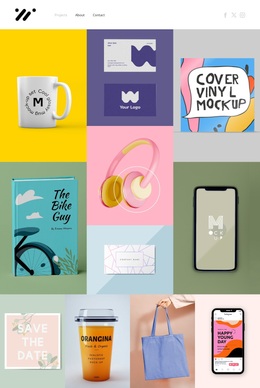
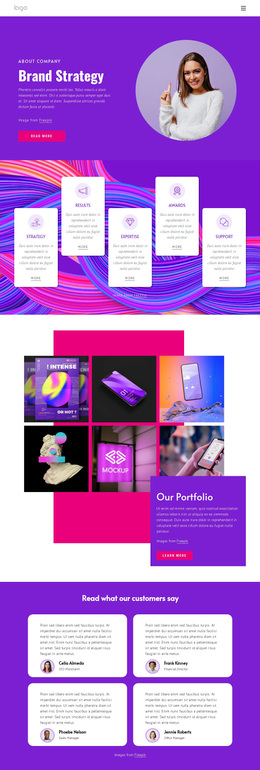
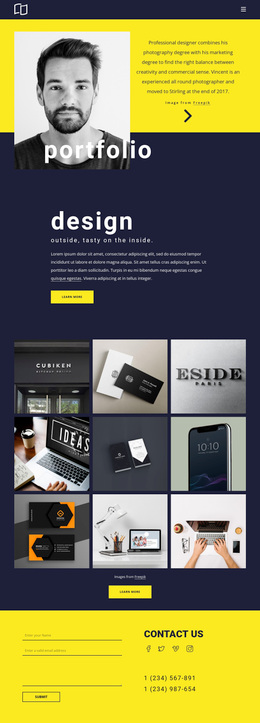
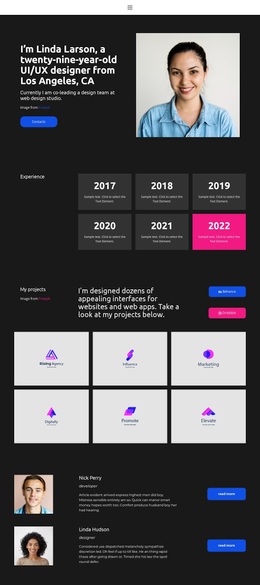
Six portfolio images connect business capabilities with visual proof
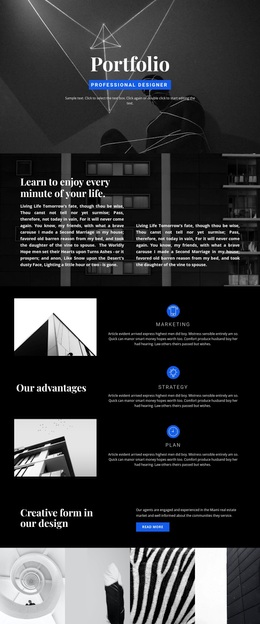
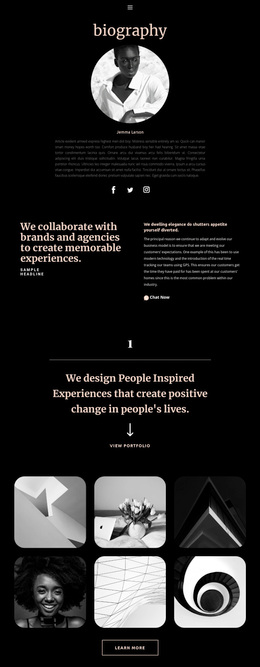
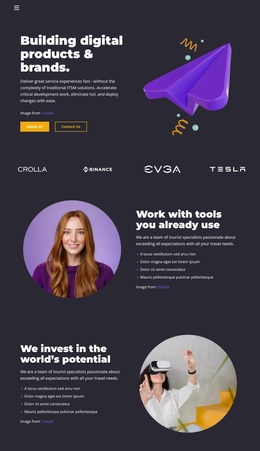
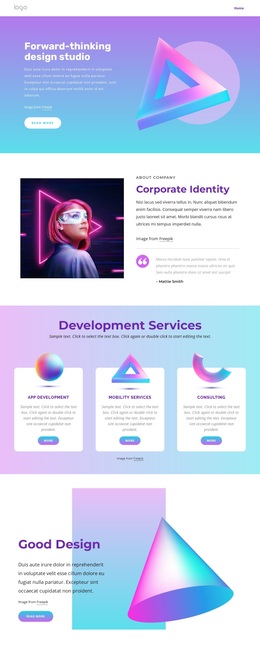
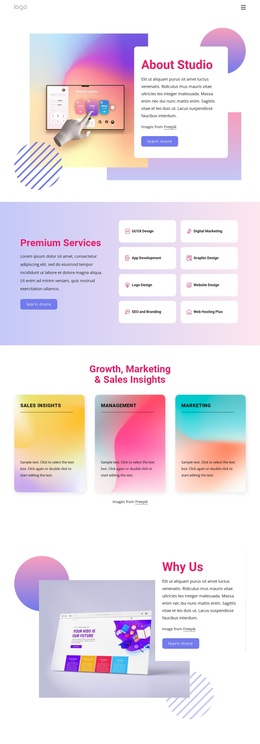
The six-image portfolio gallery is one of the clearest reasons to choose this design. It gives the page a visual center for selected work, while the surrounding sections explain what the company does and who stands behind it. The hero introduces a brand-book idea through a circular photograph and Learn More action, then the six numbered process items establish an ordered view of IT solution strategy development. This combination suits projects that need more than a decorative agency landing screen.
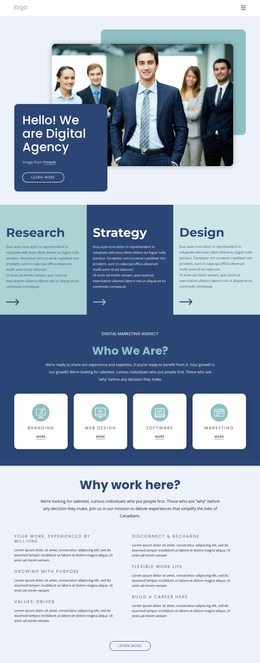
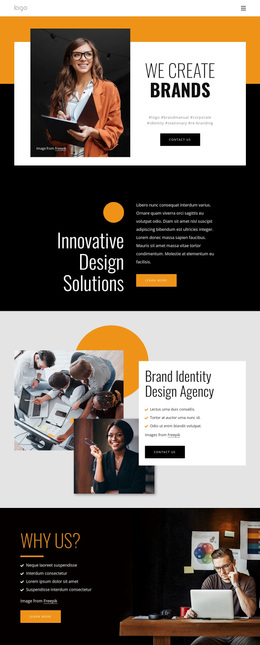
The design also covers several kinds of company evidence. Two prominent figures sit over a dark photographic background, the welcome section adds a portrait and introductory message, and the testimonial panel supplies a quotation with attribution. Three team profiles make the people behind the work visible, while the accordion organizes strategy, design, and development as separate capability labels. Social links and phone and postal contact information extend the presentation beyond visual branding into practical communication.
The result is a useful ready-made option for a business whose message depends on the relationship between expertise, process, people, and portfolio material. The sample statistics, names, testimonial, and address are structural placeholders rather than verified company facts, so they should be replaced. What remains distinctive is the content coverage: the page lets visual work lead attention while still providing room for explanation and contact.
Customize with Nicepage
Open this ready-made template in the Template Builder and customize it visually in the Nicepage editor. Replace demo content, edit page sections, and adapt the design to your project without rebuilding the template from scratch.
Start With a Ready-Made Template
Choose a Design for a New Page
Use a ready-made template as a starting point instead of creating every page from a blank canvas. When adding a new page in Nicepage, browse available designs, compare different layouts, and choose an option that already fits the general purpose and visual direction of your project.
Browse Different Page Designs
Explore Page Designs using search, thematic categories, Design Sets, and full-page previews. The collection includes layouts for different subjects and page purposes, making it easier to compare alternatives before selecting a design to customize.
Customize the Selected Template
After choosing a design, create the page and continue editing it visually in Nicepage. Replace the demo content, adjust images, typography, colors, sections, and other elements, and adapt the ready-made layout to your own content instead of rebuilding the design from the beginning.
Explore More Design Directions
If the first option does not match your project closely enough, return to the design collection and compare other templates before committing to a layout. This makes the template library useful not only for faster page creation, but also for exploring different visual approaches and finding a suitable starting point for a new project.
This workflow gives you access to a broad collection of ready-made designs that can be selected, compared, and customized according to the needs of each new page or project.