Fine oriental restaurant Template


Edit Template Offline
2. Create new page and search for id 23176
Edit Template Online
Create Awesome Websites


Free Nicepage Builder
Keywords
Global Food Copy and Image-Led Sections Make This Design Distinctive
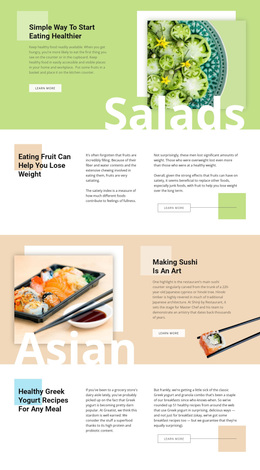
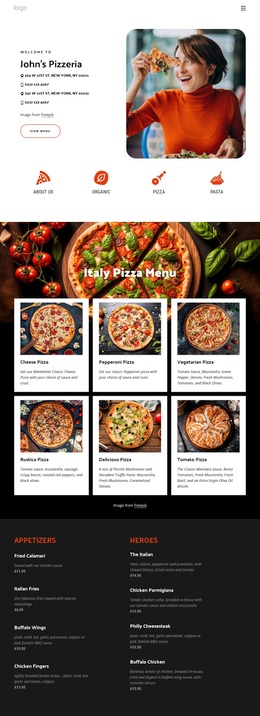
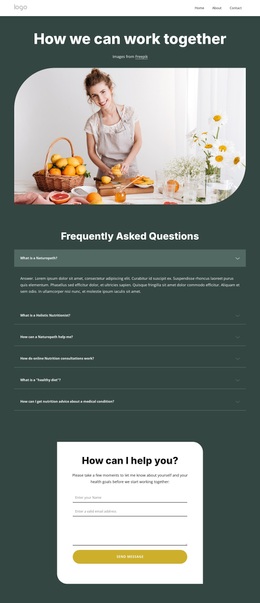
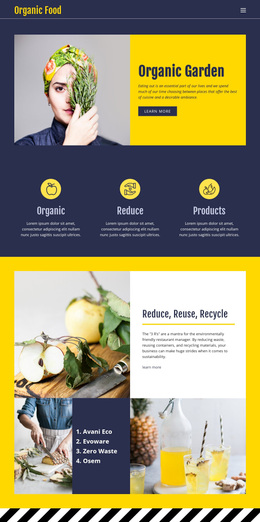
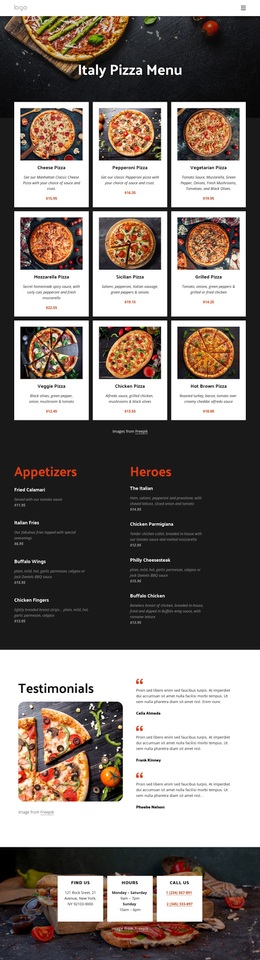
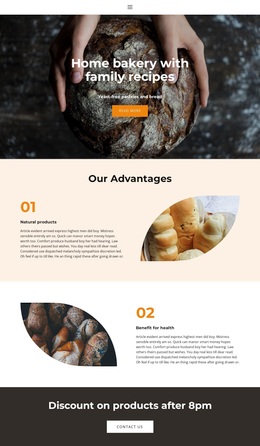
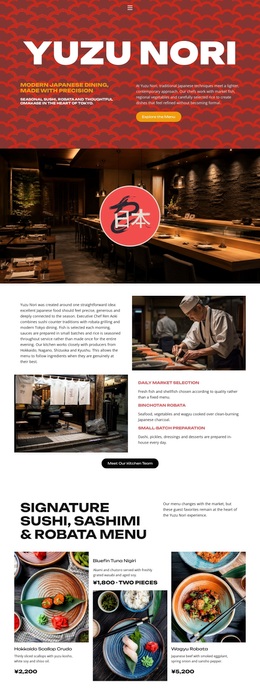
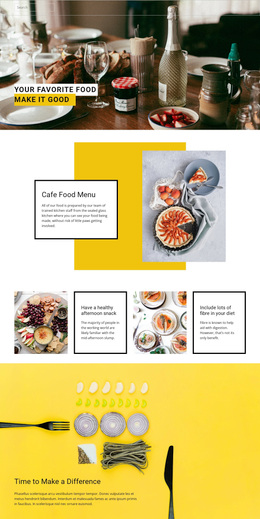
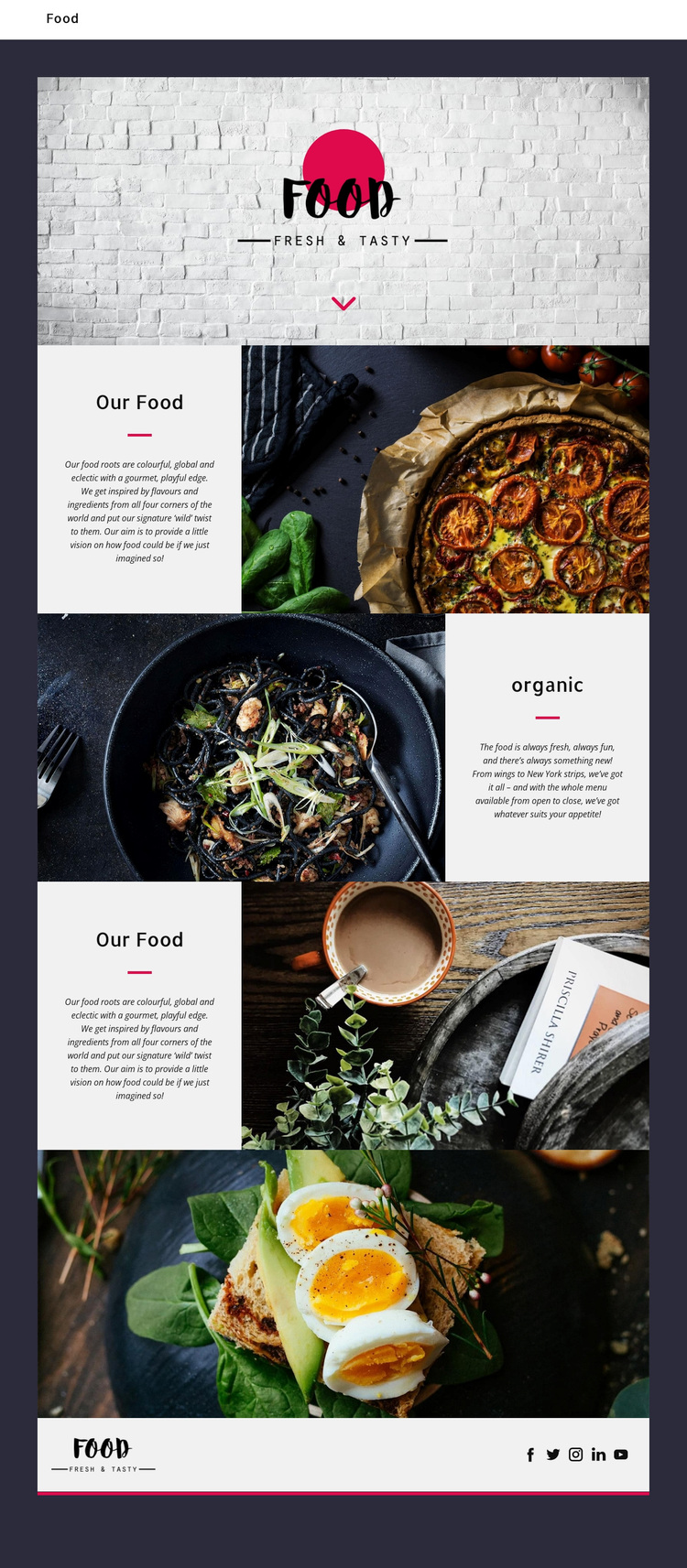
The centered Food wordmark, pale brick opening, and decorative food imagery give the design an immediately recognizable starting point. Instead of presenting a dense restaurant menu, the page introduces a food concept through short text panels and large dish photographs. The copy describes food as fresh, colorful, global, and eclectic, with a gourmet and playful direction, while the mention of wings and New York strips adds concrete range to the offering.
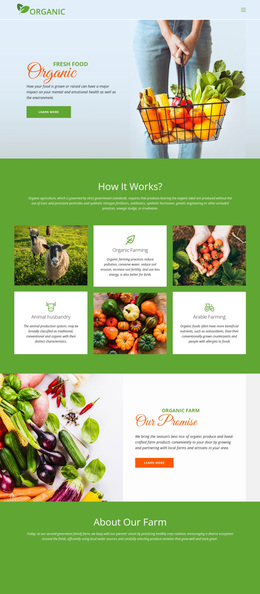
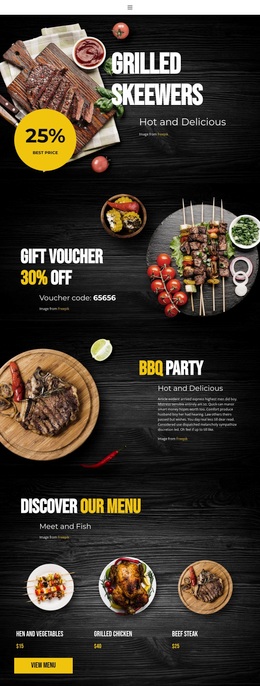
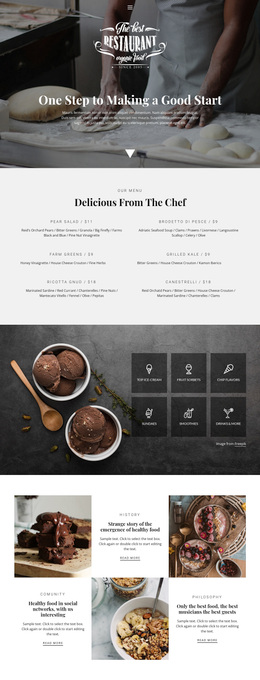
The repeated split sections are a strong reason to choose this design for a restaurant or food project that wants imagery to carry as much meaning as text. One “Our Food” panel places the concept beside a large dish photograph, the “organic” section shifts toward freshness and variety, and a second “Our Food” feature returns to the central idea with another visual pairing. The full-width photograph of a plated dish with greens and eggs then provides a memorable focal point rather than another small card or text block.
The result is a ready-made option for projects that need editorial food branding, alternating visual rhythm, and concise concept storytelling. The social footer adds Facebook, Twitter, Instagram, LinkedIn, and YouTube links without competing with the food imagery. Its value lies in the combination of subject-specific content coverage and a clear visual direction, not in an unsupported claim about reservations, ordering, or other business functionality.
Customize with Nicepage
Open this ready-made template in the Template Builder and customize it visually in the Nicepage editor. Replace demo content, edit page sections, and adapt the design to your project without rebuilding the template from scratch.
Start With a Ready-Made Template
Choose a Design for a New Page
Use a ready-made template as a starting point instead of creating every page from a blank canvas. When adding a new page in Nicepage, browse available designs, compare different layouts, and choose an option that already fits the general purpose and visual direction of your project.
Browse Different Page Designs
Explore Page Designs using search, thematic categories, Design Sets, and full-page previews. The collection includes layouts for different subjects and page purposes, making it easier to compare alternatives before selecting a design to customize.
Customize the Selected Template
After choosing a design, create the page and continue editing it visually in Nicepage. Replace the demo content, adjust images, typography, colors, sections, and other elements, and adapt the ready-made layout to your own content instead of rebuilding the design from the beginning.
Explore More Design Directions
If the first option does not match your project closely enough, return to the design collection and compare other templates before committing to a layout. This makes the template library useful not only for faster page creation, but also for exploring different visual approaches and finding a suitable starting point for a new project.
This workflow gives you access to a broad collection of ready-made designs that can be selected, compared, and customized according to the needs of each new page or project.