Creative marketing and banding agency Template


An Image-Led Capability Layout With Detailed Service Coverage
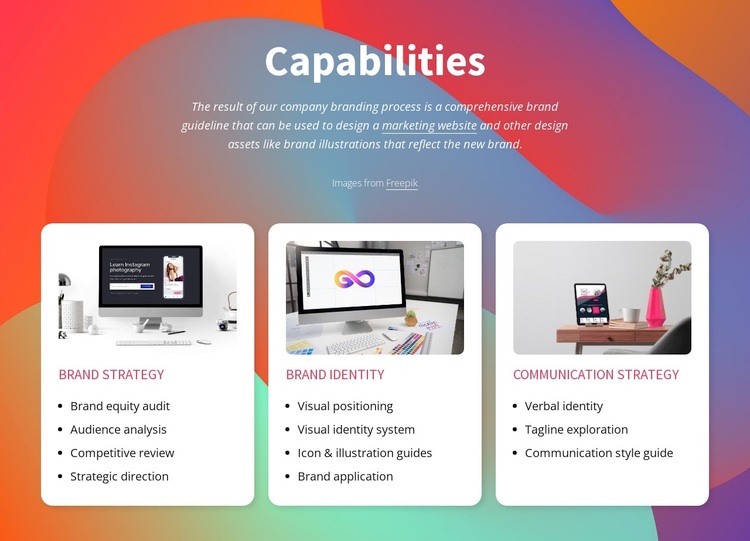
The block combines a centered “Capabilities” introduction with a three-column row rather than relying on a generic list or a larger card grid. That arrangement makes it a distinctive ready-made option for presenting a branding studio’s scope in a compact but detailed form. The three categories—Brand strategy, Brand identity, and Communication strategy—give the design a clear content purpose, while the repeated image-over-text treatment keeps the cards visually related.
Its content coverage is another reason to choose this section. The Brand strategy card contains four activities, the Brand identity card contains four, and the Communication strategy card contains three. Those lists move beyond category names by showing areas such as audience analysis, strategic direction, visual identity systems, tagline exploration, and communication style guidance. The result is a capability section that can explain both the breadth and the internal character of the offering without requiring a long continuous paragraph.
Visually, the multicolor abstract background creates a strong field for the centered white introduction, and the rounded white cards provide calm surfaces for detailed text. Accent-colored titles add a second level of distinction, while generous spacing prevents the three cards from becoming visually crowded. This makes the design useful when a page needs a service section with editorial presence and more information than a simple feature strip.
Customize with Nicepage
Open this ready-made template in the Template Builder and customize it visually in the Nicepage editor. Replace demo content, edit page sections, and adapt the design to your project without rebuilding the template from scratch.
Edit Template Offline
2. Create a new page or select existing
3. Click Add new block, search for id 2146612 and click enter
Edit Template Online
Create Awesome Websites


Free Nicepage Builder
Keywords
Start With a Ready-Made Template
Choose a Design for a New Page
Use a ready-made template as a starting point instead of creating every page from a blank canvas. When adding a new page in Nicepage, browse available designs, compare different layouts, and choose an option that already fits the general purpose and visual direction of your project.
Browse Different Page Designs
Explore Page Designs using search, thematic categories, Design Sets, and full-page previews. The collection includes layouts for different subjects and page purposes, making it easier to compare alternatives before selecting a design to customize.
Customize the Selected Template
After choosing a design, create the page and continue editing it visually in Nicepage. Replace the demo content, adjust images, typography, colors, sections, and other elements, and adapt the ready-made layout to your own content instead of rebuilding the design from the beginning.
Explore More Design Directions
If the first option does not match your project closely enough, return to the design collection and compare other templates before committing to a layout. This makes the template library useful not only for faster page creation, but also for exploring different visual approaches and finding a suitable starting point for a new project.
This workflow gives you access to a broad collection of ready-made designs that can be selected, compared, and customized according to the needs of each new page or project.