Great testimonials Template


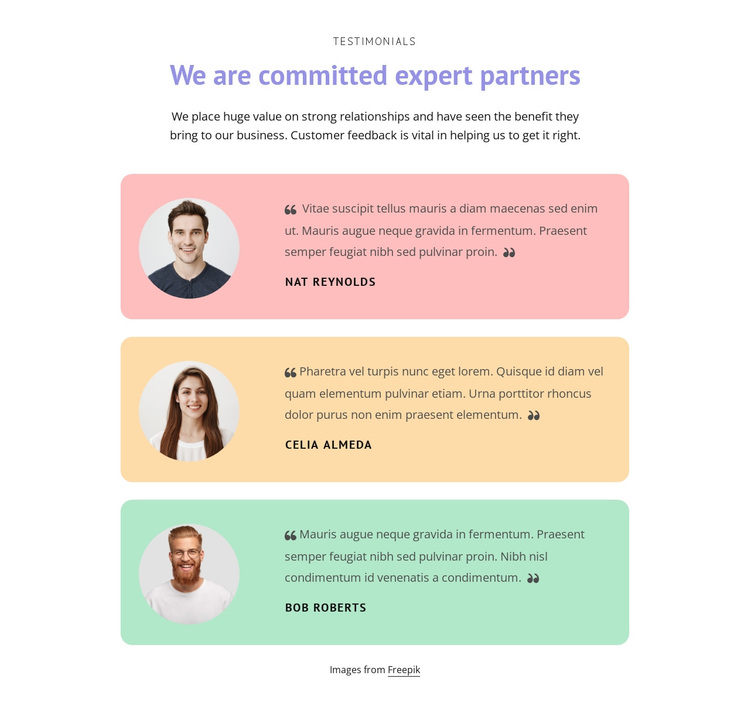
Three Portrait-Led Quotes Offer a Distinctive Section Choice
The section combines a centered testimonial introduction with a vertical sequence of three portrait-led cards. The heading “We are committed expert partners” gives the content a direct theme, while the eyebrow label and supporting paragraph provide a compact frame before visitors reach the individual quotations. This is more specific than a generic card layout because the repeated units connect visible people with written feedback.
The design also creates distinction through its visual treatment. Every card keeps the same portrait-left and text-right relationship, but the backgrounds move through soft pink, yellow, and green pastel tones. Rounded corners soften the boundaries, and generous white space around the centered column prevents the three entries from becoming a dense list. The result is a section with enough variation to guide scanning while retaining a strong repeated pattern.
This makes the block a useful choice when a page needs customer proof with a more personal presentation than plain text testimonials or a uniform grid. The vertical stack supports complete quote reading, and the circular portraits make each entry immediately identifiable. The section can be selected for its balance of testimonial coverage, human imagery, and gentle color variation, while the surrounding page remains responsible for the other content functions.
Customize with Nicepage
Open this ready-made template in the Template Builder and customize it visually in the Nicepage editor. Replace demo content, edit page sections, and adapt the design to your project without rebuilding the template from scratch.
Edit Template Offline
2. Create a new page or select existing
3. Click Add new block, search for id 462953 and click enter
Edit Template Online
Create Awesome Websites


Free Nicepage Builder
Keywords
Start With a Ready-Made Template
Choose a Design for a New Page
Use a ready-made template as a starting point instead of creating every page from a blank canvas. When adding a new page in Nicepage, browse available designs, compare different layouts, and choose an option that already fits the general purpose and visual direction of your project.
Browse Different Page Designs
Explore Page Designs using search, thematic categories, Design Sets, and full-page previews. The collection includes layouts for different subjects and page purposes, making it easier to compare alternatives before selecting a design to customize.
Customize the Selected Template
After choosing a design, create the page and continue editing it visually in Nicepage. Replace the demo content, adjust images, typography, colors, sections, and other elements, and adapt the ready-made layout to your own content instead of rebuilding the design from the beginning.
Explore More Design Directions
If the first option does not match your project closely enough, return to the design collection and compare other templates before committing to a layout. This makes the template library useful not only for faster page creation, but also for exploring different visual approaches and finding a suitable starting point for a new project.
This workflow gives you access to a broad collection of ready-made designs that can be selected, compared, and customized according to the needs of each new page or project.