Stand out from others Template
Edit Template Offline
2. Create new page and search for id 183979
Edit Template Online
Create Awesome Websites


Free Nicepage Builder
Keywords
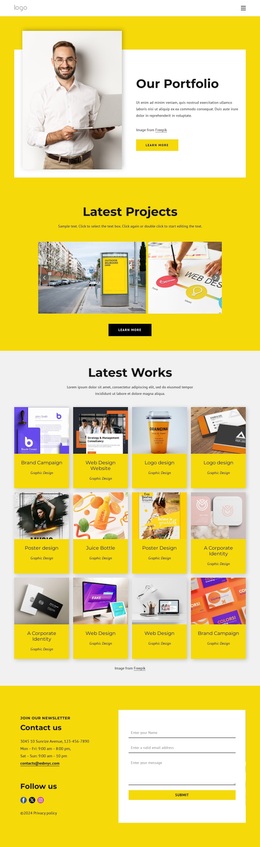
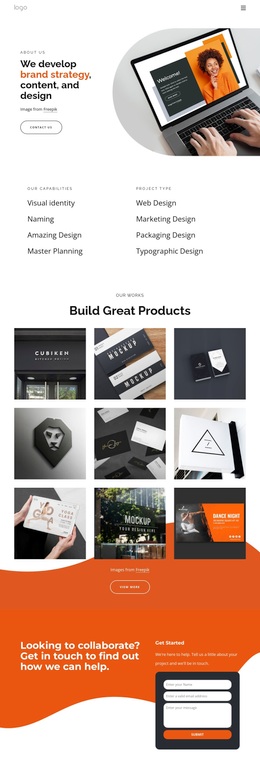
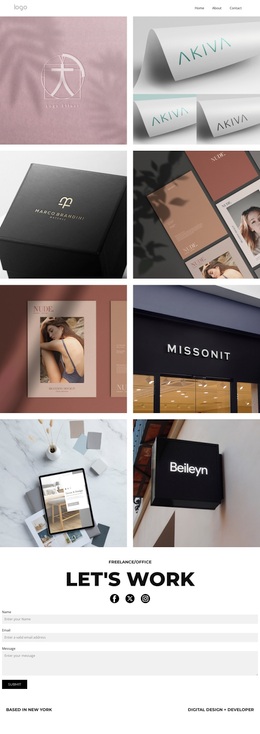
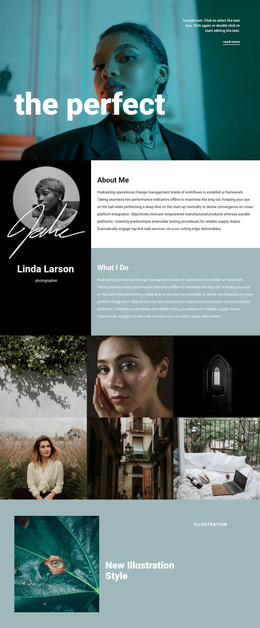
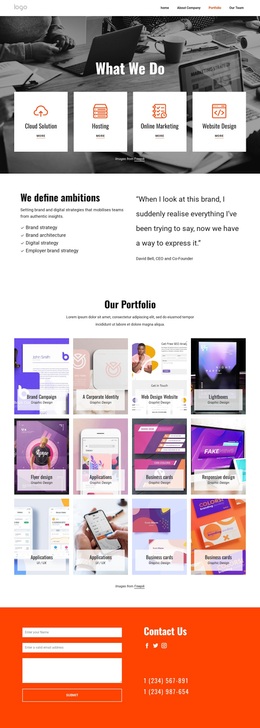
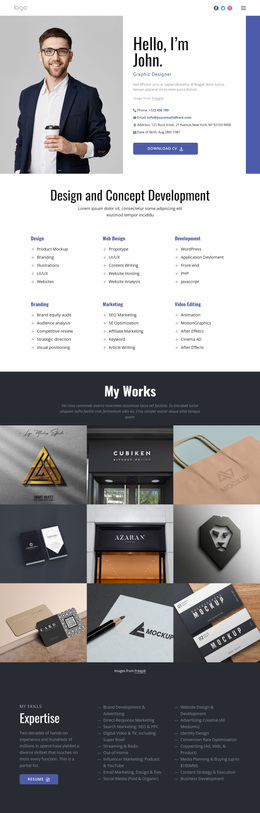
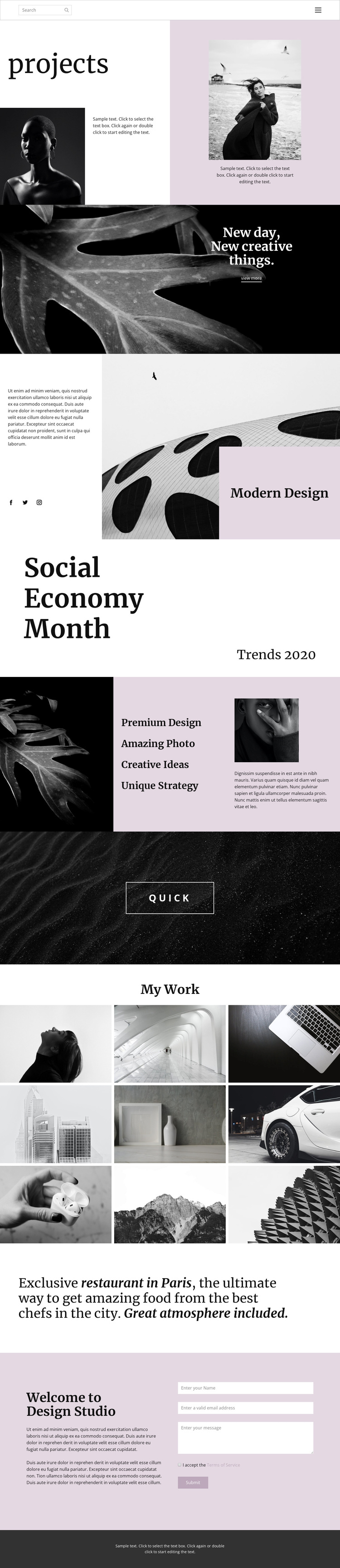
Nine portfolio images anchor a distinctive creative studio direction
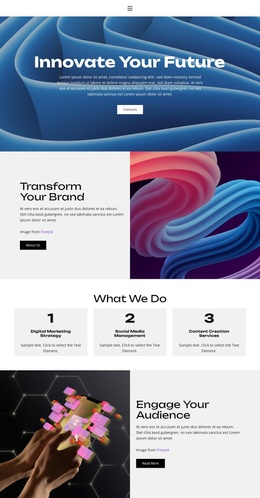
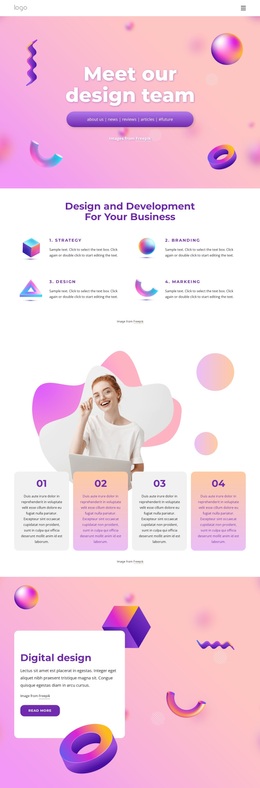
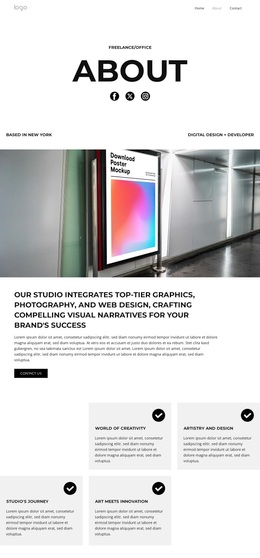
The projects introduction gives this design a clear starting point: a large editorial heading sits beside photographic areas and supporting text, so creative work is established before the page explains capabilities. The full-width statement “New day, New creative things.” continues that emphasis through a short message over photography and a View more action. This image-led approach is reinforced by the Modern Design section, where a large photographic panel, descriptive text, and social links create a compact presentation of the studio’s public character.
The capability area adds useful coverage without replacing the visual focus. Premium Design, Amazing Photo, Creative Ideas, and Unique Strategy are arranged as distinct labels alongside imagery and supporting copy, giving visitors several ways to understand the work. The My Work gallery then expands the visual evidence into nine portfolio images, making the template especially suitable for projects where examples carry as much weight as explanatory text. A separate editorial statement adds variety before the closing Design Studio section combines an introduction with a contact form requesting a name, email address, and message. The page is worth choosing when a studio needs an expressive portfolio option that connects visual work, creative positioning, social presence, and direct inquiry in one coherent direction.
Customize with Nicepage
Open this ready-made template in the Template Builder and customize it visually in the Nicepage editor. Replace demo content, edit page sections, and adapt the design to your project without rebuilding the template from scratch.
Start With a Ready-Made Template
Choose a Design for a New Page
Use a ready-made template as a starting point instead of creating every page from a blank canvas. When adding a new page in Nicepage, browse available designs, compare different layouts, and choose an option that already fits the general purpose and visual direction of your project.
Browse Different Page Designs
Explore Page Designs using search, thematic categories, Design Sets, and full-page previews. The collection includes layouts for different subjects and page purposes, making it easier to compare alternatives before selecting a design to customize.
Customize the Selected Template
After choosing a design, create the page and continue editing it visually in Nicepage. Replace the demo content, adjust images, typography, colors, sections, and other elements, and adapt the ready-made layout to your own content instead of rebuilding the design from the beginning.
Explore More Design Directions
If the first option does not match your project closely enough, return to the design collection and compare other templates before committing to a layout. This makes the template library useful not only for faster page creation, but also for exploring different visual approaches and finding a suitable starting point for a new project.
This workflow gives you access to a broad collection of ready-made designs that can be selected, compared, and customized according to the needs of each new page or project.