Free people Template


Edit Template Offline
2. Create new page and search for id 18342
Edit Template Online
Create Awesome Websites


Free Nicepage Builder
Keywords
A Gallery-Led Choice for Fashion Storytelling
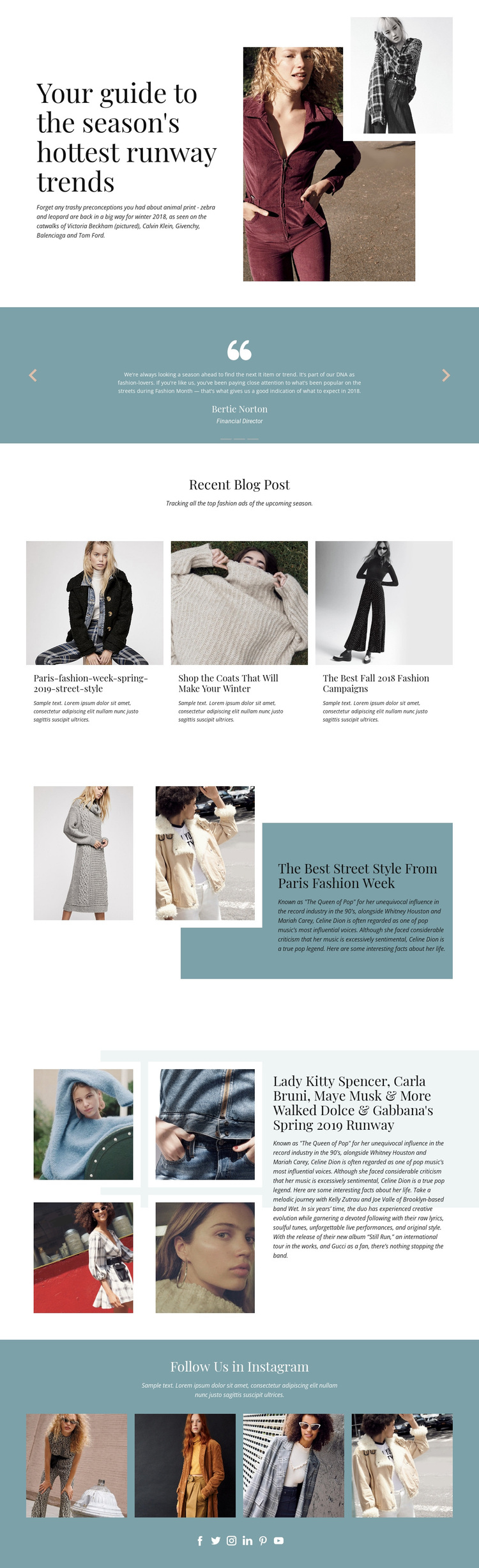
The design makes photography the main carrier of its editorial message. A tall opening collage places two fashion images beside the seasonal runway headline, immediately establishing a visual subject before the page introduces its article groups. That emphasis continues through three recent fashion article cards, the two-image Paris Fashion Week feature, and the four-image runway collage. The repeated use of image-led sections gives the design a clear identity for projects where visual context matters as much as written commentary.
Its content coverage is also broader than a single feature story. The page can present short article selections, a more developed street-style feature, a runway-focused visual story, and a social photo showcase within one coordinated layout. The three-slide testimonial carousel adds a contrasting editorial pause, while the muted blue panels help separate supporting content from the photography. This combination gives the design several ways to balance discovery, reading, and visual browsing.
The result is a useful option for fashion trend coverage, campaign commentary, or an editorial publication concept that needs a recognizable magazine rhythm. It is worth choosing for the relationship between serif display type, white space, collage-style composition, and recurring fashion imagery—not because the sample names, dates, or article copy should be treated as verified facts. Those placeholders can be replaced while the underlying visual storytelling structure remains intact.
Customize with Nicepage
Open this ready-made template in the Template Builder and customize it visually in the Nicepage editor. Replace demo content, edit page sections, and adapt the design to your project without rebuilding the template from scratch.
Start With a Ready-Made Template
Choose a Design for a New Page
Use a ready-made template as a starting point instead of creating every page from a blank canvas. When adding a new page in Nicepage, browse available designs, compare different layouts, and choose an option that already fits the general purpose and visual direction of your project.
Browse Different Page Designs
Explore Page Designs using search, thematic categories, Design Sets, and full-page previews. The collection includes layouts for different subjects and page purposes, making it easier to compare alternatives before selecting a design to customize.
Customize the Selected Template
After choosing a design, create the page and continue editing it visually in Nicepage. Replace the demo content, adjust images, typography, colors, sections, and other elements, and adapt the ready-made layout to your own content instead of rebuilding the design from the beginning.
Explore More Design Directions
If the first option does not match your project closely enough, return to the design collection and compare other templates before committing to a layout. This makes the template library useful not only for faster page creation, but also for exploring different visual approaches and finding a suitable starting point for a new project.
This workflow gives you access to a broad collection of ready-made designs that can be selected, compared, and customized according to the needs of each new page or project.