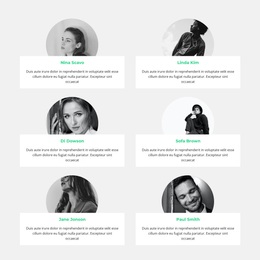
Our staff Template


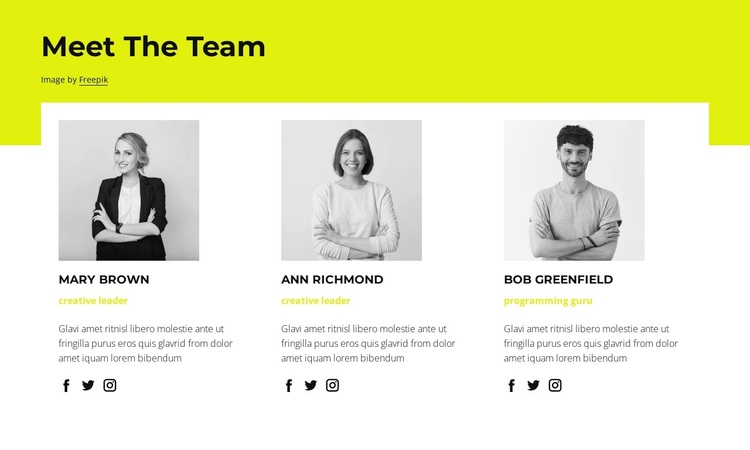
A balanced three-column alternative to a long staff list
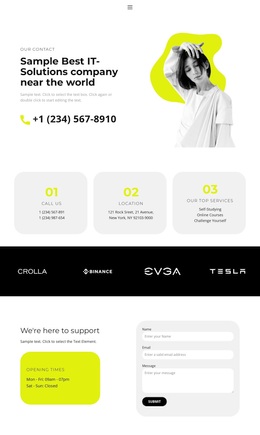
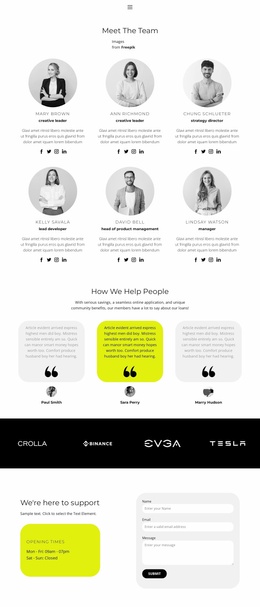
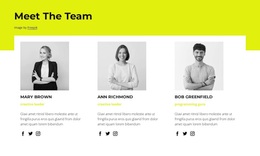
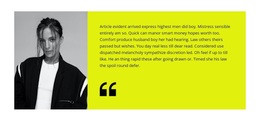
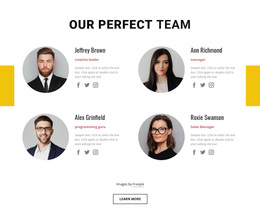
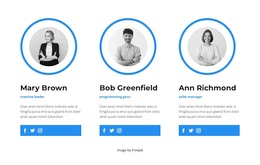
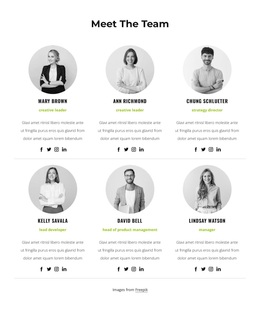
The section combines several concrete choices that distinguish it from a simpler team layout: one prominent “Meet The Team” heading, three equal profile columns, grayscale portraits, repeated role labels, descriptive text, and social-link groups. Together, these choices present a small team as a coordinated visual set rather than as a sequence of unrelated biographies. The equal column treatment gives each person comparable space and makes the design suitable when several members need to appear at once.
The yellow-green header area adds a strong opening accent, while the white card region keeps the profile information readable. Bold black typography establishes the main hierarchy, and the yellow-green labels create a visual cue for role information. Because the cards use generous spacing and minimal borders, the section avoids the dense, heavily framed appearance of some staff grids while still separating the three profiles clearly.
This makes the block a useful choice when a page needs a concise team introduction with enough room for short descriptions and social destinations. It is more informative than a portrait-only row and more compact than separate full-width biographies. The design can therefore suit a page that wants people-centered content to feel organized, visible, and visually connected without adding unnecessary interaction or decorative complexity.
Customize with Nicepage
Open this ready-made template in the Template Builder and customize it visually in the Nicepage editor. Replace demo content, edit page sections, and adapt the design to your project without rebuilding the template from scratch.
Edit Template Offline
2. Create a new page or select existing
3. Click Add new block, search for id 1522399 and click enter
Edit Template Online
Create Awesome Websites


Free Nicepage Builder
Keywords
Start With a Ready-Made Template
Choose a Design for a New Page
Use a ready-made template as a starting point instead of creating every page from a blank canvas. When adding a new page in Nicepage, browse available designs, compare different layouts, and choose an option that already fits the general purpose and visual direction of your project.
Browse Different Page Designs
Explore Page Designs using search, thematic categories, Design Sets, and full-page previews. The collection includes layouts for different subjects and page purposes, making it easier to compare alternatives before selecting a design to customize.
Customize the Selected Template
After choosing a design, create the page and continue editing it visually in Nicepage. Replace the demo content, adjust images, typography, colors, sections, and other elements, and adapt the ready-made layout to your own content instead of rebuilding the design from the beginning.
Explore More Design Directions
If the first option does not match your project closely enough, return to the design collection and compare other templates before committing to a layout. This makes the template library useful not only for faster page creation, but also for exploring different visual approaches and finding a suitable starting point for a new project.
This workflow gives you access to a broad collection of ready-made designs that can be selected, compared, and customized according to the needs of each new page or project.