Successful teamwork Website Template


A Focused Opening for a Broader Engineering Site
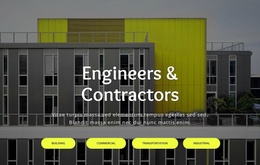
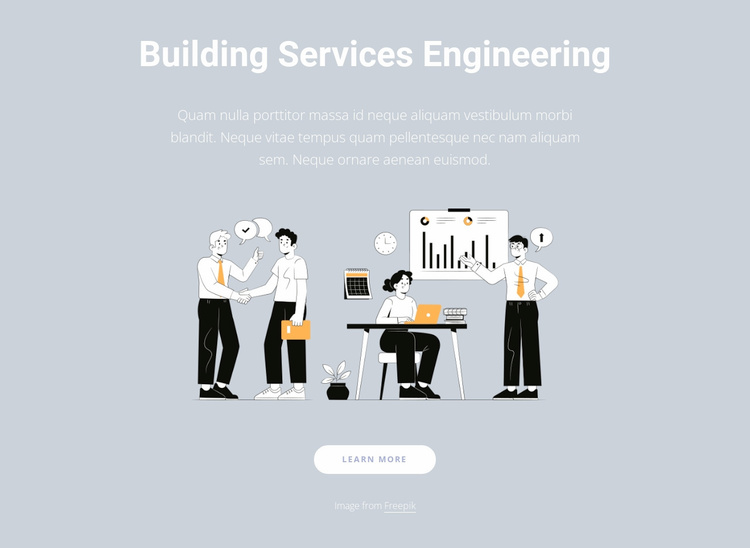
The centered stack gives this block a stable role within a broader website project: it introduces Building Services Engineering before other sections provide depth. The heading names the subject, the supporting paragraph supplies a concise explanation, and the single illustration turns the topic into a visible editorial moment. Placing the image between the paragraph and the rounded “Learn more” button creates a simple route from introduction to further exploration without adding competing actions.
As a reusable website section, this arrangement can open an engineering-services page or provide an entry point before more detailed offerings, project information, or contact content. The generous spacing helps the block stand apart from neighboring sections, while the light cool-gray background and white typography give it a defined presentation that can be coordinated with the wider site. The centered composition is especially useful when the project needs one message rather than a multi-item service grid.
The static behavior keeps the section’s purpose direct: visitors read the subject, take in the illustration, and can choose the Learn more destination. The visible Freepik credit is part of the image context and should remain connected to the artwork when reused. This block contributes one introductory content area to a larger website project; it does not supply the project’s complete navigation, service architecture, or page set.
Customize with Nicepage
Open this ready-made template in the Website Template Builder and customize it visually in the Nicepage editor. Replace demo content, edit page sections, and adapt the design to your project without rebuilding the template from scratch.
Edit Template Offline
2. Create a new page or select existing
3. Click Add new block, search for id 897219 and click enter
Edit Template Online
Create Awesome Websites


Free Nicepage Builder
Keywords
Build a Complete Website From This Template
Customize the Website Visually
Use this ready-made website template as a starting point for your project and adapt its pages visually in Nicepage. Change content, images, typography, navigation, sections, and other design elements while keeping the website together as a single editable project.
Manage Website Pages in One Project
Use the Pages panel to open, add, duplicate, and manage the pages of your website. Work on individual pages while keeping navigation and the overall site structure accessible from the same project, making it easier to develop a complete website instead of managing separate page files.
Expand the Website With Matching Designs
When you need additional pages or sections, use Page Design Sets to find Page and Block Designs created in the same visual style. Design Sets group matching designs together, making it easier to expand the website with new content while maintaining a consistent look across its pages and sections.
Organize Larger Multi-Page Websites
As the website grows, use Page Folders to organize related pages and keep larger multi-page projects easier to navigate in the editor. This is especially useful for websites with separate service pages, company information, contacts, landing pages, and other content areas.
This workflow makes the template a practical foundation for building and expanding a complete website while managing its pages, content, and visual design within one Nicepage project.