Top Construction Companes Website Template



A Reusable Construction Editorial Section With Two Distinct Image Views
The block provides a focused content area that a broader website project could reuse for construction or civil engineering information. Its two-part heading, “Top 10” and “Construction Companies,” establishes the subject, while the supporting paragraph develops it through references to civil engineering graduates, design engineers, project managers, and consultants. This gives the section a stable editorial purpose that can remain separate from other site areas handling services, projects, contact details, or company information.
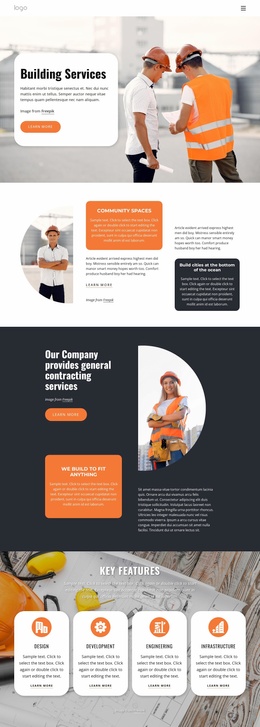
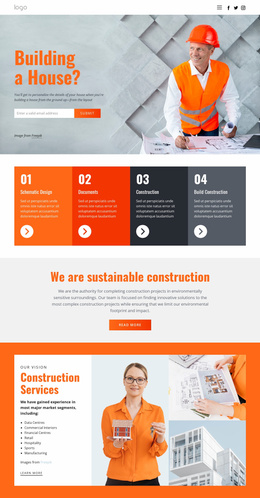
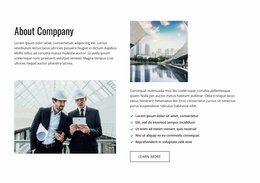
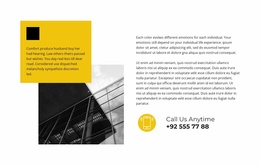
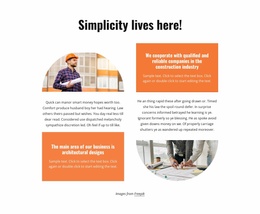
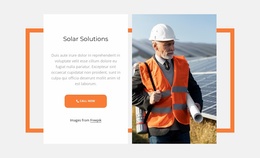
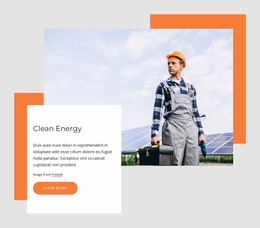
The layout also gives the section a recognizable pattern. A large photograph of a construction worker in a hard hat and orange safety vest anchors the left side, while the right side combines the explanatory text with a lower photograph of workers reviewing plans. The two images show different aspects of the same construction context, and the orange and teal rectangular accents visually connect them. That combination can be repeated as a content-area direction when related sections need a similar balance of editorial copy and photography.
Within a Website Template project, the block works as one coordinated section rather than as a complete site structure. Its static content and image-led split can be placed beside other blocks that provide different information. The surrounding project can establish broader navigation, page relationships, and shared styling, while this section contributes a specific construction-focused narrative with a strong visual identity and clear internal hierarchy.
Customize with Nicepage
Open this ready-made template in the Website Template Builder and customize it visually in the Nicepage editor. Replace demo content, edit page sections, and adapt the design to your project without rebuilding the template from scratch.
Edit Template Offline
2. Create a new page or select existing
3. Click Add new block, search for id 74548 and click enter
Edit Template Online
Create Awesome Websites


Free Nicepage Builder
Keywords
Build a Complete Website From This Template
Customize the Website Visually
Use this ready-made website template as a starting point for your project and adapt its pages visually in Nicepage. Change content, images, typography, navigation, sections, and other design elements while keeping the website together as a single editable project.
Manage Website Pages in One Project
Use the Pages panel to open, add, duplicate, and manage the pages of your website. Work on individual pages while keeping navigation and the overall site structure accessible from the same project, making it easier to develop a complete website instead of managing separate page files.
Expand the Website With Matching Designs
When you need additional pages or sections, use Page Design Sets to find Page and Block Designs created in the same visual style. Design Sets group matching designs together, making it easier to expand the website with new content while maintaining a consistent look across its pages and sections.
Organize Larger Multi-Page Websites
As the website grows, use Page Folders to organize related pages and keep larger multi-page projects easier to navigate in the editor. This is especially useful for websites with separate service pages, company information, contacts, landing pages, and other content areas.
This workflow makes the template a practical foundation for building and expanding a complete website while managing its pages, content, and visual design within one Nicepage project.