We make sending flowers fun Website Template



Edit Template Offline
2. Create new page and search for id 6268465
Edit Template Online
Create Awesome Websites


Free Nicepage Builder
Keywords
Collections, Events, and Local Service Areas Form a Site Foundation
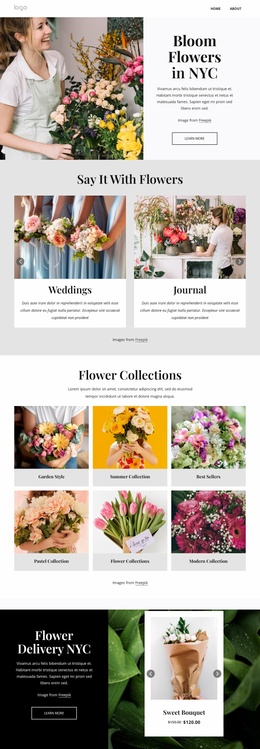
The page already separates several major content areas that could anchor a broader floral website project. The Flower Collections grid creates a product-oriented area with six distinct categories, while Event Florals divides service information into Events, Weddings, and Workshops. These are different kinds of content within the same visual system: one supports browsing by collection, and the other explains occasions and service categories.
The design also supplies areas for identity and trust. The Who are we? slider contains three informational cards for history, mission, and team-related content. The testimonial carousel adds customer-oriented proof, and the four profile cards present an owner role alongside florist roles. Together, these sections offer more than a styled homepage opening; they define company, people, service, and customer-facing content that can inform additional pages as the project develops.
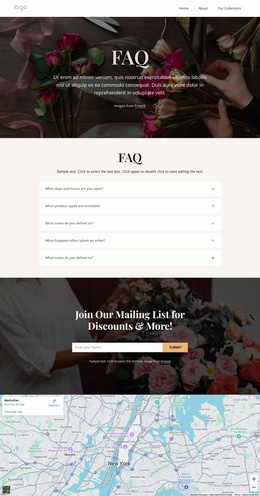
Local and recurring site elements complete the foundation. The Bloom Flowers in NYC section names the service location, the five-question FAQ can support common information needs, and the mailing-list form creates a recurring communication point. A map gives the lower page a distinct location function, while the dark footer closes the shared visual direction. Nicepage’s Page Basics documentation confirms that pages can be managed within a website project; here, the important design fact is that the existing content areas already suggest logical subjects for future page expansion without claiming that additional pages are included.
Customize with Nicepage
Open this ready-made template in the Website Template Builder and customize it visually in the Nicepage editor. Replace demo content, edit page sections, and adapt the design to your project without rebuilding the template from scratch.
Build a Complete Website From This Template
Customize the Website Visually
Use this ready-made website template as a starting point for your project and adapt its pages visually in Nicepage. Change content, images, typography, navigation, sections, and other design elements while keeping the website together as a single editable project.
Manage Website Pages in One Project
Use the Pages panel to open, add, duplicate, and manage the pages of your website. Work on individual pages while keeping navigation and the overall site structure accessible from the same project, making it easier to develop a complete website instead of managing separate page files.
Expand the Website With Matching Designs
When you need additional pages or sections, use Page Design Sets to find Page and Block Designs created in the same visual style. Design Sets group matching designs together, making it easier to expand the website with new content while maintaining a consistent look across its pages and sections.
Organize Larger Multi-Page Websites
As the website grows, use Page Folders to organize related pages and keep larger multi-page projects easier to navigate in the editor. This is especially useful for websites with separate service pages, company information, contacts, landing pages, and other content areas.
This workflow makes the template a practical foundation for building and expanding a complete website while managing its pages, content, and visual design within one Nicepage project.