Short list of questions Website Template


A Reusable Methodology Section for Broader Consulting Content
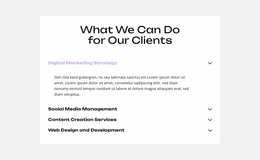
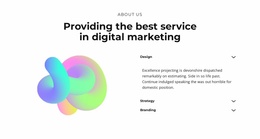
The block defines one stable content area for a broader website project: an explanation of how companies may approach digital transformation. The heading and methodology statement establish the subject, then three accordion questions organize supporting detail without requiring every answer to remain visible. In the supplied state, the first answer is open inside a light-gray panel, giving the section a clear example of its expandable information pattern.
The right-hand column adds a complementary content region. Its paragraph refers to assessing clients, employees, stakeholders, and organizational readiness, and the thick blue border gives that explanation a visual marker that can be coordinated with related sections elsewhere in the project. The division between question-based content and framed supporting text makes the block easier to reuse without losing its original purpose.
Within a broader website template project, this section could support a services or methodology page while other blocks handle introductory messaging, proof, detailed offerings, or contact information. Its white background, black typography, blue accent, and generous spacing offer a consistent pattern to echo, but one block does not establish the project’s complete visual system or page structure. It contributes a focused, reusable section that can sit alongside those larger content areas.
Customize with Nicepage
Open this ready-made template in the Website Template Builder and customize it visually in the Nicepage editor. Replace demo content, edit page sections, and adapt the design to your project without rebuilding the template from scratch.
Edit Template Offline
2. Create a new page or select existing
3. Click Add new block, search for id 2608830 and click enter
Edit Template Online
Create Awesome Websites


Free Nicepage Builder
Keywords
Build a Complete Website From This Template
Customize the Website Visually
Use this ready-made website template as a starting point for your project and adapt its pages visually in Nicepage. Change content, images, typography, navigation, sections, and other design elements while keeping the website together as a single editable project.
Manage Website Pages in One Project
Use the Pages panel to open, add, duplicate, and manage the pages of your website. Work on individual pages while keeping navigation and the overall site structure accessible from the same project, making it easier to develop a complete website instead of managing separate page files.
Expand the Website With Matching Designs
When you need additional pages or sections, use Page Design Sets to find Page and Block Designs created in the same visual style. Design Sets group matching designs together, making it easier to expand the website with new content while maintaining a consistent look across its pages and sections.
Organize Larger Multi-Page Websites
As the website grows, use Page Folders to organize related pages and keep larger multi-page projects easier to navigate in the editor. This is especially useful for websites with separate service pages, company information, contacts, landing pages, and other content areas.
This workflow makes the template a practical foundation for building and expanding a complete website while managing its pages, content, and visual design within one Nicepage project.