Spiral Architecture Website Template


Edit Template Offline
2. Create new page and search for id 16622
Edit Template Online
Create Awesome Websites


Free Nicepage Builder
Keywords
Architecture, Interiors, and Galleries Form a Site Foundation
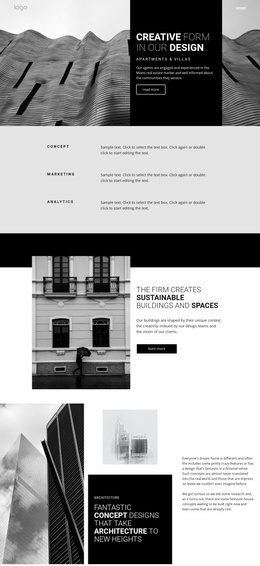
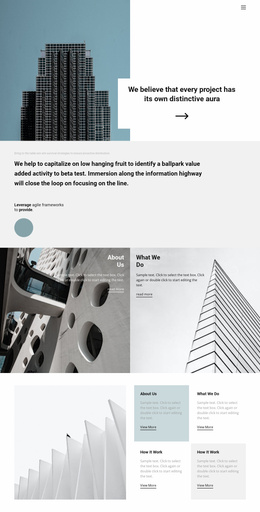
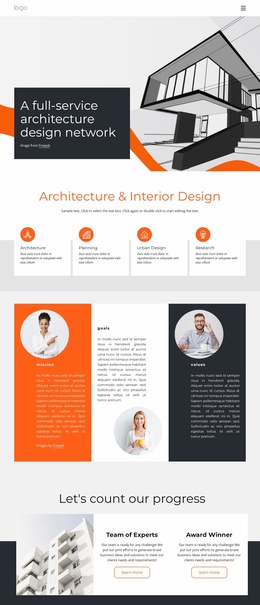
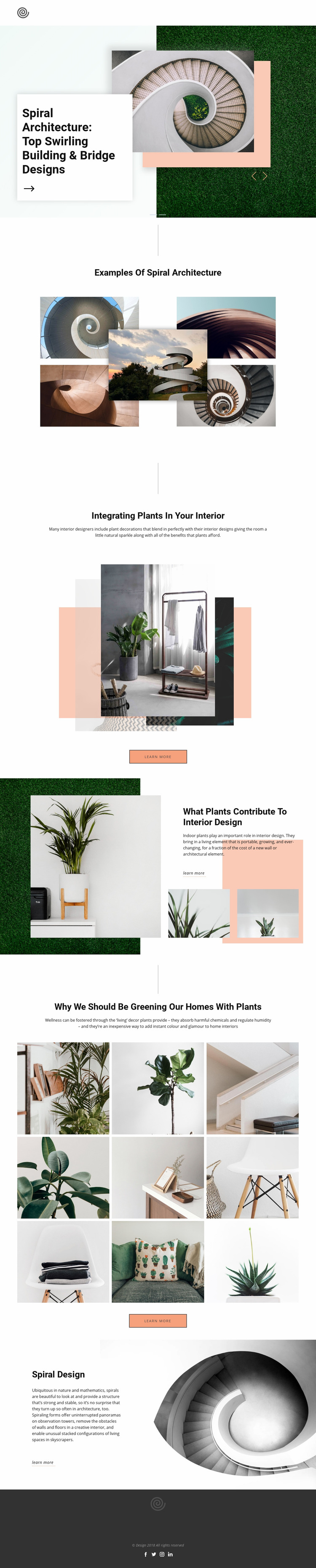
The page already establishes several major content areas that can anchor a broader architecture or interior design website. Its full-width opening slider introduces the subject through a strong editorial headline and architectural imagery, while the five-image “Examples of Spiral Architecture” gallery gives the project a dedicated area for visual references. Together, these sections provide an initial distinction between an introductory story and a focused collection of examples.
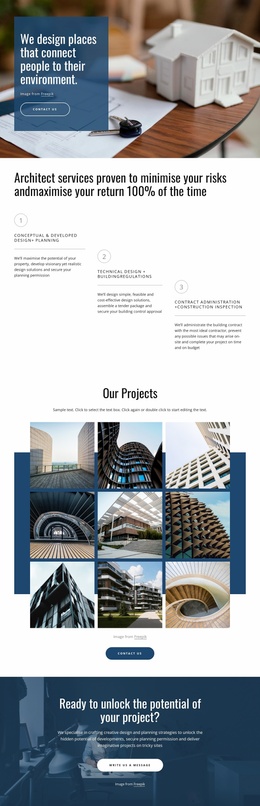
The interior sequence broadens the foundation without losing that visual direction. “Integrating Plants in Your Interior” creates a subject area for explanatory content, and the following split section develops the role of plants through a larger image, smaller supporting images, and text. The nine-image gallery then supplies a second, denser visual area centered on plant-filled homes and interior details. These relationships suggest natural paths for future content expansion, such as additional architectural examples, interior topics, or related image-led features, without claiming that those additional pages already exist.
Header navigation and the dark footer provide shared framing for the current page. The footer combines navigation, branding, copyright text, and social links, including Facebook, Twitter, Instagram, and LinkedIn. That combination gives a wider project recognizable shared elements while the page’s dark green, peach, charcoal, and white-space treatment provides a consistent visual direction for related content.
Customize with Nicepage
Open this ready-made template in the Website Template Builder and customize it visually in the Nicepage editor. Replace demo content, edit page sections, and adapt the design to your project without rebuilding the template from scratch.
Build a Complete Website From This Template
Customize the Website Visually
Use this ready-made website template as a starting point for your project and adapt its pages visually in Nicepage. Change content, images, typography, navigation, sections, and other design elements while keeping the website together as a single editable project.
Manage Website Pages in One Project
Use the Pages panel to open, add, duplicate, and manage the pages of your website. Work on individual pages while keeping navigation and the overall site structure accessible from the same project, making it easier to develop a complete website instead of managing separate page files.
Expand the Website With Matching Designs
When you need additional pages or sections, use Page Design Sets to find Page and Block Designs created in the same visual style. Design Sets group matching designs together, making it easier to expand the website with new content while maintaining a consistent look across its pages and sections.
Organize Larger Multi-Page Websites
As the website grows, use Page Folders to organize related pages and keep larger multi-page projects easier to navigate in the editor. This is especially useful for websites with separate service pages, company information, contacts, landing pages, and other content areas.
This workflow makes the template a practical foundation for building and expanding a complete website while managing its pages, content, and visual design within one Nicepage project.