The most common problems Website Design


Repeated FAQ Treatments Establish a Practical Visual Language
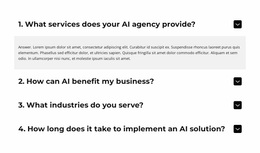
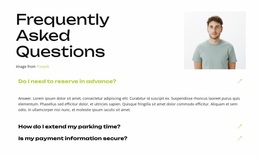
The block’s visual identity comes from repetition rather than decoration. A white field supports a bold black heading, dark question labels, and horizontal divider lines that extend across the FAQ rows. The same left-aligned label and right-aligned chevron treatment appears four times, creating a consistent component language for the rental topics: daily-rate inclusions, mileage planning, extra insurance, and full-tank return terms.
The active state introduces the strongest visual variation. A light gray fill separates the open row from the white inactive rows, while the yellow bottom accent supplies a recognizable highlight. The compact answer text remains dark and controlled, so the expanded content belongs to the same visual system instead of appearing as a separate panel style. These relationships give the section a clear character that other content areas could reference through similar accents, divider logic, or typography contrast.
Within a broader website design, this block can contribute an information-focused expression of the project’s visual language. Its palette and repeated controls can be echoed in service lists, policy details, or other structured content, while the FAQ remains responsible for rental questions. The block demonstrates a coherent style direction without needing to define every color, font, or component used elsewhere in the site.
Customize with Nicepage
Open this ready-made template in the Website Design Builder and customize it visually in the Nicepage editor. Replace demo content, edit page sections, and adapt the design to your project without rebuilding the template from scratch.
Edit Template Offline
2. Create a new page or select existing
3. Click Add new block, search for id 387950 and click enter
Edit Template Online
Create Awesome Websites


Free Nicepage Builder
Keywords
Create a Consistent Design Across the Website
Define a Site-Wide Visual Style
Use Theme Settings to establish the visual foundation of the website across its pages and sections. Set global Colors, Fonts, and Typography so the site follows the same design direction instead of styling each page independently.
Coordinate Colors and Typography
Choose a color scheme and font combination that fit the character of the website, then fine-tune Headings H1-H6, regular Text, links, buttons, quotes, lists, and other typography styles. Consistent use of these settings helps create a clear visual hierarchy and keeps recurring design elements recognizable throughout the website.
Add Motion and Interaction
Use Animation Effects to make the website design more dynamic and interactive. Elements and Containers can use effects such as Run On Display, Animation On Hover, and Animation Sync With Scroll to introduce content as visitors move through the site or respond to user interaction. Animation Presets provide ready-made effects that can be adapted to the visual style of the website.
Keep the Website Visually Consistent
Apply the same design direction to shared website elements such as the Header, Menu, and Footer. The Theme Settings Panel brings common site-wide styling controls together, making it easier to maintain a coordinated look as the website expands across multiple pages.
This workflow makes the template a useful starting point for creating a website with a consistent visual identity, coordinated colors and typography, shared design rules, and interactive effects across its pages.